This time we’re going bigger than ever. Fabric, Power BI, SQL, AI and more. We're covering it all. You won't want to miss it.
Learn moreGet Fabric Certified for FREE during AI Skills Fest. This week only. Secure your voucher now.
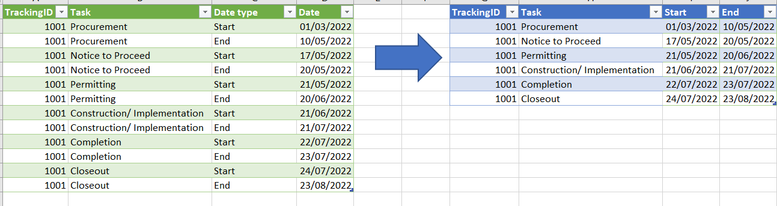
Hi! Can you help me transform the table below to show the start and end date to be the columns? Thank you! I tried transform and unpivot but I cant seem to get it.
Cheers!
Solved! Go to Solution.
Hi,
In the Query Editor, click on any cell in the Date type column and under Transform, click on the Pivot button. In the drop down, select Date. Expand the Options triangle and select Don't aggregate.
Hope this helps.
Hi,
In the Query Editor, click on any cell in the Date type column and under Transform, click on the Pivot button. In the drop down, select Date. Expand the Options triangle and select Don't aggregate.
Hope this helps.
Thank you very much! You saved me lots! 🙂
You are welcome.
@Anonymous , Pivot Date Type and Date
Don't miss out on Data Days, June 15 through August 7. Learn Fabric, Power BI, SQL, AI and more.
Check out the May 2026 Power BI update to learn about new features.
| User | Count |
|---|---|
| 23 | |
| 23 | |
| 21 | |
| 20 | |
| 15 |
| User | Count |
|---|---|
| 58 | |
| 55 | |
| 42 | |
| 26 | |
| 24 |