Join us at FabCon Atlanta from March 16 - 20, 2026, for the ultimate Fabric, Power BI, AI and SQL community-led event. Save $200 with code FABCOMM.
Register now!The Power BI Data Visualization World Championships is back! It's time to submit your entry. Live now!
Hello,
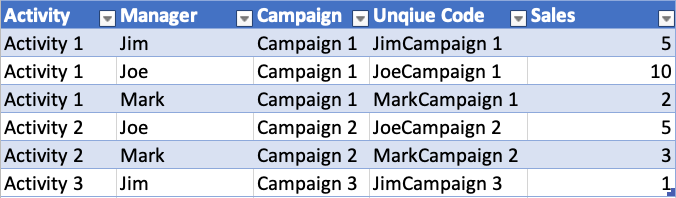
I have a table that I'd like to transform depending on a slicer choice. The table has the following data:
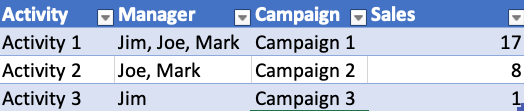
I want to create a visual that displays the data above with a slicer for the Manager. When no specific manager is selected (so ALL) I want the data to appear as this:
Then when I select a manager in a slicer (let's say I pick Joe) I want to show the following.
I am guessing I have to invoke some type of grouping or splitting function when the slicer changes, but I am not sure and don't know how to do that in Power BI.
Any help would be appreciated!
Solved! Go to Solution.
@shaebert - You can create a new Measure:
Managers = CONCATENATEX(VALUES(Table1[Managers]), [Managers],",")
Hope this helps,
Nathan
@shaebert add following measure
Managers = CONCATENATEX( Table4, FIRSTNONBLANK(Table4[Manager],""), "," )
Put table visual and add columns Activity, Managers (new measure), Campaign and Sales in it and you will get the result.
Subscribe to the @PowerBIHowTo YT channel for an upcoming video on List and Record functions in Power Query!!
Learn Power BI and Fabric - subscribe to our YT channel - Click here: @PowerBIHowTo
If my solution proved useful, I'd be delighted to receive Kudos. When you put effort into asking a question, it's equally thoughtful to acknowledge and give Kudos to the individual who helped you solve the problem. It's a small gesture that shows appreciation and encouragement! ❤
Did I answer your question? Mark my post as a solution. Proud to be a Super User! Appreciate your Kudos 🙂
Feel free to email me with any of your BI needs.
@shaebert - You can create a new Measure:
Managers = CONCATENATEX(VALUES(Table1[Managers]), [Managers],",")
Hope this helps,
Nathan
The Power BI Data Visualization World Championships is back! It's time to submit your entry.
Check out the January 2026 Power BI update to learn about new features.
| User | Count |
|---|---|
| 60 | |
| 49 | |
| 30 | |
| 25 | |
| 23 |
| User | Count |
|---|---|
| 131 | |
| 103 | |
| 58 | |
| 39 | |
| 31 |