cancel
Showing results for 
Search instead for 
Did you mean: 

Next up in the FabCon + SQLCon recap series: The roadmap for Microsoft SQL and Maximizing Developer experiences in Fabric. All sessions are available on-demand after the live show. Register now

Reply
Anonymous
Not applicable

Query Editor - Lookup value between Indexed rows?

So I have a lookup table in Query Editor that would be structured as follows:


ID Column:    Index Column:

1003                     1

2004                    76

4543                    98

3431                    231


I have an original table that has index values from 1-250. What I want to do is do a lookup from the original table into the lookup table. So in rows 1-75 in the original table I want to bring in the corresponding ID from the lookup table. So rows 1-75 would return 1003, then rows 76-97 would return 2004, 98-230 would return 4543, and greater than 231 would return 3431. Is there an easy way to do this?


The other way I was thinking is to somehow dynamically add rows in between the index rows in my lookup table. So somehow add rows 2-97 between the first two rows on my lookup table. So then I would have rows 1-231 and then the corresponding ID number. Then it would be a simple lookup from the original table into this table.

1 ACCEPTED SOLUTION
edhans
Community Champion
Community Champion

I did the method to add rows to your table. Paste this code into a blank query in Power Query - get rid of the misc. text a Blank Query starts with.


let
    Source = Table.FromRows(Json.Document(Binary.Decompress(Binary.FromText("i45WMjQwMFbSUTJUitWJVjIyMDABcszNwDwTUxOQlKUFmGdsYmwI5BkBydhYAA==", BinaryEncoding.Base64), Compression.Deflate)), let _t = ((type text) meta [Serialized.Text = true]) in type table [#"D Column:" = _t, #"Index Column:" = _t]),
    #"Changed Type" = Table.TransformColumnTypes(Source,{{"D Column:", Int64.Type}, {"Index Column:", Int64.Type}}),
    #"Added Index" = Table.AddIndexColumn(#"Changed Type", "Index", 0, 1),
    #"Added Index1" = Table.AddIndexColumn(#"Added Index", "Index.1", 1, 1),
    #"Merged Queries" = Table.NestedJoin(#"Added Index1", {"Index.1"}, #"Added Index1", {"Index"}, "Added Index1", JoinKind.LeftOuter),
    #"Expanded Added Index1" = Table.ExpandTableColumn(#"Merged Queries", "Added Index1", {"Index Column:"}, {"Index Column:.1"}),
    #"Added New Index" = Table.AddColumn(#"Expanded Added Index1", "New Index", each if [#"Index Column:.1"] <> null
then {[#"Index Column:"] .. [#"Index Column:.1"] - 1} 
else {[#"Index Column:"] }),
    #"Expanded List Data" = Table.ExpandListColumn(#"Added New Index", "New Index"),
    #"Changed Type1" = Table.TransformColumnTypes(#"Expanded List Data",{{"New Index", Int64.Type}}),
    #"Removed Other Columns" = Table.SelectColumns(#"Changed Type1",{"D Column:", "New Index"})
in
    #"Removed Other Columns"


What this does is:

  1. Creates two new indexes, one starting at 0, the other at 1.
  2. I then merge the table withitself - the #1 index to the #0 index
  3. I then expand your original "Index" column. Now I have the end number of the range, which is the value for the next item.
  4. I create a sequence of numberd from the original number through to the (next number -1).
  5. Expand the list, then get rid of all but the new list and the first column with your data.


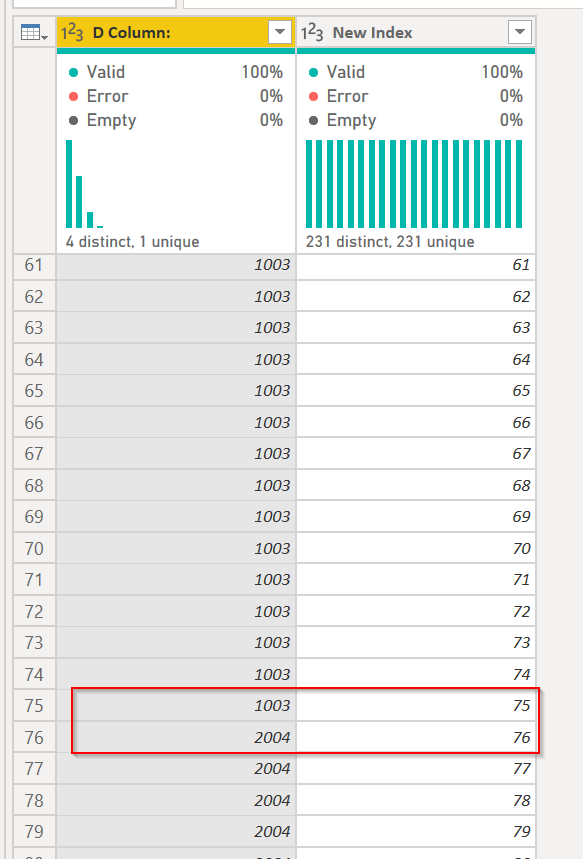
You can see that at 75, item 1003 stops numbering, and item 2004 pics up with 76...
 

2020-04-06 19_17_29-Untitled - Power Query Editor.png


Did I answer your question? Mark my post as a solution!
Did my answers help arrive at a solution? Give it a kudos by clicking the Thumbs Up!

DAX is for Analysis. Power Query is for Data Modeling


Proud to be a Super User!

MCSA: BI Reporting

View solution in original post

2 REPLIES 2
edhans
Community Champion
Community Champion

I did the method to add rows to your table. Paste this code into a blank query in Power Query - get rid of the misc. text a Blank Query starts with.


let
    Source = Table.FromRows(Json.Document(Binary.Decompress(Binary.FromText("i45WMjQwMFbSUTJUitWJVjIyMDABcszNwDwTUxOQlKUFmGdsYmwI5BkBydhYAA==", BinaryEncoding.Base64), Compression.Deflate)), let _t = ((type text) meta [Serialized.Text = true]) in type table [#"D Column:" = _t, #"Index Column:" = _t]),
    #"Changed Type" = Table.TransformColumnTypes(Source,{{"D Column:", Int64.Type}, {"Index Column:", Int64.Type}}),
    #"Added Index" = Table.AddIndexColumn(#"Changed Type", "Index", 0, 1),
    #"Added Index1" = Table.AddIndexColumn(#"Added Index", "Index.1", 1, 1),
    #"Merged Queries" = Table.NestedJoin(#"Added Index1", {"Index.1"}, #"Added Index1", {"Index"}, "Added Index1", JoinKind.LeftOuter),
    #"Expanded Added Index1" = Table.ExpandTableColumn(#"Merged Queries", "Added Index1", {"Index Column:"}, {"Index Column:.1"}),
    #"Added New Index" = Table.AddColumn(#"Expanded Added Index1", "New Index", each if [#"Index Column:.1"] <> null
then {[#"Index Column:"] .. [#"Index Column:.1"] - 1} 
else {[#"Index Column:"] }),
    #"Expanded List Data" = Table.ExpandListColumn(#"Added New Index", "New Index"),
    #"Changed Type1" = Table.TransformColumnTypes(#"Expanded List Data",{{"New Index", Int64.Type}}),
    #"Removed Other Columns" = Table.SelectColumns(#"Changed Type1",{"D Column:", "New Index"})
in
    #"Removed Other Columns"


What this does is:

  1. Creates two new indexes, one starting at 0, the other at 1.
  2. I then merge the table withitself - the #1 index to the #0 index
  3. I then expand your original "Index" column. Now I have the end number of the range, which is the value for the next item.
  4. I create a sequence of numberd from the original number through to the (next number -1).
  5. Expand the list, then get rid of all but the new list and the first column with your data.


You can see that at 75, item 1003 stops numbering, and item 2004 pics up with 76...


2020-04-06 19_17_29-Untitled - Power Query Editor.png


Did I answer your question? Mark my post as a solution!
Did my answers help arrive at a solution? Give it a kudos by clicking the Thumbs Up!

DAX is for Analysis. Power Query is for Data Modeling


Proud to be a Super User!

MCSA: BI Reporting
Greg_Deckler
Community Champion
Community Champion

So @ImkeF or @edhans can probably assist.


Follow on LinkedIn
@ me in replies or I'll lose your thread!!!
Instead of a Kudo, please vote for this idea
Become an expert!: Enterprise DNA
External Tools: MSHGQM
YouTube Channel!: Microsoft Hates Greg
Latest book!:
DAX For Humans

DAX is easy, CALCULATE makes DAX hard...

Helpful resources

Announcements
New to Fabric survey Carousel

New to Fabric Survey

If you have recently started exploring Fabric, we'd love to hear how it's going. Your feedback can help with product improvements.

Power BI DataViz World Championships carousel

Power BI DataViz World Championships - June 2026

A new Power BI DataViz World Championship is coming this June! Don't miss out on submitting your entry.

Join our Fabric User Panel

Join our Fabric User Panel

Share feedback directly with Fabric product managers, participate in targeted research studies and influence the Fabric roadmap.

March Power BI Update Carousel

Power BI Community Update - March 2026

Check out the March 2026 Power BI update to learn about new features.