cancel
Showing results for 
Search instead for 
Did you mean: 

The Power BI Data Visualization World Championships is back! Get ahead of the game and start preparing now! Learn more

Reply
Anonymous
Not applicable

Project Tracking


Hi there,


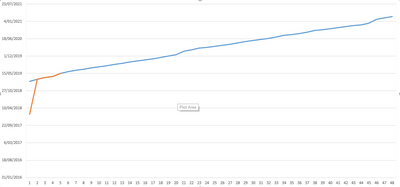
I'm trying to create a project tracking chart, whihc is basically a project managemnet S curve.

The only difference is my X axis is date (so continuous variable) and my Y axis are the different projects - 48 different sprints - (so a categorical variable).

I was able to do it in excel (picture below), and I'm trying ot accomnplish this in power BI.

Please help.


Cheers


CSI Progress.PNG

1 ACCEPTED SOLUTION
v-juanli-msft
Community Support
Community Support

Hi @Anonymous 

Line chart doesn't support to use "date" in the y-axis.


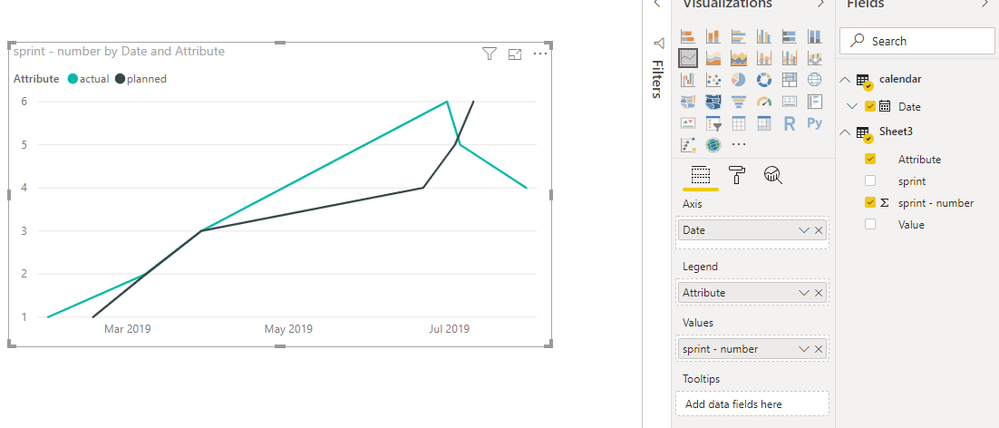
One workaround is as below:

Open Edit queries,

Click on "sprint" column, then select add column- duplicates column,

Click on the duplicated column, then select transform->split column,

3.png

Select "planned" and "actual" columns, then select transform->unpivot columns,

Close && apply,


Create another table and connnect it with original table

calendar = CALENDARAUTO()

4.png

Best Regards
Maggie


Community Support Team _ Maggie Li
If this post helps, then please consider Accept it as the solution to help the other members find it more quickly.

View solution in original post

4 REPLIES 4
v-juanli-msft
Community Support
Community Support

Hi @Anonymous 

Another workaround is to create a R visual so that the date field can be used in Y axis.

After transformation as my previous post, create a r visual as below:

https://community.powerbi.com/t5/Desktop/dates-on-Y-axis/td-p/339940


Best Regards
Maggie


Community Support Team _ Maggie Li
If this post helps, then please consider Accept it as the solution to help the other members find it more quickly.

v-juanli-msft
Community Support
Community Support

Hi @Anonymous 

Line chart doesn't support to use "date" in the y-axis.


One workaround is as below:

Open Edit queries,

Click on "sprint" column, then select add column- duplicates column,

Click on the duplicated column, then select transform->split column,

3.png

Select "planned" and "actual" columns, then select transform->unpivot columns,

Close && apply,


Create another table and connnect it with original table

calendar = CALENDARAUTO()

4.png

Best Regards
Maggie


Community Support Team _ Maggie Li
If this post helps, then please consider Accept it as the solution to help the other members find it more quickly.

Anonymous
Not applicable

Hi @Anonymous ,


Sounds pretty straight forward, where did you get stuck?

Reg,

Robin

Anonymous
Not applicable

Hi Robin,

I've added a screenshot of the data I'm trying to visualise in power BI.

CSI Dataset.PNG


As you can see, the sprint data is on the x axis and is categorical and the y axis is the date the sprint is completed (there will be 2 trendlines, planned finish vs actual finish).

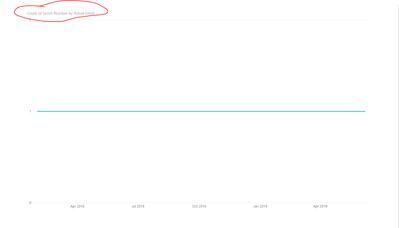
This is what I'm getting in Power BI.

PBI.PNG

As you can see, it's trying to count the sprints, but I need the sprints to be discrete.

Hope this provides more clarification.


Cheers.

Helpful resources

Announcements
Power BI DataViz World Championships

Power BI Dataviz World Championships

The Power BI Data Visualization World Championships is back! Get ahead of the game and start preparing now!

December 2025 Power BI Update Carousel

Power BI Monthly Update - December 2025

Check out the December 2025 Power BI Holiday Recap!

FabCon Atlanta 2026 carousel

FabCon Atlanta 2026

Join us at FabCon Atlanta, March 16-20, for the ultimate Fabric, Power BI, AI and SQL community-led event. Save $200 with code FABCOMM.