cancel
Showing results for 
Search instead for 
Did you mean: 

Learn from the best! Meet the four finalists headed to the FINALS of the Power BI Dataviz World Championships! Register now

Reply
arouillard
Regular Visitor

Problem with Treemap

Hello Power Communauty, 

I have a little problem with the Treepmap visualisation.


I have 2 measures, one representing the Market size (Box size) and the second representing the Market Share (Color). 


I would like see where I can have opportunity on a big Market with a bad Market Share. 

My objective is to have in red, every areas below the Market Share Average, and in green, every areas upper than the Market Share Average.

I think I did the right configuration, but I have some problem with the middle of the color settings : 


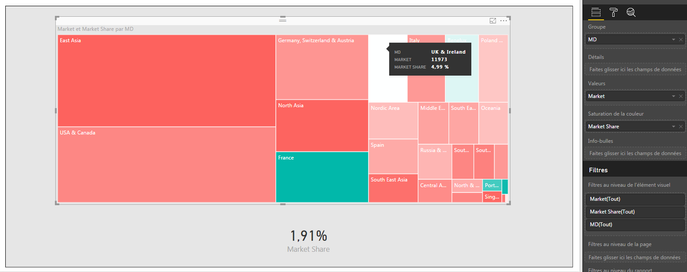
Sans titre.png


As you can see, my average is at 1,91%, for every countries, and I have the "UK and Ireland" at 4,99% in white... With 4,99%, should be in green... It's the same with Spain at 2,29%, it's in Red but it's more than the 1,91% of the average...it's really weird !

Seems that the middle of the color saturation is near 5% (white color) and not at 1,9%...

Do someone already had this problem ? Do you have a solution?


Regards,

1 ACCEPTED SOLUTION

@arouillard,


By default, the lowest value in your data is mapped to the least saturated color, and the highest value to the most saturated color. Center value is just the arithmetic mean of Minimum and Maximum, not all values. You may set them manually through Data colors section in Format pane.

https://powerbi.microsoft.com/en-us/documentation/powerbi-service-tips-and-tricks-for-color-formatti...


As an alternative, use SIGN Function to create a calculated column.

Color Saturation Flag =
SIGN ( Table1[Column3] - AVERAGE ( Table1[Column3] ) )
Community Support Team _ Sam Zha
If this post helps, then please consider Accept it as the solution to help the other members find it more quickly.

View solution in original post

3 REPLIES 3
arouillard
Regular Visitor

Think I understood the problem.

The color saturation don't take the VALUE as center, but that take the Center between the Higest and the Smallest Value.

For example, If I have Value A = 10 and B = 1000, the color saturation will take (1000-10)/2=495 and not (1000+10)/2=505...

That's why ! Do someone have an idea to correct that ?

Regards,

@arouillard,


By default, the lowest value in your data is mapped to the least saturated color, and the highest value to the most saturated color. Center value is just the arithmetic mean of Minimum and Maximum, not all values. You may set them manually through Data colors section in Format pane.

https://powerbi.microsoft.com/en-us/documentation/powerbi-service-tips-and-tricks-for-color-formatti...


As an alternative, use SIGN Function to create a calculated column.

Color Saturation Flag =
SIGN ( Table1[Column3] - AVERAGE ( Table1[Column3] ) )
Community Support Team _ Sam Zha
If this post helps, then please consider Accept it as the solution to help the other members find it more quickly.

The SIGN function is perfect !


Here is my calculated measure:

Flag_Market_Share_Saturation = SIGN([Market Share] - (DIVIDE(CALCULATE(SUM(Database_Fusion[Group - Excel]);ALLEXCEPT(Database_Fusion;Database_Fusion[Addressable market]);Database_Fusion[Flag_ThisYear] = 1);CALCULATE(SUM(Database_Fusion[Market - Excel]);ALLEXCEPT(Database_Fusion;Database_Fusion[Addressable market]);Database_Fusion[Flag_ThisYear] = 1))))


Thanks a lot for your help !

Helpful resources

Announcements
Join our Fabric User Panel

Join our Fabric User Panel

Share feedback directly with Fabric product managers, participate in targeted research studies and influence the Fabric roadmap.

February Power BI Update Carousel

Power BI Monthly Update - February 2026

Check out the February 2026 Power BI update to learn about new features.

FabCon Atlanta 2026 carousel

FabCon Atlanta 2026

Join us at FabCon Atlanta, March 16-20, for the ultimate Fabric, Power BI, AI and SQL community-led event. Save $200 with code FABCOMM.

Users online (7,065)