Don't miss your chance to take the Fabric Data Engineer (DP-700) exam on us!
Learn moreWe've captured the moments from FabCon & SQLCon that everyone is talking about, and we are bringing them to the community, live and on-demand. Starts on April 14th. Register now
Hi,
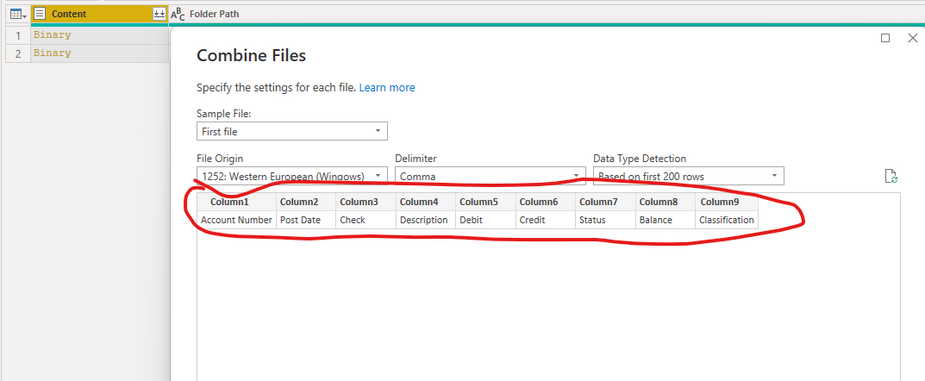
I'm trying to combine a set of files saved in SharePoint folder. Files are CSV file type and are same column headers in each file. A new CSV will be saved in the folder each day for the previous day. The issue I'm having is that while Power Query is pulling in all the data it's not recognizing the header row in the CSV files so when combining multiple files it's pulling in header rows multiple times which I don't want obviously. When doing the initial step to combine files the below appears and there is no GUI option to promote headers at this step and I'm newer to Power Query so not sure where to manually insert M code or what that code should even be.
Anyone see this before or have a workaround solution or am missing something?
Appreicate any assistance in resolving!
Thanks!
John
Solved! Go to Solution.
I assume you are using the Combine & Edit functionality to combine your csv files, where a function and query from a selected example file is auto generated. If so, you can just add a Promote Headers step in the example file query, which will auto update the function and apply it in your main query.
If not, you can create a custom column on your table of Binary files and use Table.PromoteHeaders(Csv.Document(... to extract the table of data from each file with the headers already promoted.
Pat
To learn more about Power BI, follow me on Twitter or subscribe on YouTube.
@Anonymous I was encountering a similar issue and I could not figure out why none of my previews and imports were not promoting headers. Turns out I had an option checked from power query to disable this function. I don't know how that happened. From Power Query, click File-->Options and Settings-->Options-->Data Load --> Type Detection--> Always detect column types and headers for unstructured sources
I assume you are using the Combine & Edit functionality to combine your csv files, where a function and query from a selected example file is auto generated. If so, you can just add a Promote Headers step in the example file query, which will auto update the function and apply it in your main query.
If not, you can create a custom column on your table of Binary files and use Table.PromoteHeaders(Csv.Document(... to extract the table of data from each file with the headers already promoted.
Pat
To learn more about Power BI, follow me on Twitter or subscribe on YouTube.
Thank you!
So I did come up with one workaround solution to just promote headers and to then filter out the duplicate header rows. Would still prefer to learn how to get it to work the "right" way though either using the GUI correctly to acheive straigth away or M code modifications that might be needed. Thanks.
If you have recently started exploring Fabric, we'd love to hear how it's going. Your feedback can help with product improvements.
A new Power BI DataViz World Championship is coming this June! Don't miss out on submitting your entry.
Share feedback directly with Fabric product managers, participate in targeted research studies and influence the Fabric roadmap.
| User | Count |
|---|---|
| 55 | |
| 40 | |
| 35 | |
| 19 | |
| 18 |
| User | Count |
|---|---|
| 71 | |
| 70 | |
| 38 | |
| 35 | |
| 23 |