Don't miss your chance to take exam DP-600 or DP-700 on us!
Request nowLearn from the best! Meet the four finalists headed to the FINALS of the Power BI Dataviz World Championships! Register now
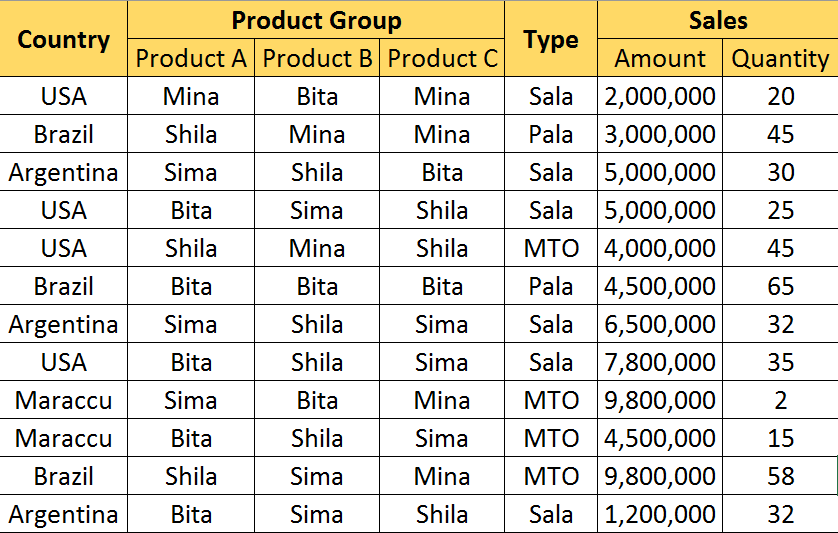
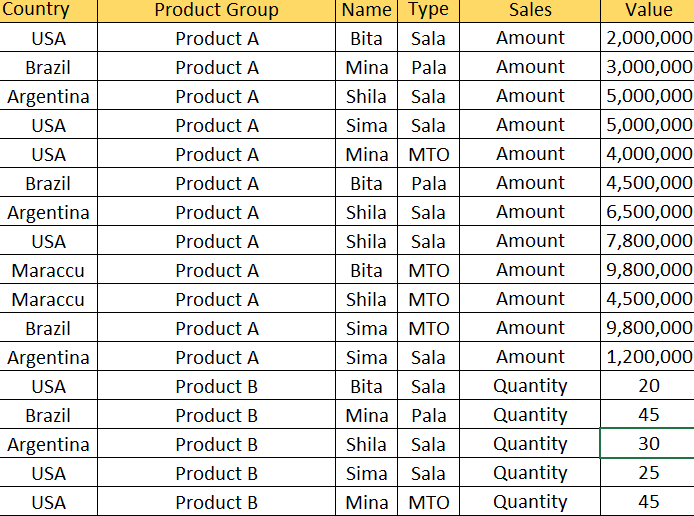
I want to edit query excel file have merge header in Power BI
I put before and after transfromation image here
this is excel file link:
https://1drv.ms/x/s!As2uYmdgdeXbagl-nT7AZY_Vwyk
Before
After Transformation
Solved! Go to Solution.
@Asamadi,
I copy data to Excel sheet which named sheet7 in my environment and perform some steps in Query Editor to get your expected result.
You can add a new blank query in Power BI Desktop, copy the following code in Advanced Editor of the blank query to check the process. Please enter your folder path and replace sheet7 with your sheet name in the following code.
let
Source = Excel.Workbook(File.Contents("folderpath\excelname.xlsx"), null, true),
Sheet7_Sheet = Source{[Item="Sheet7",Kind="Sheet"]}[Data],
#"Transposed Table" = Table.Transpose(Sheet7_Sheet),
#"Filled Down" = Table.FillDown(#"Transposed Table",{"Column1", "Column2"}),
#"Merged Columns" = Table.CombineColumns(#"Filled Down",{"Column1", "Column2"},Combiner.CombineTextByDelimiter(";", QuoteStyle.None),"Merged"),
#"Transposed Table1" = Table.Transpose(#"Merged Columns"),
#"Promoted Headers" = Table.PromoteHeaders(#"Transposed Table1", [PromoteAllScalars=true]),
#"Renamed Columns" = Table.RenameColumns(#"Promoted Headers",{{"Country;", "Country"}, {"Type;Product C", "Type"}, {"Product Group;Product C", "Product C"}, {"Product Group;Product A", "Product A"}, {"Product Group;Product B", "Product B"}}),
#"Unpivoted Other Columns" = Table.UnpivotOtherColumns(#"Renamed Columns", {"Country", "Type", "Product A", "Product C", "Product B"}, "Attribute", "Value"),
#"Split Column by Delimiter" = Table.SplitColumn(#"Unpivoted Other Columns", "Attribute", Splitter.SplitTextByDelimiter(";", QuoteStyle.Csv), {"Attribute.1", "Attribute.2"}),
#"Changed Type" = Table.TransformColumnTypes(#"Split Column by Delimiter",{{"Attribute.1", type text}, {"Attribute.2", type text}}),
#"Renamed Columns1" = Table.RenameColumns(#"Changed Type",{{"Attribute.2", "Sales"}}),
#"Removed Columns" = Table.RemoveColumns(#"Renamed Columns1",{"Attribute.1"}),
#"Unpivoted Columns" = Table.UnpivotOtherColumns(#"Removed Columns", {"Country", "Type", "Sales", "Value"}, "Attribute", "Value.1"),
#"Renamed Columns2" = Table.RenameColumns(#"Unpivoted Columns",{{"Attribute", "ProductGroup"}, {"Value.1", "Name"}}),
#"Filtered Rows" = Table.SelectRows(#"Renamed Columns2", each ([ProductGroup] <> "Product C"))
in
#"Filtered Rows"
Regards,
Lydia
@Asamadi,
I copy data to Excel sheet which named sheet7 in my environment and perform some steps in Query Editor to get your expected result.
You can add a new blank query in Power BI Desktop, copy the following code in Advanced Editor of the blank query to check the process. Please enter your folder path and replace sheet7 with your sheet name in the following code.
let
Source = Excel.Workbook(File.Contents("folderpath\excelname.xlsx"), null, true),
Sheet7_Sheet = Source{[Item="Sheet7",Kind="Sheet"]}[Data],
#"Transposed Table" = Table.Transpose(Sheet7_Sheet),
#"Filled Down" = Table.FillDown(#"Transposed Table",{"Column1", "Column2"}),
#"Merged Columns" = Table.CombineColumns(#"Filled Down",{"Column1", "Column2"},Combiner.CombineTextByDelimiter(";", QuoteStyle.None),"Merged"),
#"Transposed Table1" = Table.Transpose(#"Merged Columns"),
#"Promoted Headers" = Table.PromoteHeaders(#"Transposed Table1", [PromoteAllScalars=true]),
#"Renamed Columns" = Table.RenameColumns(#"Promoted Headers",{{"Country;", "Country"}, {"Type;Product C", "Type"}, {"Product Group;Product C", "Product C"}, {"Product Group;Product A", "Product A"}, {"Product Group;Product B", "Product B"}}),
#"Unpivoted Other Columns" = Table.UnpivotOtherColumns(#"Renamed Columns", {"Country", "Type", "Product A", "Product C", "Product B"}, "Attribute", "Value"),
#"Split Column by Delimiter" = Table.SplitColumn(#"Unpivoted Other Columns", "Attribute", Splitter.SplitTextByDelimiter(";", QuoteStyle.Csv), {"Attribute.1", "Attribute.2"}),
#"Changed Type" = Table.TransformColumnTypes(#"Split Column by Delimiter",{{"Attribute.1", type text}, {"Attribute.2", type text}}),
#"Renamed Columns1" = Table.RenameColumns(#"Changed Type",{{"Attribute.2", "Sales"}}),
#"Removed Columns" = Table.RemoveColumns(#"Renamed Columns1",{"Attribute.1"}),
#"Unpivoted Columns" = Table.UnpivotOtherColumns(#"Removed Columns", {"Country", "Type", "Sales", "Value"}, "Attribute", "Value.1"),
#"Renamed Columns2" = Table.RenameColumns(#"Unpivoted Columns",{{"Attribute", "ProductGroup"}, {"Value.1", "Name"}}),
#"Filtered Rows" = Table.SelectRows(#"Renamed Columns2", each ([ProductGroup] <> "Product C"))
in
#"Filtered Rows"
Regards,
Lydia
Share feedback directly with Fabric product managers, participate in targeted research studies and influence the Fabric roadmap.
Check out the February 2026 Power BI update to learn about new features.
| User | Count |
|---|---|
| 53 | |
| 45 | |
| 38 | |
| 16 | |
| 15 |
| User | Count |
|---|---|
| 83 | |
| 70 | |
| 38 | |
| 28 | |
| 26 |