This time we’re going bigger than ever. Fabric, Power BI, SQL, AI and more. We're covering it all. You won't want to miss it.
Learn moreLevel up your Power BI skills this month - build one visual each week and tell better stories with data! Get started
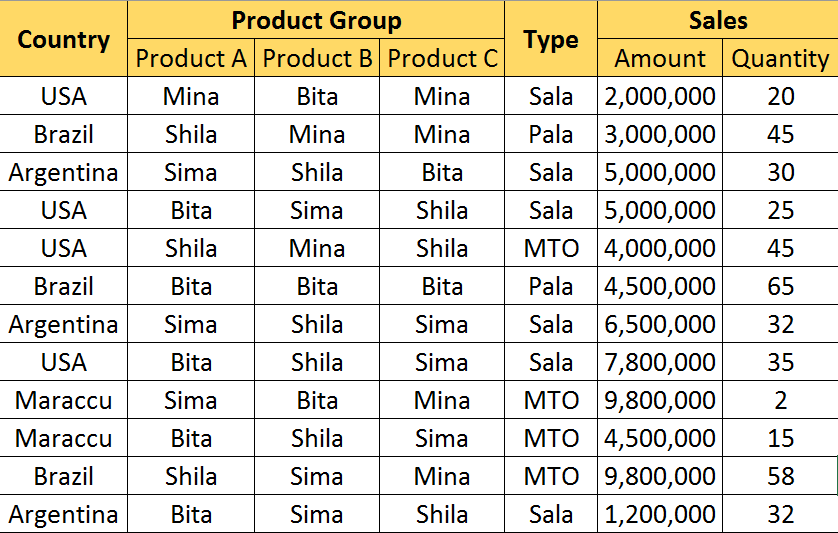
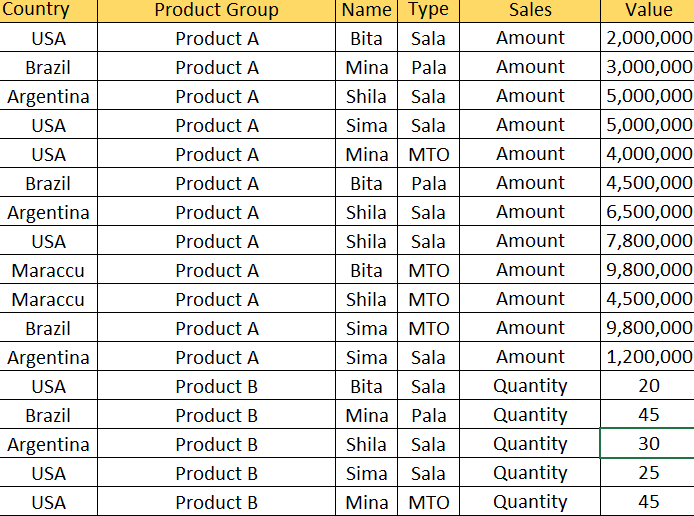
I want to edit query excel file have merge header in Power BI
I put before and after transfromation image here
this is excel file link:
https://1drv.ms/x/s!As2uYmdgdeXbagl-nT7AZY_Vwyk
Before
After Transformation
Solved! Go to Solution.
@Asamadi,
I copy data to Excel sheet which named sheet7 in my environment and perform some steps in Query Editor to get your expected result.
You can add a new blank query in Power BI Desktop, copy the following code in Advanced Editor of the blank query to check the process. Please enter your folder path and replace sheet7 with your sheet name in the following code.
let
Source = Excel.Workbook(File.Contents("folderpath\excelname.xlsx"), null, true),
Sheet7_Sheet = Source{[Item="Sheet7",Kind="Sheet"]}[Data],
#"Transposed Table" = Table.Transpose(Sheet7_Sheet),
#"Filled Down" = Table.FillDown(#"Transposed Table",{"Column1", "Column2"}),
#"Merged Columns" = Table.CombineColumns(#"Filled Down",{"Column1", "Column2"},Combiner.CombineTextByDelimiter(";", QuoteStyle.None),"Merged"),
#"Transposed Table1" = Table.Transpose(#"Merged Columns"),
#"Promoted Headers" = Table.PromoteHeaders(#"Transposed Table1", [PromoteAllScalars=true]),
#"Renamed Columns" = Table.RenameColumns(#"Promoted Headers",{{"Country;", "Country"}, {"Type;Product C", "Type"}, {"Product Group;Product C", "Product C"}, {"Product Group;Product A", "Product A"}, {"Product Group;Product B", "Product B"}}),
#"Unpivoted Other Columns" = Table.UnpivotOtherColumns(#"Renamed Columns", {"Country", "Type", "Product A", "Product C", "Product B"}, "Attribute", "Value"),
#"Split Column by Delimiter" = Table.SplitColumn(#"Unpivoted Other Columns", "Attribute", Splitter.SplitTextByDelimiter(";", QuoteStyle.Csv), {"Attribute.1", "Attribute.2"}),
#"Changed Type" = Table.TransformColumnTypes(#"Split Column by Delimiter",{{"Attribute.1", type text}, {"Attribute.2", type text}}),
#"Renamed Columns1" = Table.RenameColumns(#"Changed Type",{{"Attribute.2", "Sales"}}),
#"Removed Columns" = Table.RemoveColumns(#"Renamed Columns1",{"Attribute.1"}),
#"Unpivoted Columns" = Table.UnpivotOtherColumns(#"Removed Columns", {"Country", "Type", "Sales", "Value"}, "Attribute", "Value.1"),
#"Renamed Columns2" = Table.RenameColumns(#"Unpivoted Columns",{{"Attribute", "ProductGroup"}, {"Value.1", "Name"}}),
#"Filtered Rows" = Table.SelectRows(#"Renamed Columns2", each ([ProductGroup] <> "Product C"))
in
#"Filtered Rows"
Regards,
Lydia
@Asamadi,
I copy data to Excel sheet which named sheet7 in my environment and perform some steps in Query Editor to get your expected result.
You can add a new blank query in Power BI Desktop, copy the following code in Advanced Editor of the blank query to check the process. Please enter your folder path and replace sheet7 with your sheet name in the following code.
let
Source = Excel.Workbook(File.Contents("folderpath\excelname.xlsx"), null, true),
Sheet7_Sheet = Source{[Item="Sheet7",Kind="Sheet"]}[Data],
#"Transposed Table" = Table.Transpose(Sheet7_Sheet),
#"Filled Down" = Table.FillDown(#"Transposed Table",{"Column1", "Column2"}),
#"Merged Columns" = Table.CombineColumns(#"Filled Down",{"Column1", "Column2"},Combiner.CombineTextByDelimiter(";", QuoteStyle.None),"Merged"),
#"Transposed Table1" = Table.Transpose(#"Merged Columns"),
#"Promoted Headers" = Table.PromoteHeaders(#"Transposed Table1", [PromoteAllScalars=true]),
#"Renamed Columns" = Table.RenameColumns(#"Promoted Headers",{{"Country;", "Country"}, {"Type;Product C", "Type"}, {"Product Group;Product C", "Product C"}, {"Product Group;Product A", "Product A"}, {"Product Group;Product B", "Product B"}}),
#"Unpivoted Other Columns" = Table.UnpivotOtherColumns(#"Renamed Columns", {"Country", "Type", "Product A", "Product C", "Product B"}, "Attribute", "Value"),
#"Split Column by Delimiter" = Table.SplitColumn(#"Unpivoted Other Columns", "Attribute", Splitter.SplitTextByDelimiter(";", QuoteStyle.Csv), {"Attribute.1", "Attribute.2"}),
#"Changed Type" = Table.TransformColumnTypes(#"Split Column by Delimiter",{{"Attribute.1", type text}, {"Attribute.2", type text}}),
#"Renamed Columns1" = Table.RenameColumns(#"Changed Type",{{"Attribute.2", "Sales"}}),
#"Removed Columns" = Table.RemoveColumns(#"Renamed Columns1",{"Attribute.1"}),
#"Unpivoted Columns" = Table.UnpivotOtherColumns(#"Removed Columns", {"Country", "Type", "Sales", "Value"}, "Attribute", "Value.1"),
#"Renamed Columns2" = Table.RenameColumns(#"Unpivoted Columns",{{"Attribute", "ProductGroup"}, {"Value.1", "Name"}}),
#"Filtered Rows" = Table.SelectRows(#"Renamed Columns2", each ([ProductGroup] <> "Product C"))
in
#"Filtered Rows"
Regards,
Lydia
Check out the April 2026 Power BI update to learn about new features.
Sign up to receive a private message when registration opens and key events begin.
If you have recently started exploring Fabric, we'd love to hear how it's going. Your feedback can help with product improvements.
| User | Count |
|---|---|
| 35 | |
| 32 | |
| 26 | |
| 21 | |
| 18 |
| User | Count |
|---|---|
| 68 | |
| 37 | |
| 33 | |
| 23 | |
| 23 |