Join us in Barcelona for FabCon and SQLCon, September 28 - October 1, 2026.
This is best Fabric, Power BI, SQL and AI community event. How do we know? The last event sold out! Save €200 with code FABCMTY200.
Register now- Power BI forums
- Get Help with Power BI
- Desktop
- Service
- Report Server
- Power Query
- Mobile Apps
- Developer
- DAX Commands and Tips
- Custom Visuals Development Discussion
- Health and Life Sciences
- Power BI Spanish forums
- Translated Spanish Desktop
- Training and Consulting
- Instructor Led Training
- Dashboard in a Day for Women, by Women
- Galleries
- Data Stories Gallery
- Themes Gallery
- Contests Gallery
- QuickViz Gallery
- Quick Measures Gallery
- Visual Calculations Gallery
- Fabric Apps Gallery
- Notebook Gallery
- Translytical Task Flow Gallery
- TMDL Gallery
- R Script Showcase
- Webinars and Video Gallery
- Ideas
- Custom Visuals Ideas (read-only)
- Issues
- Issues
- Events
- Upcoming Events
The Fabric community is upgrading! Read all of the details including the timeline and what you can expect. Learn more
- Power BI forums
- Forums
- Get Help with Power BI
- Desktop
- Re: Multiple choices answer count
- Subscribe to RSS Feed
- Mark Topic as New
- Mark Topic as Read
- Float this Topic for Current User
- Bookmark
- Subscribe
- Printer Friendly Page

- Mark as New
- Bookmark
- Subscribe
- Mute
- Subscribe to RSS Feed
- Permalink
- Report Inappropriate Content
Multiple choices answer count
Hi,
I'm new to Power BI and I can't figure out how to count the number of occurence of each answer from a multiple choice sharepoint form :
I have :
Project ¦ Choice
Project1 ¦
Project2 ¦ Choice1
Project3 ¦ Choice1, Choice2
Project4 ¦ Choice3, Choice4
Project5 ¦ Choice1, Choice2, Choice3
...
And I would like to obtain
Choice ¦ number of occurence
Choice1 ¦ 3
Choice2 ¦ 2
Choice3 ¦ 2
Choice4 ¦ 1
....
The list of choices is not defined by a separate sharepoint list. I have searched through the forum and have found several subject discussing similar topics but still haven't found a way to implement this. Any help?
Solved! Go to Solution.


- Mark as New
- Bookmark
- Subscribe
- Mute
- Subscribe to RSS Feed
- Permalink
- Report Inappropriate Content
Hi @shugs,
If you data is in that format you present first of all you need to change you information format.
Go to the query editor and do the following steps:
- Choose column Choice
- Transform -> Split column -> By Delimeter
- Choose the comma as your delimeter
- Now you have a table with Project and one column per response
- Choose all the columns besides the project
- Transform -> Unpivot Columns
- Return a table with: Project, Attribute, Value
- Delete column Attribute
- Rename Value to your choice
- Save and return to PBI desktop
Now just add you Value to the table visual and the Project (this should be count)
Regards,
MFelix
Regards
Miguel Félix
Did I answer your question? Mark my post as a solution!
Proud to be a Super User!
Check out my blog: Power BI em Português


- Mark as New
- Bookmark
- Subscribe
- Mute
- Subscribe to RSS Feed
- Permalink
- Report Inappropriate Content
I have similar problem. But some columns (Response to Survey) are subjective response and the sentences may actually have a comma in them. If I use the comma delimiter solution, this will be a problem. Any suggestions?
- Mark as New
- Bookmark
- Subscribe
- Mute
- Subscribe to RSS Feed
- Permalink
- Report Inappropriate Content
Thanks for all the answers!


- Mark as New
- Bookmark
- Subscribe
- Mute
- Subscribe to RSS Feed
- Permalink
- Report Inappropriate Content
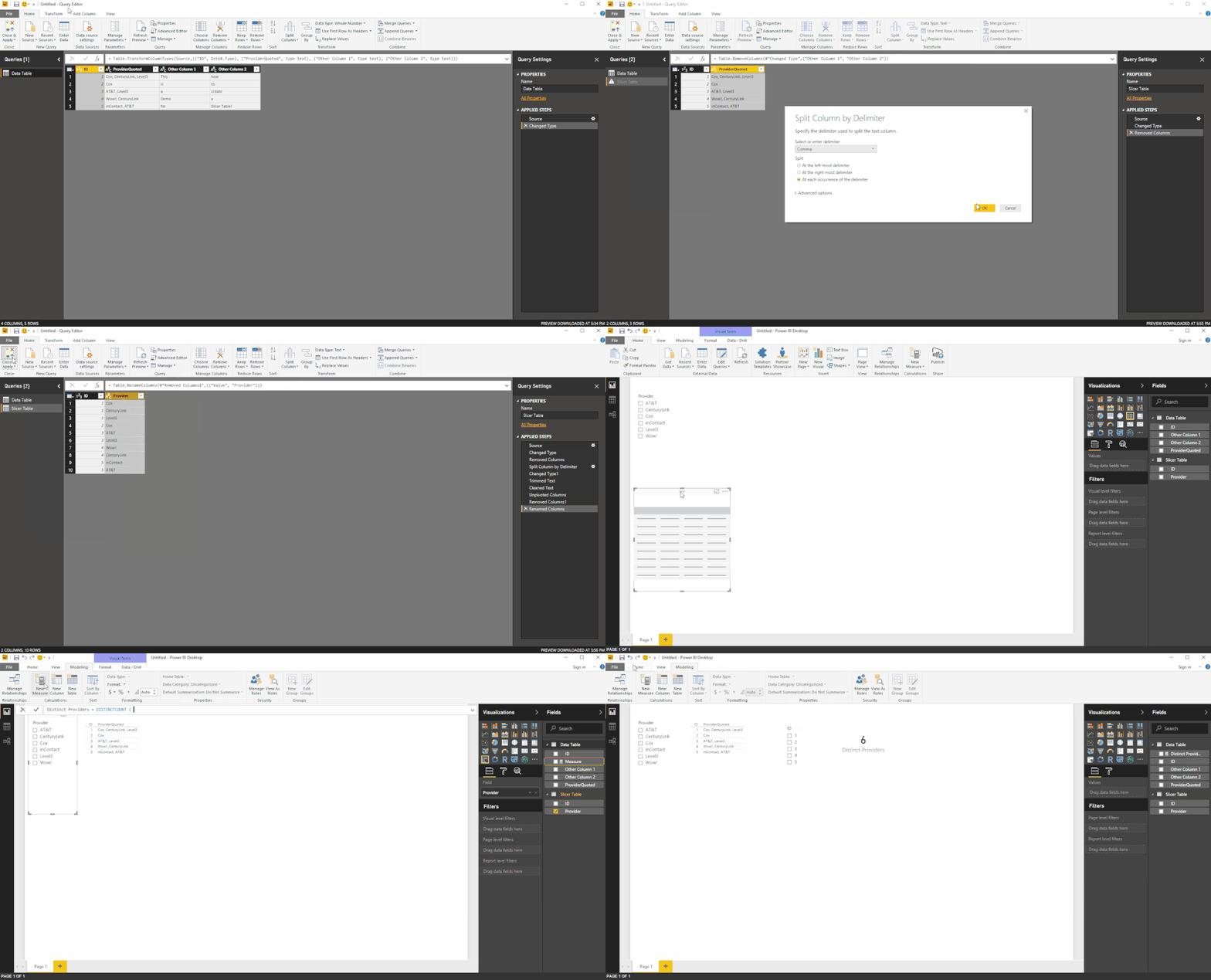
Undoutbtedly you have other columns in that table - so duplicate the table first in the Query Editor
Here's a link to a similar question
http://community.powerbi.com/t5/Desktop/Data-modeling-question/m-p/135326#M57957
Plus the image

- Mark as New
- Bookmark
- Subscribe
- Mute
- Subscribe to RSS Feed
- Permalink
- Report Inappropriate Content
Alternative solution in Power Query:
- Remove empty Choices
- Choose tab Transform - Format - Trim
Adjust the generated code to use Text.Split (on ","), which will result in nested lists - Remove Project column
- Expand the "Choice" column
- Choose tab Transform - Group By Choice and count rows (which is the default operation)
In the popup screen of "Group By", name the new column "Number of occurrence".
Resulting code (in which I adjusted the step names for better readability):
let
    Source = InputTable,
    RemovedEmpties = Table.SelectRows(Source, each ([Choice] <> null)),
    Splitted = Table.TransformColumns(RemovedEmpties,{{"Choice", each Text.Split(_, ",")}}),
    RemovedProject = Table.RemoveColumns(Splitted,{"Project"}),
    ExpandedChoice = Table.ExpandListColumn(RemovedProject, "Choice"),
    Trimmed = Table.TransformColumns(ExpandedChoice,{},Text.Trim),
    GroupedWithCount = Table.Group(Trimmed, {"Choice"}, {{"Number of occurrence", each Table.RowCount(_), type number}})
in
    GroupedWithCount
- Mark as New
- Bookmark
- Subscribe
- Mute
- Subscribe to RSS Feed
- Permalink
- Report Inappropriate Content
Hi @shugs,
If you data is in that format you present first of all you need to change you information format.
Go to the query editor and do the following steps:
- Choose column Choice
- Transform -> Split column -> By Delimeter
- Choose the comma as your delimeter
- Now you have a table with Project and one column per response
- Choose all the columns besides the project
- Transform -> Unpivot Columns
- Return a table with: Project, Attribute, Value
- Delete column Attribute
- Rename Value to your choice
- Save and return to PBI desktop
Now just add you Value to the table visual and the Project (this should be count)
Regards,
MFelix
Regards
Miguel Félix
Did I answer your question? Mark my post as a solution!
Proud to be a Super User!
Check out my blog: Power BI em Português
- Mark as New
- Bookmark
- Subscribe
- Mute
- Subscribe to RSS Feed
- Permalink
- Report Inappropriate Content
Hi,
This worked for me, thanks a lot!
But just to add - I worked with a data including more columns than the Project and Choice columns, and the Unpivot Columns solution removes the records with empty Choice column. So it's good to create a new table containing only the Project and Choice columns to avoid losing data.

Helpful resources

FabCon & SQLCon – Barcelona 2026
Join us in Barcelona for FabCon and SQLCon, the Fabric, Power BI, SQL, and AI community event. Save €200 with code FABCMTY200.

Power BI DataViz World Championships - June 2026
A new Power BI DataViz World Championship is coming this June! Don't miss out on submitting your entry.

| User | Count |
|---|---|
| 24 | |
| 22 | |
| 20 | |
| 18 | |
| 14 |


| User | Count |
|---|---|
| 27 | |
| 21 | |
| 20 | |
| 20 | |
| 20 |


