cancel
Showing results for 
Search instead for 
Did you mean: 

July 7 - July 17 | Round 2 of the Power BI Dataviz World Championships. Don't miss your chance! Learn more

Reply
alex
Helper I
Helper I

Move Sheet Titles to Rows ( Power Query )

I commonly run into source data XLS formated liked so:

Sheet Title1;

                         ;Col.Title1        ; Col.Title 2   ; Col.Title 3   ; Col.Title 4 

RowTitle1          ; Value               ; Value            ; Value            ; Value

RowTitle2          ; Value               ; Value             ; Value            ; Value


(Sheet Title1 overlaps either the Rows or the Columns usually.  It's not on it's own row.)

(also, there are multiple "tables" like this on the sheet.   (they are not actual Excel tables or PivotTables though))


Any tricks to transform to:


DummyHeader ;DummyRowHeader ;Col.Title1        ; Col.Title 2   ; Col.Title 3   ; Col.Title 4 

Sheet Title1;       RowTitle1                  ; Value               ; Value            ; Value            ; Value

Sheet Title1;       RowTitle2                  ; Value               ; Value            ; Value            ; Value


(at which point I could then unpivot the whole thing)


Thanks!

Alex

1 ACCEPTED SOLUTION
DaFloDo
Resolver I
Resolver I

hi @alex,


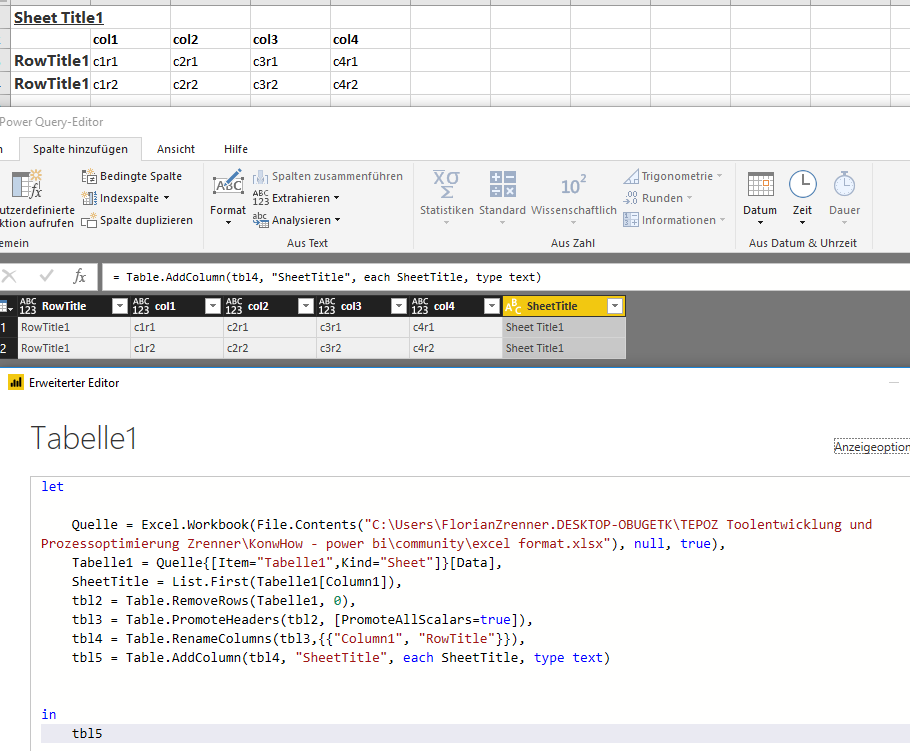
this is how I achieved the result ...

title to rows.png


you'll have to make some adjustments to fit your needs, but in general it should be possible ... here is the code to get you started:

let
    Quelle = Excel.Workbook(File.Contents("pathtoexcelfile.xlsx"), null, true),
    Tabelle1 = Quelle{[Item="Tabelle1",Kind="Sheet"]}[Data],
    SheetTitle = List.First(Tabelle1[Column1]),
    tbl2 = Table.RemoveRows(Tabelle1, 0),
    tbl3 = Table.PromoteHeaders(tbl2, [PromoteAllScalars=true]),
    tbl4 = Table.RenameColumns(tbl3,{{"Column1", "RowTitle"}}),
    tbl5 = Table.AddColumn(tbl4, "SheetTitle", each SheetTitle, type text)
in
    tbl5


best regards


florian

View solution in original post

3 REPLIES 3
DaFloDo
Resolver I
Resolver I

hi @alex,


this is how I achieved the result ...

title to rows.png


you'll have to make some adjustments to fit your needs, but in general it should be possible ... here is the code to get you started:

let
    Quelle = Excel.Workbook(File.Contents("pathtoexcelfile.xlsx"), null, true),
    Tabelle1 = Quelle{[Item="Tabelle1",Kind="Sheet"]}[Data],
    SheetTitle = List.First(Tabelle1[Column1]),
    tbl2 = Table.RemoveRows(Tabelle1, 0),
    tbl3 = Table.PromoteHeaders(tbl2, [PromoteAllScalars=true]),
    tbl4 = Table.RenameColumns(tbl3,{{"Column1", "RowTitle"}}),
    tbl5 = Table.AddColumn(tbl4, "SheetTitle", each SheetTitle, type text)
in
    tbl5


best regards


florian

Anonymous
Not applicable

Please, can you try writing an excel macro to do this activity for one sheet and then re-use it for other sheets. Not aware of any fix through Power BI.


The other option is - instead of using the pivot table as the source, please try using the source of the pivot table as source and then cleanse / transform/model with Power BI. I prefer this one personally.

No, i want a Power Query solution.....

...the sheets get updated by others and a Macro would be a pain.

...and  they're just cells in a sheet, not pivot tables made from source data....

Helpful resources

Announcements
FabCon and SQLCon Barcelona 2026

FabCon & SQLCon – Barcelona 2026

Join us in Barcelona for FabCon and SQLCon, the Fabric, Power BI, SQL, and AI community event. Save €200 with code FABCMTY200.

60 days of Data Days Carousel

Data Days 2026

Join Fabric Data Days 2026: 60 days of free live/on-demand sessions, challenges, study groups, and certification opportunities.

Power BI DataViz World Championships carousel

Power BI DataViz World Championships - June 2026

A new Power BI DataViz World Championship is coming this June! Don't miss out on submitting your entry.