cancel
Showing results for 
Search instead for 
Did you mean: 

July 7 - July 17 | Round 2 of the Power BI Dataviz World Championships. Don't miss your chance! Learn more

Reply
ammartino44
Helper III
Helper III

Modifying Power Bi data tables

If I upload a data table from excel into power bi, can I modify it...in terms of the formulas etc? 

2 ACCEPTED SOLUTIONS
ankitpatira
Community Champion
Community Champion

@ammartino44 You can upload data table from excel in power bi service (check it out here) and make use of it. That won't let you currently edit formulas etc since it is in power bi service. If you meant import data from Excel into power bi desktop using excel connector then yes it is straight import and so you will be able to do all the transformations that you can do in pbi desktop. If you meant importing excel workbook into pbi desktop (here) then yes after import you will be able to use all functionalities of pbi desktop.

View solution in original post

Anonymous
Not applicable

Hi @ammartino44,


According to your description, you import an excel workbook to power bi and you want to modify the files during loading, right?

If as I said, you can use query editor to modify these data.


For example, the source contains 500 rows, but I want get the top 100 rows.


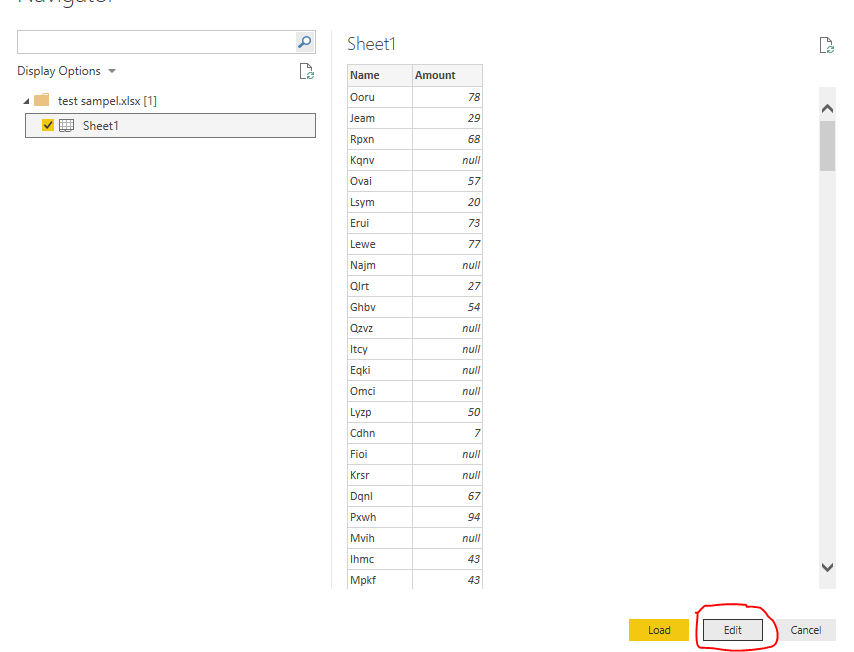
Click edit button:

Capture.PNG


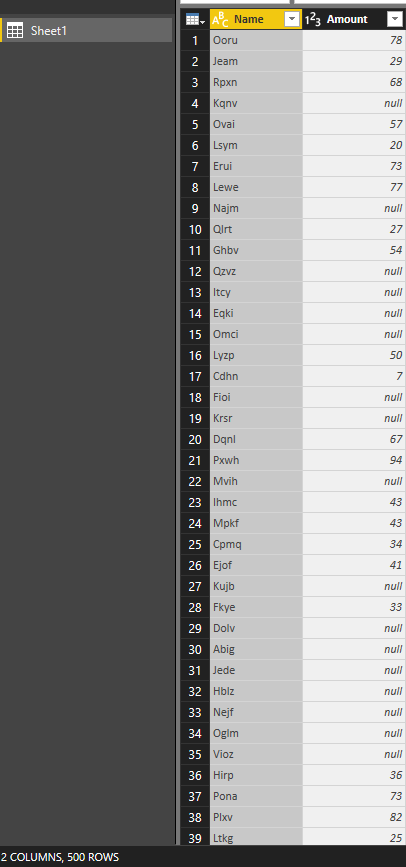
Enter the query editor:

Capture2.PNG
 

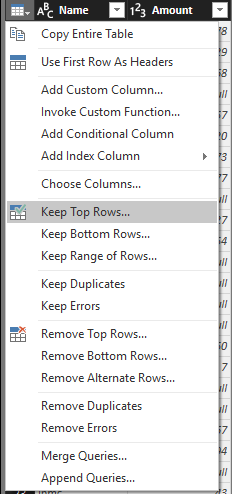
Click on table button and choose “Keep Top Rows”:

Capture3.PNG
 

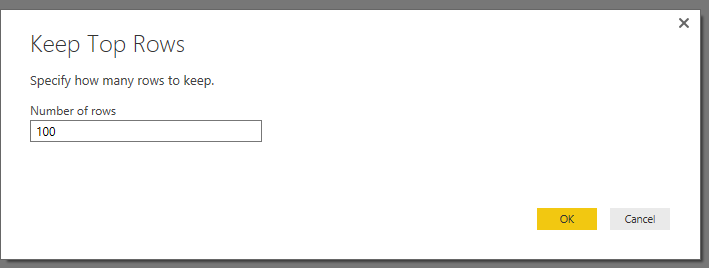
Fill in the parameter:

Capture4.PNG
 

Result(keep 100 rows):

Capture5.PNG
 

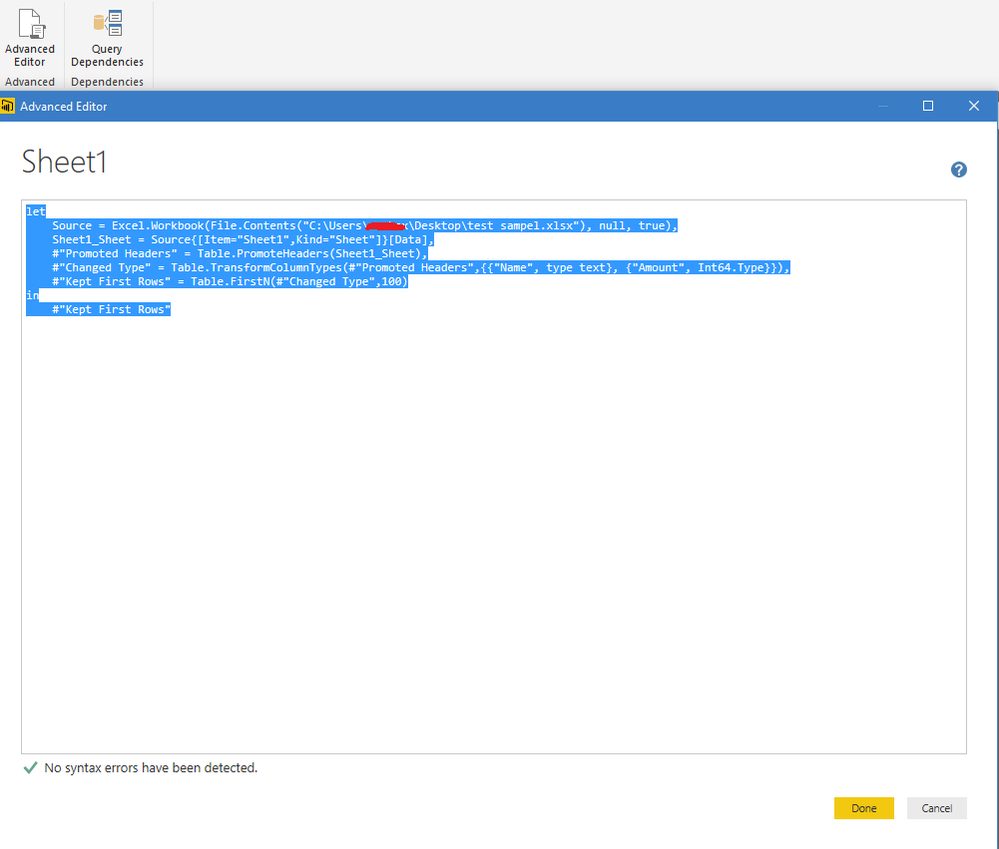
In addition, you can also directly use power query to current modify the query at “Advanced Editor”.


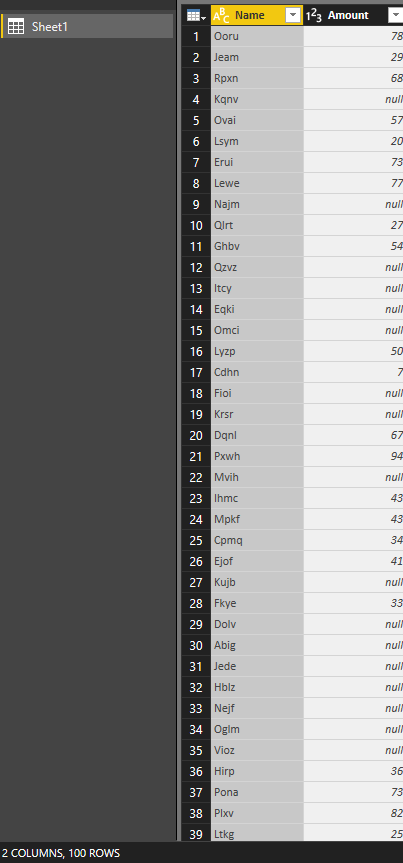
Before keep row, I want to remove the null value records.


Open the Advanced Editor:

Capture6.PNG
 

Add custom step:


let
    Source = Excel.Workbook(File.Contents("C:\Users\xxxxx\Desktop\test sampel.xlsx"), null, true),
    Sheet1_Sheet = Source{[Item="Sheet1",Kind="Sheet"]}[Data],
    #"Promoted Headers" = Table.PromoteHeaders(Sheet1_Sheet),
    #"Changed Type" = Table.TransformColumnTypes(#"Promoted Headers",{{"Name", type text}, {"Amount", Int64.Type}}),
    Cutom =Table.SelectRows(#"Changed Type", each [Amount] <> null),
    #"Kept First Rows" = Table.FirstN(Cutom,100)
in
#"Kept First Rows"


Result:

Capture7.PNG
 

For detail information about power query, you can refer to below article:

Power Query (informally known as "M") Formula reference


Regards,
Xiaoxin Sheng

View solution in original post

2 REPLIES 2
Anonymous
Not applicable

Hi @ammartino44,


According to your description, you import an excel workbook to power bi and you want to modify the files during loading, right?

If as I said, you can use query editor to modify these data.


For example, the source contains 500 rows, but I want get the top 100 rows.


Click edit button:

Capture.PNG


Enter the query editor:

Capture2.PNG
 

Click on table button and choose “Keep Top Rows”:

Capture3.PNG
 

Fill in the parameter:

Capture4.PNG
 

Result(keep 100 rows):

Capture5.PNG
 

In addition, you can also directly use power query to current modify the query at “Advanced Editor”.


Before keep row, I want to remove the null value records.


Open the Advanced Editor:

Capture6.PNG
 

Add custom step:


let
    Source = Excel.Workbook(File.Contents("C:\Users\xxxxx\Desktop\test sampel.xlsx"), null, true),
    Sheet1_Sheet = Source{[Item="Sheet1",Kind="Sheet"]}[Data],
    #"Promoted Headers" = Table.PromoteHeaders(Sheet1_Sheet),
    #"Changed Type" = Table.TransformColumnTypes(#"Promoted Headers",{{"Name", type text}, {"Amount", Int64.Type}}),
    Cutom =Table.SelectRows(#"Changed Type", each [Amount] <> null),
    #"Kept First Rows" = Table.FirstN(Cutom,100)
in
#"Kept First Rows"


Result:

Capture7.PNG
 

For detail information about power query, you can refer to below article:

Power Query (informally known as "M") Formula reference


Regards,
Xiaoxin Sheng

ankitpatira
Community Champion
Community Champion

@ammartino44 You can upload data table from excel in power bi service (check it out here) and make use of it. That won't let you currently edit formulas etc since it is in power bi service. If you meant import data from Excel into power bi desktop using excel connector then yes it is straight import and so you will be able to do all the transformations that you can do in pbi desktop. If you meant importing excel workbook into pbi desktop (here) then yes after import you will be able to use all functionalities of pbi desktop.

Helpful resources

Announcements
FabCon and SQLCon Barcelona 2026

FabCon & SQLCon – Barcelona 2026

Join us in Barcelona for FabCon and SQLCon, the Fabric, Power BI, SQL, and AI community event. Save €200 with code FABCMTY200.

60 days of Data Days Carousel

Data Days 2026

Join Data Days 2026: 60 days of free live/on-demand sessions, challenges, study groups, and certification opportunities.

Power BI DataViz World Championships carousel

Power BI DataViz World Championships - June 2026

A new Power BI DataViz World Championship is coming this June! Don't miss out on submitting your entry.

Top Solution Authors