Join us at FabCon Atlanta from March 16 - 20, 2026, for the ultimate Fabric, Power BI, AI and SQL community-led event. Save $200 with code FABCOMM.
Register now!The Power BI Data Visualization World Championships is back! It's time to submit your entry. Live now!
If I upload a data table from excel into power bi, can I modify it...in terms of the formulas etc?
Solved! Go to Solution.
@ammartino44 You can upload data table from excel in power bi service (check it out here) and make use of it. That won't let you currently edit formulas etc since it is in power bi service. If you meant import data from Excel into power bi desktop using excel connector then yes it is straight import and so you will be able to do all the transformations that you can do in pbi desktop. If you meant importing excel workbook into pbi desktop (here) then yes after import you will be able to use all functionalities of pbi desktop.
Hi @ammartino44,
According to your description, you import an excel workbook to power bi and you want to modify the files during loading, right?
If as I said, you can use query editor to modify these data.
For example, the source contains 500 rows, but I want get the top 100 rows.
Click edit button:
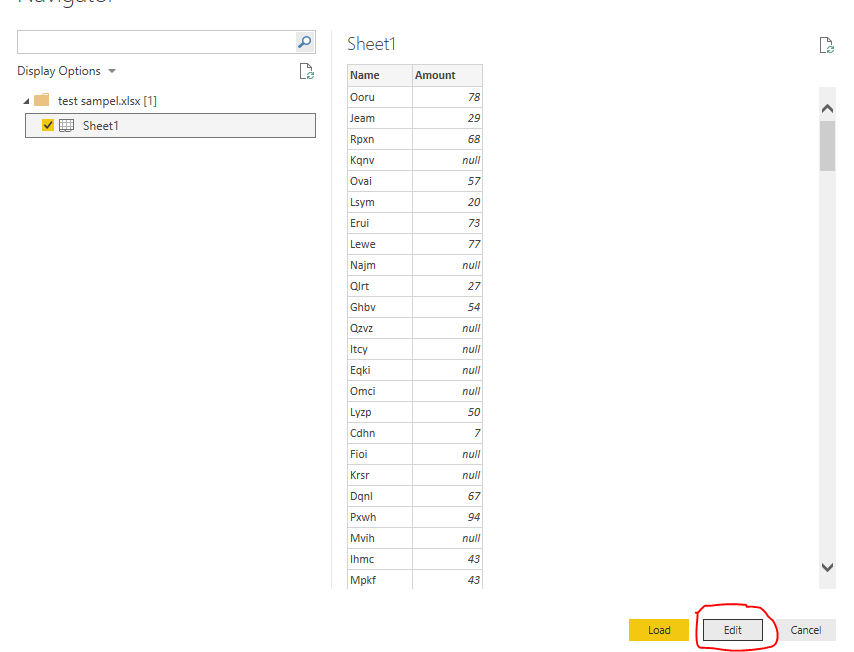
Enter the query editor:
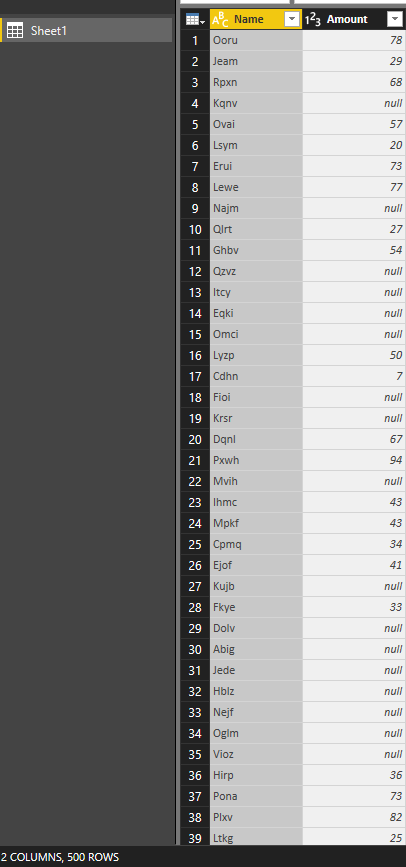
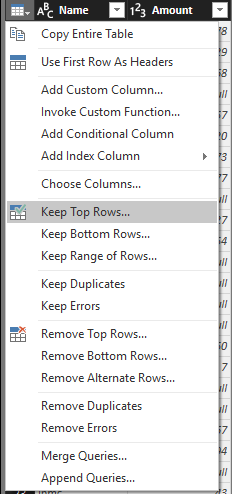
Click on table button and choose “Keep Top Rows”:
Fill in the parameter:
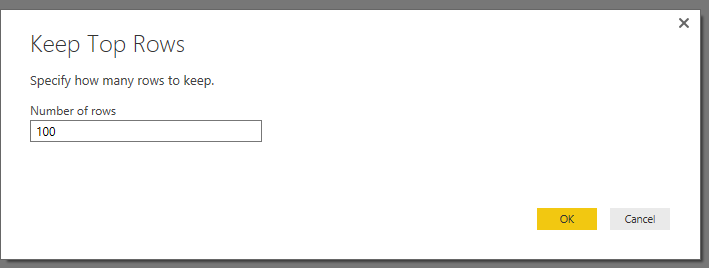
Result(keep 100 rows):
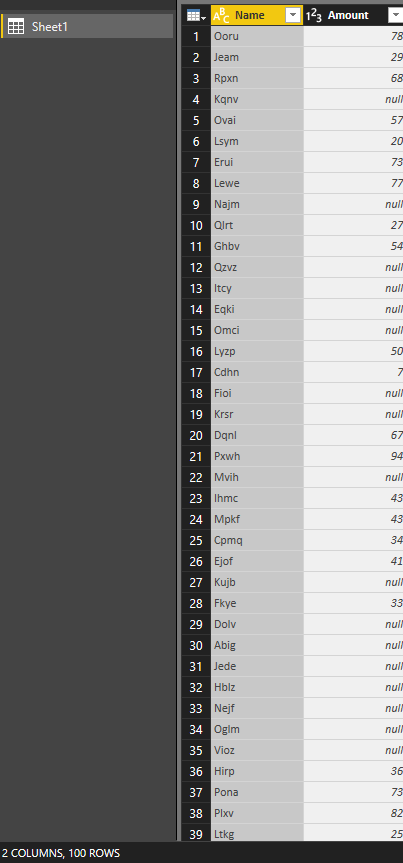
In addition, you can also directly use power query to current modify the query at “Advanced Editor”.
Before keep row, I want to remove the null value records.
Open the Advanced Editor:
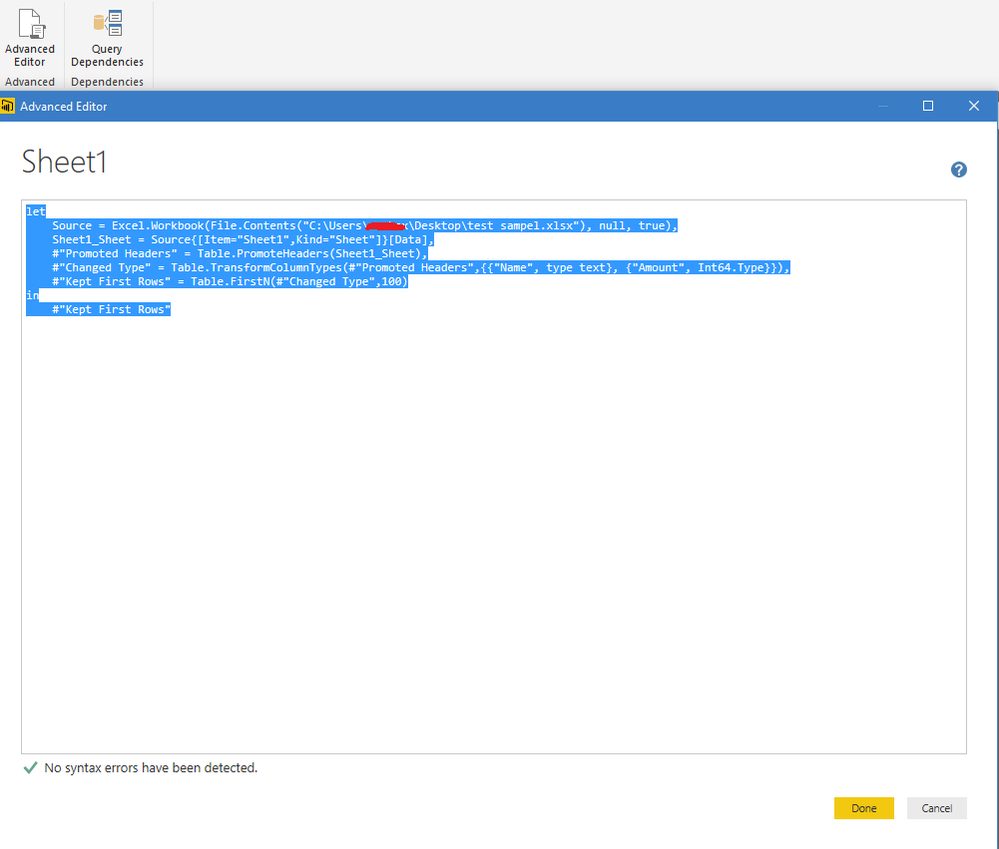
Add custom step:
let
Source = Excel.Workbook(File.Contents("C:\Users\xxxxx\Desktop\test sampel.xlsx"), null, true),
Sheet1_Sheet = Source{[Item="Sheet1",Kind="Sheet"]}[Data],
#"Promoted Headers" = Table.PromoteHeaders(Sheet1_Sheet),
#"Changed Type" = Table.TransformColumnTypes(#"Promoted Headers",{{"Name", type text}, {"Amount", Int64.Type}}),
Cutom =Table.SelectRows(#"Changed Type", each [Amount] <> null),
#"Kept First Rows" = Table.FirstN(Cutom,100)
in
#"Kept First Rows"
Result:
For detail information about power query, you can refer to below article:
Power Query (informally known as "M") Formula reference
Regards,
Xiaoxin Sheng
Hi @ammartino44,
According to your description, you import an excel workbook to power bi and you want to modify the files during loading, right?
If as I said, you can use query editor to modify these data.
For example, the source contains 500 rows, but I want get the top 100 rows.
Click edit button:
Enter the query editor:
Click on table button and choose “Keep Top Rows”:
Fill in the parameter:
Result(keep 100 rows):
In addition, you can also directly use power query to current modify the query at “Advanced Editor”.
Before keep row, I want to remove the null value records.
Open the Advanced Editor:
Add custom step:
let
Source = Excel.Workbook(File.Contents("C:\Users\xxxxx\Desktop\test sampel.xlsx"), null, true),
Sheet1_Sheet = Source{[Item="Sheet1",Kind="Sheet"]}[Data],
#"Promoted Headers" = Table.PromoteHeaders(Sheet1_Sheet),
#"Changed Type" = Table.TransformColumnTypes(#"Promoted Headers",{{"Name", type text}, {"Amount", Int64.Type}}),
Cutom =Table.SelectRows(#"Changed Type", each [Amount] <> null),
#"Kept First Rows" = Table.FirstN(Cutom,100)
in
#"Kept First Rows"
Result:
For detail information about power query, you can refer to below article:
Power Query (informally known as "M") Formula reference
Regards,
Xiaoxin Sheng
@ammartino44 You can upload data table from excel in power bi service (check it out here) and make use of it. That won't let you currently edit formulas etc since it is in power bi service. If you meant import data from Excel into power bi desktop using excel connector then yes it is straight import and so you will be able to do all the transformations that you can do in pbi desktop. If you meant importing excel workbook into pbi desktop (here) then yes after import you will be able to use all functionalities of pbi desktop.
The Power BI Data Visualization World Championships is back! It's time to submit your entry.
| User | Count |
|---|---|
| 52 | |
| 41 | |
| 32 | |
| 26 | |
| 24 |
| User | Count |
|---|---|
| 132 | |
| 118 | |
| 57 | |
| 45 | |
| 43 |