Join us at FabCon Atlanta from March 16 - 20, 2026, for the ultimate Fabric, Power BI, AI and SQL community-led event. Save $200 with code FABCOMM.
Register now!Vote for your favorite vizzies from the Power BI Dataviz World Championship submissions. Vote now!
Hi, PowerBI experts,
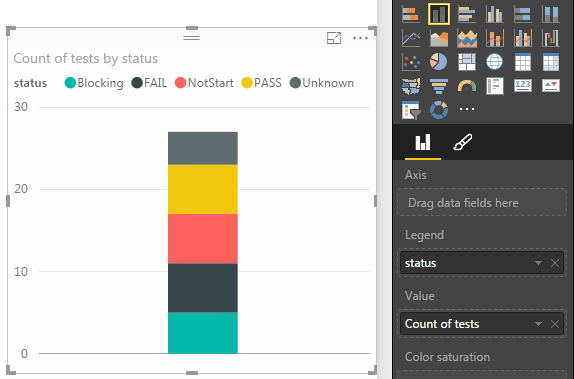
Now, I would like to summarize the count of a column named "tests" with a stacked column chart. And I also take the column "status" as the legend.
From the picture below, you can find that the "Blocking" part is at the bottom of the chart.
My question is: how to move the "Blocking" part to the top of the chart ?
In other words, how could we custom the display order of the legend ?
THANKS !
Kane
Solved! Go to Solution.
You have to create Measures for each type of Status
Then place each Measure in the Values area in the order you wish
I responded to a similar question but for a pie chart today - it works exactly the same way with a bar chart
http://community.powerbi.com/t5/Desktop/Rearrange-Pies-in-Pie-Chart/m-p/25218#U25218
For a less scary variation of what @dapster105 suggested what you can do is:
1- Use the "Create groups" function to create a new group for each entry you want in your table.
2 - Hit the windows key and type "Character Map" and open Windows' inbuilt Character map window (you can't do any harm with this!).
3 - In the "Go to Unicode" box type "200C" (without the quotes). Click "Select" & "Copy".
4 - Go back into the groups you created and for each group, paste this character at the start of the group name. Then add a number of spaces, depending on where you want it to appear in the list (the more times you paste it, the higher it ranks)*
5 - Replace the original field with this group in at least one place on the visualisation.
6 - Make sure that you chose this field as the one to sort by, reversing the sort order if needed.
This is as much so I can find it in future as anything, but hope it will help others. It really shouldn't require this...
Matt
*So in the box for the group name the 1st character should be the U200C one, followed by a mnumber of space, followed by the actual title you want to appear.
Hi there, this seems like the perfect solution but unfortunately PowerBI doesn't seem to recognize the inserten U220C characters for me. Do you have an idea if the software changed at some point or does it still work for you?
Vote for your favorite vizzies from the Power BI World Championship submissions!
If you love stickers, then you will definitely want to check out our Community Sticker Challenge!
Check out the January 2026 Power BI update to learn about new features.
| User | Count |
|---|---|
| 63 | |
| 51 | |
| 41 | |
| 19 | |
| 16 |
| User | Count |
|---|---|
| 125 | |
| 108 | |
| 46 | |
| 29 | |
| 27 |