cancel
Showing results for 
Search instead for 
Did you mean: 

The Power BI Data Visualization World Championships is back! It's time to submit your entry. Live now!

Reply
xarius
Helper I
Helper I

Measure grouping

Hi, I'm pretty new to power bi and dax, but haven't had luck with finding an example that fits what I'm trying to do.


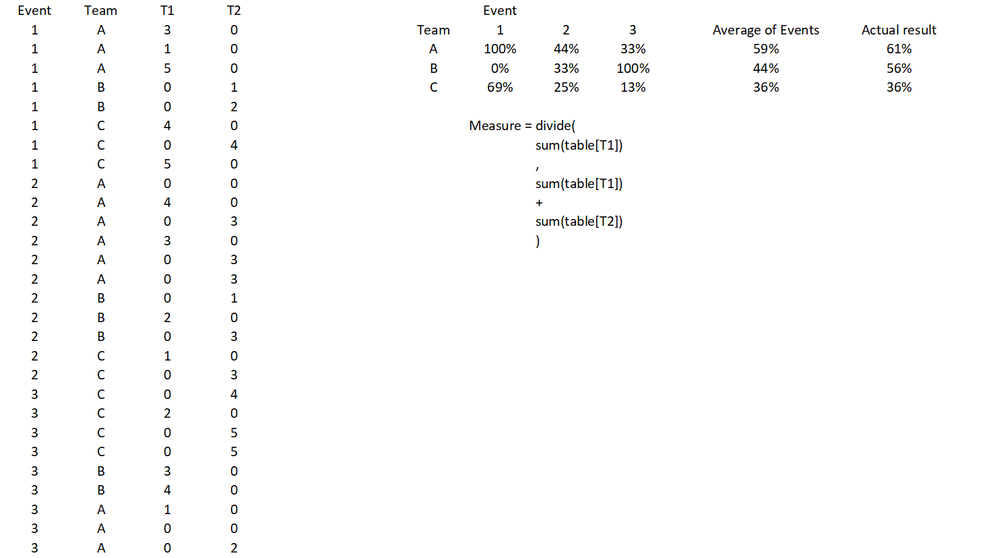
I'm trying to get the following - I've created a new measure as shown in the image below. I've put the results into a matrix with Event as columns and Team as rows and the values come out fine, however what I want for the total column for each team is the Average of Events as opposed to performing the measure without respect to the events.


I think I need some combination of Calculate, Group By or summarize, but I haven't been able to wrap my head around how to get what I want. Any help would be welcome!


Measure Example.png

1 ACCEPTED SOLUTION
MFelix
Super User
Super User

Hi @xarius,


Create the following two measures:

Percent_Team =
DIVIDE ( SUM ( 'Table'[T1] ); SUM ( 'Table'[T1] ) + SUM ( 'Table'[T2] ) )


Total Percent =
IF (
    HASONEVALUE ( 'Table'[Event] );
    [Percent_Team];
    AVERAGEX (
        SUMMARIZE (
            'Table';
            'Table'[Team];
            'Table'[Event];
            "Average_Total"; [Percent_Team]
        );
        [Average_Total]
    )
)

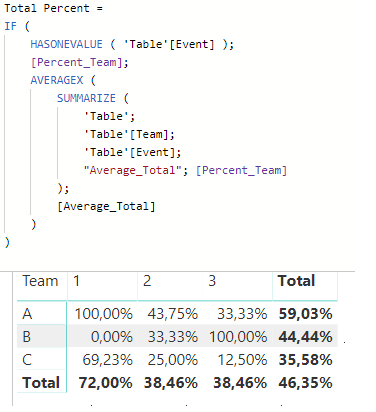
Then use your second measure to create your table visual:


AVertage.png


Regards,

MFelix


Regards

Miguel Félix


Did I answer your question? Mark my post as a solution!

Proud to be a Super User!

Check out my blog: Power BI em Português


View solution in original post

2 REPLIES 2
MFelix
Super User
Super User

Hi @xarius,


Create the following two measures:

Percent_Team =
DIVIDE ( SUM ( 'Table'[T1] ); SUM ( 'Table'[T1] ) + SUM ( 'Table'[T2] ) )


Total Percent =
IF (
    HASONEVALUE ( 'Table'[Event] );
    [Percent_Team];
    AVERAGEX (
        SUMMARIZE (
            'Table';
            'Table'[Team];
            'Table'[Event];
            "Average_Total"; [Percent_Team]
        );
        [Average_Total]
    )
)

Then use your second measure to create your table visual:


AVertage.png


Regards,

MFelix


Regards

Miguel Félix


Did I answer your question? Mark my post as a solution!

Proud to be a Super User!

Check out my blog: Power BI em Português


Perfect, thank you!


I thought I had to do it in one stage, but this makes sense and really helps me understand the summarize function too!

Helpful resources

Announcements
Power BI DataViz World Championships

Power BI Dataviz World Championships

The Power BI Data Visualization World Championships is back! It's time to submit your entry.

January Power BI Update Carousel

Power BI Monthly Update - January 2026

Check out the January 2026 Power BI update to learn about new features.

FabCon Atlanta 2026 carousel

FabCon Atlanta 2026

Join us at FabCon Atlanta, March 16-20, for the ultimate Fabric, Power BI, AI and SQL community-led event. Save $200 with code FABCOMM.