Get Fabric or SQL Certified for Free.
Get certified for free when you join Fabric Data Days 2026 and dive into Fabric, Power BI, SQL, AI, and other essential data skills.
Join now- Power BI forums
- Get Help with Power BI
- Desktop
- Service
- Report Server
- Power Query
- Mobile Apps
- Developer
- DAX Commands and Tips
- Custom Visuals Development Discussion
- Health and Life Sciences
- Power BI Spanish forums
- Translated Spanish Desktop
- Training and Consulting
- Instructor Led Training
- Dashboard in a Day for Women, by Women
- Galleries
- Data Stories Gallery
- Themes Gallery
- Contests Gallery
- QuickViz Gallery
- Quick Measures Gallery
- Visual Calculations Gallery
- Fabric Apps Gallery
- Notebook Gallery
- Translytical Task Flow Gallery
- TMDL Gallery
- R Script Showcase
- Webinars and Video Gallery
- Ideas
- Custom Visuals Ideas (read-only)
- Issues
- Issues
- Events
- Upcoming Events
July 28 - August 9 | Final Round of the Power BI Dataviz World Championships. This is your chance. Learn more
- Power BI forums
- Forums
- Get Help with Power BI
- Desktop
- Re: Matrix
- Subscribe to RSS Feed
- Mark Topic as New
- Mark Topic as Read
- Float this Topic for Current User
- Bookmark
- Subscribe
- Printer Friendly Page

- Mark as New
- Bookmark
- Subscribe
- Mute
- Subscribe to RSS Feed
- Permalink
- Report Inappropriate Content
Matrix
Solved! Go to Solution.


- Mark as New
- Bookmark
- Subscribe
- Mute
- Subscribe to RSS Feed
- Permalink
- Report Inappropriate Content
Hi @Usman,
You need to create a thirt table for a calendar you can do it in Excel or follow this link to make the custom calendar in Power query.
- In Advance Mode on Power query editor create the link to the 3 tables
- On the line of the Projects do the following steps:
- Unpivot Projects columns
- Remove Column attibute (name of the projects)
- Merge the Employes table with the Projects table
- Expand the date table
- Add a custom column with the following code:
Occupation = if [Removed Columns.Date] = null then "Free" else "Busy"
- Pivot Column Occupation using Maximum on Advance options
- Replace Nulls by Free
- Filter out null on column Date
- Merge Dates with previous table
- Expand Table
- Replace null
M code below:
let
    Employees = Excel.CurrentWorkbook(){[Name="Employees"]}[Content],
    Emp_Format = Table.TransformColumnTypes(Employees,{{"Employees", type text}}),
    Projects= Excel.CurrentWorkbook(){[Name="Projects"]}[Content],
    Format_Projects = Table.TransformColumnTypes(Projects,{{"Date", type date}, {"Project 1", type text}, {"Project 2", type text}, {"Project 3", type text}, {"Project 4", type text}}),
    Unpivot_Projects = Table.UnpivotOtherColumns(Format_Projects, {"Date"}, "Attribute", "Value"),
    Remove_Projects = Table.RemoveColumns(Unpivot_Projects,{"Attribute"}),
    Merge_Emp_Projects = Table.NestedJoin(Emp_Format,{"Employees"},Remove_Projects,{"Value"},"Removed Columns",JoinKind.LeftOuter),
    Expand_emp_projects = Table.ExpandTableColumn(Merge_Emp_Projects, "Removed Columns", {"Date"}, {"Date"}),
    Occupation = Table.AddColumn(Expand_emp_projects, "Occupation", each if [Date] = null then "Free" else "Busy" ),
    Pivot_col = Table.Pivot(Occupation, List.Distinct(Occupation[Employees]), "Employees", "Occupation", List.Max),
    Replace_Null = Table.ReplaceValue(Pivot_col,null,"Free",Replacer.ReplaceValue,{"John Peters", "Mike Dunsing", "Eric Kessler", "John Morales", "Kody Stahley", "Taran Reinert", "Tony Pedigree"}),
    Filter_null = Table.SelectRows(Replace_Null, each ([Date] <> null)),
    Dates= Excel.CurrentWorkbook(){[Name="Calendar"]}[Content],
    Dates_Format = Table.TransformColumnTypes(Dates,{{"Dates", type date}}),
    Merge_Date_Free = Table.NestedJoin(Dates_Format,{"Dates"}, Filter_null,{"Date"},"Changed Type",JoinKind.LeftOuter),
    Expand_Dates_Free = Table.ExpandTableColumn(Merge_Date_Free, "Changed Type", {"John Peters", "Mike Dunsing", "Eric Kessler", "John Morales", "Kody Stahley", "Taran Reinert", "Tony Pedigree"}, {"John Peters", "Mike Dunsing", "Eric Kessler", "John Morales", "Kody Stahley", "Taran Reinert", "Tony Pedigree"}),
    Replace_Null_free = Table.ReplaceValue(Expand_Dates_Free,null,"Free",Replacer.ReplaceValue,{"Dates", "John Peters", "Mike Dunsing", "Eric Kessler", "John Morales", "Kody Stahley", "Taran Reinert", "Tony Pedigree"})


in
    Replace_Null_free
See attach a copy of the excel file (it's a we tranfer link so will only last 7 days).
See the result below:
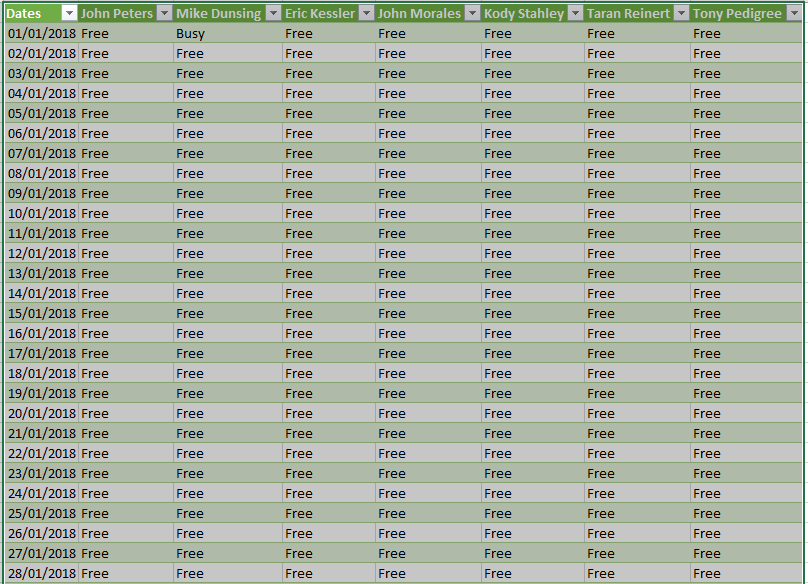
Regards,
MFelix
Regards
Miguel Félix
Did I answer your question? Mark my post as a solution!
Proud to be a Super User!
Check out my blog: Power BI em Português
- Mark as New
- Bookmark
- Subscribe
- Mute
- Subscribe to RSS Feed
- Permalink
- Report Inappropriate Content
- Mark as New
- Bookmark
- Subscribe
- Mute
- Subscribe to RSS Feed
- Permalink
- Report Inappropriate Content
Did you try my solution the only change is that were you have a JoinKind.LeftOuter you need to do a JoinKind.FullOuter this way merge full information from both tables.
In the end after having pivoting just filter out nulls on the date column.
Regards,
MFelix
Regards
Miguel Félix
Did I answer your question? Mark my post as a solution!
Proud to be a Super User!
Check out my blog: Power BI em Português
- Mark as New
- Bookmark
- Subscribe
- Mute
- Subscribe to RSS Feed
- Permalink
- Report Inappropriate Content
Hey,
I'm aware that you asked for a Power Query solution providing a matrix, but I couldn't resist to use basic Power BI, by using a Date Table that is related to a HasAJobTable.
Here you can find a simple Power BI pbix file.
Here is a screenshot from the table relations
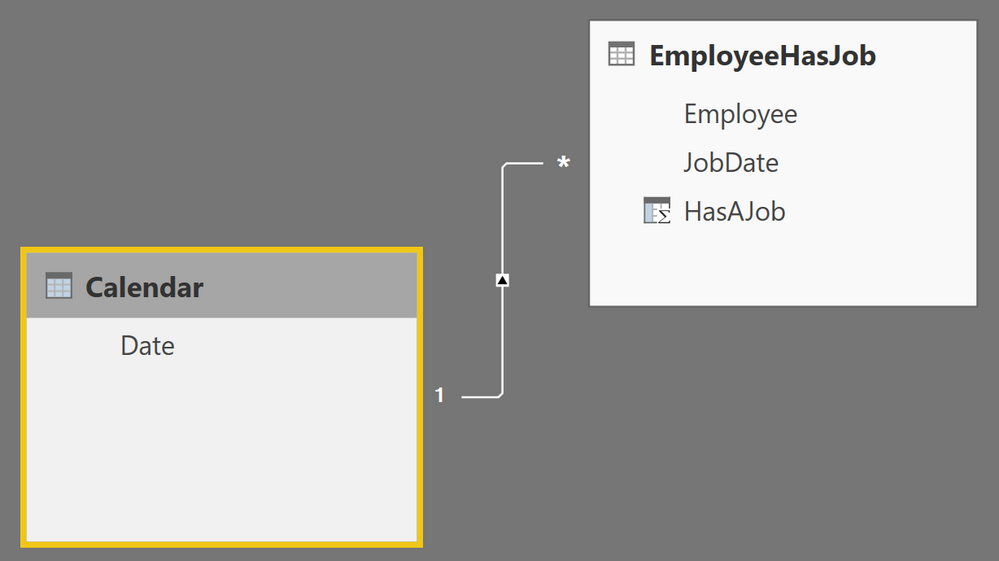
Here is a screenshot from the table "EmployeeHasJob", I just created a "Calculated Column" that just contains the value 1.

The result, using the matrix visual and conditional formatting, of course this will also work with "Show items with no data" enabled on the date column
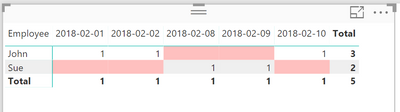
Maybe you find this approach helpful
Tom
Did I answer your question? Mark my post as a solution, this will help others!
Proud to be a Super User!
I accept Kudos 😉
Hamburg, Germany

- Mark as New
- Bookmark
- Subscribe
- Mute
- Subscribe to RSS Feed
- Permalink
- Report Inappropriate Content
Hi,
Share a dataset and show the expected result.
Regards,
Ashish Mathur
http://www.ashishmathur.com
https://www.linkedin.com/in/excelenthusiasts/
- Mark as New
- Bookmark
- Subscribe
- Mute
- Subscribe to RSS Feed
- Permalink
- Report Inappropriate Content

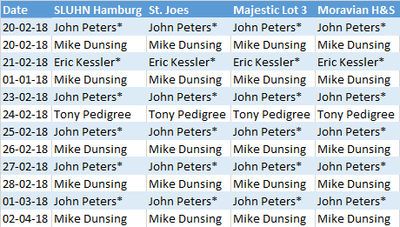
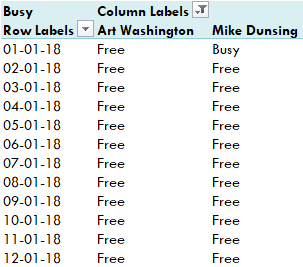
Here is the input table which contain dates in rows, jobs in columns and employees assigned to them. employees table only has employees names. expected solution is attached in the pivot table. the only issue is I cannot create a slicer of "Busy, Free" so that I can filter out employees who are free and assign a job to them.
- Mark as New
- Bookmark
- Subscribe
- Mute
- Subscribe to RSS Feed
- Permalink
- Report Inappropriate Content
Hi @Usman,
You need to create a thirt table for a calendar you can do it in Excel or follow this link to make the custom calendar in Power query.
- In Advance Mode on Power query editor create the link to the 3 tables
- On the line of the Projects do the following steps:
- Unpivot Projects columns
- Remove Column attibute (name of the projects)
- Merge the Employes table with the Projects table
- Expand the date table
- Add a custom column with the following code:
Occupation = if [Removed Columns.Date] = null then "Free" else "Busy"
- Pivot Column Occupation using Maximum on Advance options
- Replace Nulls by Free
- Filter out null on column Date
- Merge Dates with previous table
- Expand Table
- Replace null
M code below:
let
    Employees = Excel.CurrentWorkbook(){[Name="Employees"]}[Content],
    Emp_Format = Table.TransformColumnTypes(Employees,{{"Employees", type text}}),
    Projects= Excel.CurrentWorkbook(){[Name="Projects"]}[Content],
    Format_Projects = Table.TransformColumnTypes(Projects,{{"Date", type date}, {"Project 1", type text}, {"Project 2", type text}, {"Project 3", type text}, {"Project 4", type text}}),
    Unpivot_Projects = Table.UnpivotOtherColumns(Format_Projects, {"Date"}, "Attribute", "Value"),
    Remove_Projects = Table.RemoveColumns(Unpivot_Projects,{"Attribute"}),
    Merge_Emp_Projects = Table.NestedJoin(Emp_Format,{"Employees"},Remove_Projects,{"Value"},"Removed Columns",JoinKind.LeftOuter),
    Expand_emp_projects = Table.ExpandTableColumn(Merge_Emp_Projects, "Removed Columns", {"Date"}, {"Date"}),
    Occupation = Table.AddColumn(Expand_emp_projects, "Occupation", each if [Date] = null then "Free" else "Busy" ),
    Pivot_col = Table.Pivot(Occupation, List.Distinct(Occupation[Employees]), "Employees", "Occupation", List.Max),
    Replace_Null = Table.ReplaceValue(Pivot_col,null,"Free",Replacer.ReplaceValue,{"John Peters", "Mike Dunsing", "Eric Kessler", "John Morales", "Kody Stahley", "Taran Reinert", "Tony Pedigree"}),
    Filter_null = Table.SelectRows(Replace_Null, each ([Date] <> null)),
    Dates= Excel.CurrentWorkbook(){[Name="Calendar"]}[Content],
    Dates_Format = Table.TransformColumnTypes(Dates,{{"Dates", type date}}),
    Merge_Date_Free = Table.NestedJoin(Dates_Format,{"Dates"}, Filter_null,{"Date"},"Changed Type",JoinKind.LeftOuter),
    Expand_Dates_Free = Table.ExpandTableColumn(Merge_Date_Free, "Changed Type", {"John Peters", "Mike Dunsing", "Eric Kessler", "John Morales", "Kody Stahley", "Taran Reinert", "Tony Pedigree"}, {"John Peters", "Mike Dunsing", "Eric Kessler", "John Morales", "Kody Stahley", "Taran Reinert", "Tony Pedigree"}),
    Replace_Null_free = Table.ReplaceValue(Expand_Dates_Free,null,"Free",Replacer.ReplaceValue,{"Dates", "John Peters", "Mike Dunsing", "Eric Kessler", "John Morales", "Kody Stahley", "Taran Reinert", "Tony Pedigree"})


in
    Replace_Null_free
See attach a copy of the excel file (it's a we tranfer link so will only last 7 days).
See the result below:
Regards,
MFelix
Regards
Miguel Félix
Did I answer your question? Mark my post as a solution!
Proud to be a Super User!
Check out my blog: Power BI em Português- Mark as New
- Bookmark
- Subscribe
- Mute
- Subscribe to RSS Feed
- Permalink
- Report Inappropriate Content
Thank you so much. it worked.
- Mark as New
- Bookmark
- Subscribe
- Mute
- Subscribe to RSS Feed
- Permalink
- Report Inappropriate Content
Hi @Usman,
Just be carefull if the emplooye table changes there are some steps that may be broken since the name of the columns is based on user name.
Regards,
MFelix
Regards
Miguel Félix
Did I answer your question? Mark my post as a solution!
Proud to be a Super User!
Check out my blog: Power BI em Português- Mark as New
- Bookmark
- Subscribe
- Mute
- Subscribe to RSS Feed
- Permalink
- Report Inappropriate Content
Hi @Usman,
Although I don't know how you data is setup I assume that both tables are in the format of:
Table Dates: Date
Table Emp: Date ; Employees
- Make a merge of both tables joining by date
- Then expand the table employee
- Replace null by DELETE on colum employee
- Duplicate column employee
- Then pivot by employe copy column with the values from employee
- Delete column named DELETE
- Replace 0 by null
See M language below and result:
let
    Source = Excel.CurrentWorkbook(){[Name="Dates"]}[Content],
    Format_dates = Table.TransformColumnTypes(Source,{{"Dates", type date}}),
    Employees = Excel.CurrentWorkbook(){[Name="Employees"]}[Content],
    Format_Emp = Table.TransformColumnTypes(Employees,{{"Employee", type text}, {"Date", type date}}),
    Merge = Table.NestedJoin(Format_dates,{"Dates"},Format_Emp,{"Date"},"Changed Type1",JoinKind.LeftOuter),
    Expand_Emp = Table.ExpandTableColumn(Merge, "Changed Type1", {"Employee"}, {"Employee"}),
    Repace_null = Table.ReplaceValue(Expand_Emp,null,"DELETE",Replacer.ReplaceValue,{"Employee"}),
    Duplicate_Emp = Table.AddColumn(Repace_null, "Employee - Copy", each [Employee], type text),
    Pivot = Table.Pivot(Duplicate_Emp, List.Distinct(Duplicate_Emp[#"Employee - Copy"]), "Employee - Copy", "Employee", List.Count),
    Remove_additional = Table.RemoveColumns(Pivot,{"DELETE"}),
    Replace_zero = Table.ReplaceValue(Remove_additional,0,null,Replacer.ReplaceValue,{"A", "B", "D", "C"})
in
    Replace_zero
Tables:
Dates
Dates
| 01/01/2018 |
| 02/01/2018 |
| 03/01/2018 |
| 04/01/2018 |
| 05/01/2018 |
| 06/01/2018 |
| 07/01/2018 |
| 08/01/2018 |
| 09/01/2018 |
| 10/01/2018 |
| 11/01/2018 |
| 12/01/2018 |
| 13/01/2018 |
| 14/01/2018 |
| 15/01/2018 |
| 16/01/2018 |
| 17/01/2018 |
| 18/01/2018 |
| 19/01/2018 |
| 20/01/2018 |
| 21/01/2018 |
| 22/01/2018 |
| 23/01/2018 |
| 24/01/2018 |
| 25/01/2018 |
| 26/01/2018 |
| 27/01/2018 |
| 28/01/2018 |
| 29/01/2018 |
| 30/01/2018 |
Employees
Employee Date
| A | 01/01/2018 |
| A | 05/01/2018 |
| A | 06/01/2018 |
| B | 04/01/2018 |
| B | 09/01/2018 |
| B | 10/01/2018 |
| C | 22/01/2018 |
| C | 25/01/2018 |
| C | 26/01/2018 |
| D | 17/01/2018 |
| D | 20/01/2018 |
| D | 21/01/2018 |
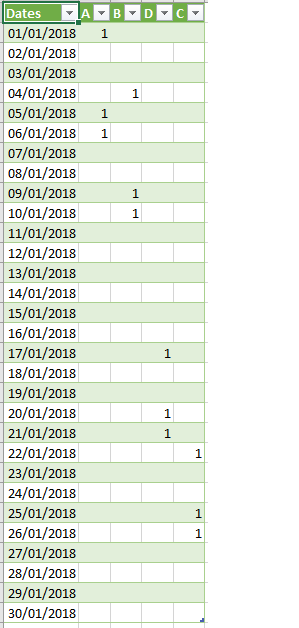
Regards,
MFelix
Regards
Miguel Félix
Did I answer your question? Mark my post as a solution!
Proud to be a Super User!
Check out my blog: Power BI em Português
Helpful resources

Fabric Community Sticker Challenge - Barcelona 2026
If you love stickers, then you will definitely want to check out our community sticker challenge, Barcelona edition!

Power BI Monthly Update - July 2026
Check out the July 2026 Power BI update to learn about new features.

Power BI DataViz World Championships - June 2026
A new Power BI DataViz World Championship is coming this June! Don't miss out on submitting your entry.

| User | Count |
|---|---|
| 28 | |
| 28 | |
| 19 | |
| 19 | |
| 19 |


| User | Count |
|---|---|
| 37 | |
| 29 | |
| 18 | |
| 17 | |
| 15 |


