
Share feedback directly with Fabric product managers, participate in targeted research studies and influence the Fabric roadmap.
Sign up nowGet Fabric certified for FREE! Don't miss your chance! Learn more
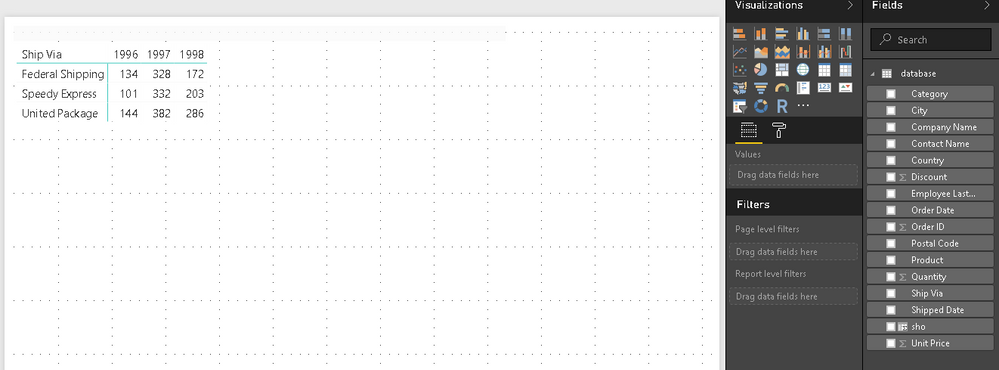
The above image is from an Excel file. I would like to recreate that in Power BI Desktop. By using the Matrix Visualization in Power BI Desktop I did only manage to create this:
Another problem is that I can't add the Shipped Date Year again since it is already added.
Thanks.
Solved! Go to Solution.
Hi @hustlas4ever,
The Power BI matrix visual is different from the Pivot table in Excel. The matrix cells display aggregate values that are scoped to the intersection of the row and column groups to which the cell belongs. We are not able to add duplicate columns to the Row or Column groups. So in your scenario, unless the original table contains a specific column group both Ship Date column, then you can get your expected results. You can see attached .pbix.
Best Regards,
Qiuyun Yu
Hi @hustlas4ever,
The Power BI matrix visual is different from the Pivot table in Excel. The matrix cells display aggregate values that are scoped to the intersection of the row and column groups to which the cell belongs. We are not able to add duplicate columns to the Row or Column groups. So in your scenario, unless the original table contains a specific column group both Ship Date column, then you can get your expected results. You can see attached .pbix.
Best Regards,
Qiuyun Yu
Share feedback directly with Fabric product managers, participate in targeted research studies and influence the Fabric roadmap.
If you love stickers, then you will definitely want to check out our Community Sticker Challenge!
Check out the January 2026 Power BI update to learn about new features.
| User | Count |
|---|---|
| 63 | |
| 62 | |
| 42 | |
| 20 | |
| 18 |