cancel
Showing results for 
Search instead for 
Did you mean: 

The Power BI Data Visualization World Championships is back! Get ahead of the game and start preparing now! Learn more

Reply
Anonymous
Not applicable

Issue with same names.

Hi All,


I am working on utilization report but there are two employees with same name with different IDs and managers. This is creating issue collating both of their data in a table. Can you please help me with tagging Employee with A_1 and A_2. I tried with replace text but it is not working properly. 


= Table.ReplaceValue(#"Renamed Columns",each [Employee], each if [Manager]= "B" then "A_1" else "A_2",Replacer.ReplaceText,{"Employee"})


EmployeeIDManager
A1B
A2C
1 ACCEPTED SOLUTION
v-yalanwu-msft
Community Support
Community Support

Hi, @Anonymous ;

In power query ,you could add new column then delete original column.
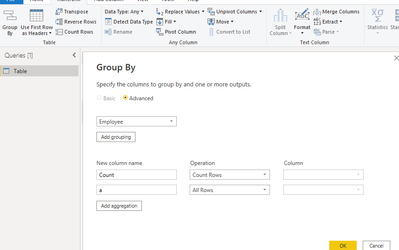
vyalanwumsft_0-1663827988200.pngvyalanwumsft_1-1663828013750.png

See the working here - Open a blank query - Home - Advanced Editor - Remove everything from there and paste the below code to test.

let
    Source = Table.FromRows(Json.Document(Binary.Decompress(Binary.FromText("i45WclTSUTIEYielWB0IzwiInZViYwE=", BinaryEncoding.Base64), Compression.Deflate)), let _t = ((type nullable text) meta [Serialized.Text = true]) in type table [Employee = _t, ID = _t, Manager = _t]),
    #"Changed Type" = Table.TransformColumnTypes(Source,{{"Employee", type text}, {"ID", Int64.Type}, {"Manager", type text}}),
    #"Grouped Rows" = Table.Group(#"Changed Type", {"Employee"}, {{"Count", each Table.RowCount(_), Int64.Type}, {"a", each _, type table [Employee=nullable text, ID=nullable number, Manager=nullable text]}}),
    #"Expanded a" = Table.ExpandTableColumn(#"Grouped Rows", "a", {"ID", "Manager"}, {"ID", "Manager"}),
    #"Added Conditional Column" = Table.AddColumn(#"Expanded a", "Custom", each if [Count] = 1 then [Employee]
 else if [Manager]="B" then
      [Employee]&"_1"
    else [Employee]&"_2"),
    #"Removed Columns" = Table.RemoveColumns(#"Added Conditional Column",{"Employee", "Count"})
in
    #"Removed Columns"

The final show:

vyalanwumsft_2-1663828100740.png


Best Regards,
Community Support Team _ Yalan Wu
If this post helps, then please consider Accept it as the solution to help the other members find it more quickly.

View solution in original post

2 REPLIES 2
v-yalanwu-msft
Community Support
Community Support

Hi, @Anonymous ;

In power query ,you could add new column then delete original column.
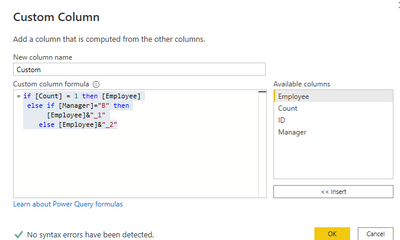
vyalanwumsft_0-1663827988200.pngvyalanwumsft_1-1663828013750.png

See the working here - Open a blank query - Home - Advanced Editor - Remove everything from there and paste the below code to test.

let
    Source = Table.FromRows(Json.Document(Binary.Decompress(Binary.FromText("i45WclTSUTIEYielWB0IzwiInZViYwE=", BinaryEncoding.Base64), Compression.Deflate)), let _t = ((type nullable text) meta [Serialized.Text = true]) in type table [Employee = _t, ID = _t, Manager = _t]),
    #"Changed Type" = Table.TransformColumnTypes(Source,{{"Employee", type text}, {"ID", Int64.Type}, {"Manager", type text}}),
    #"Grouped Rows" = Table.Group(#"Changed Type", {"Employee"}, {{"Count", each Table.RowCount(_), Int64.Type}, {"a", each _, type table [Employee=nullable text, ID=nullable number, Manager=nullable text]}}),
    #"Expanded a" = Table.ExpandTableColumn(#"Grouped Rows", "a", {"ID", "Manager"}, {"ID", "Manager"}),
    #"Added Conditional Column" = Table.AddColumn(#"Expanded a", "Custom", each if [Count] = 1 then [Employee]
 else if [Manager]="B" then
      [Employee]&"_1"
    else [Employee]&"_2"),
    #"Removed Columns" = Table.RemoveColumns(#"Added Conditional Column",{"Employee", "Count"})
in
    #"Removed Columns"

The final show:

vyalanwumsft_2-1663828100740.png


Best Regards,
Community Support Team _ Yalan Wu
If this post helps, then please consider Accept it as the solution to help the other members find it more quickly.

parry2k
Super User
Super User

@Anonymous easier to add another column and concatenate Employee and ID Column


Follow us on LinkedIn and YouTube.gif to our YouTube channel

I would  Kudos if my solution helped. 👉 If you can spend time posting the question, you can also make effort to give Kudos to whoever helped to solve your problem. It is a token of appreciation!


Visit us at https://perytus.com, your one-stop shop for Power BI-related projects/training/consultancy.


Subscribe to the @PowerBIHowTo YT channel for an upcoming video on List and Record functions in Power Query!!

Learn Power BI and Fabric - subscribe to our YT channel - Click here: @PowerBIHowTo

If my solution proved useful, I'd be delighted to receive Kudos. When you put effort into asking a question, it's equally thoughtful to acknowledge and give Kudos to the individual who helped you solve the problem. It's a small gesture that shows appreciation and encouragement! ❤


Did I answer your question? Mark my post as a solution. Proud to be a Super User! Appreciate your Kudos 🙂
Feel free to email me with any of your BI needs.

Helpful resources

Announcements
Power BI DataViz World Championships

Power BI Dataviz World Championships

The Power BI Data Visualization World Championships is back! Get ahead of the game and start preparing now!

December 2025 Power BI Update Carousel

Power BI Monthly Update - December 2025

Check out the December 2025 Power BI Holiday Recap!

FabCon Atlanta 2026 carousel

FabCon Atlanta 2026

Join us at FabCon Atlanta, March 16-20, for the ultimate Fabric, Power BI, AI and SQL community-led event. Save $200 with code FABCOMM.