Join us at FabCon Atlanta from March 16 - 20, 2026, for the ultimate Fabric, Power BI, AI and SQL community-led event. Save $200 with code FABCOMM.
Register now!The Power BI Data Visualization World Championships is back! Get ahead of the game and start preparing now! Learn more
Hello,
I have a question about using the radar chart visualization.
I am not able to overlay data on a radar chart by using the slicer visualization. It is not showing any overlay but only the "first", "last" or count result.
My data looks like this:
I would like to overlay sample 1 or 2 or 3 or ..., depending on which I would like to see with category A till M as the "category".
| Category | Sample 1 | Sample 2 | Sample 3 |
| A | 1 | 0.9 | 0.8 |
| B | 1.1 | 1 | 0.9 |
| C | 0.8 | 1.1 | 0.7 |
| D | 1.3 | 1.2 | 1.1 |
| E | 1.9 | 1.3 | 0.4 |
| F | 1.5 | 1.4 | 1.3 |
| G | 0.5 | 1.5 | 0.6 |
| H | 0.9 | 1.6 | 1.1 |
| I | 1 | 1.5 | 1.6 |
| J | 1.4 | 1.8 | 1 |
| K | 2 | 1.9 | 1.8 |
| L | 2.1 | 0.8 | 1.9 |
| M | 1.3 | 0.8 | 0.7 |
Can somenody help me solve this?
Thanks
Evert
Solved! Go to Solution.
Hi @evertfeyaerts,
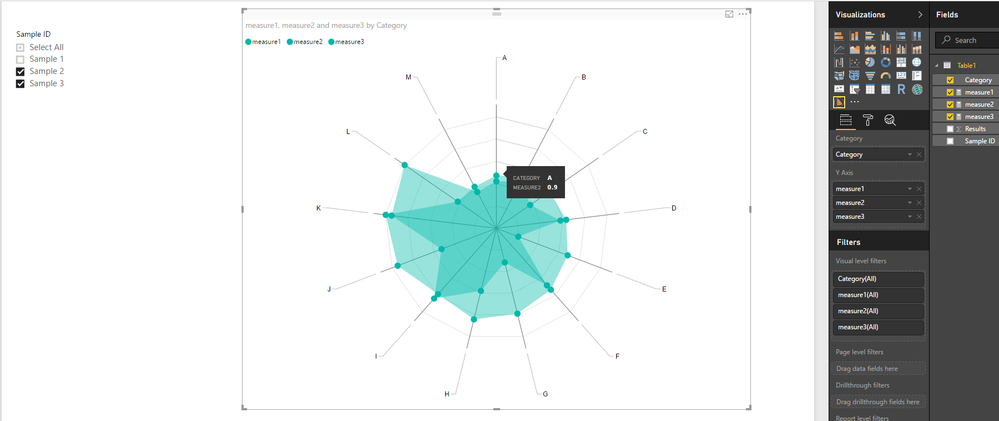
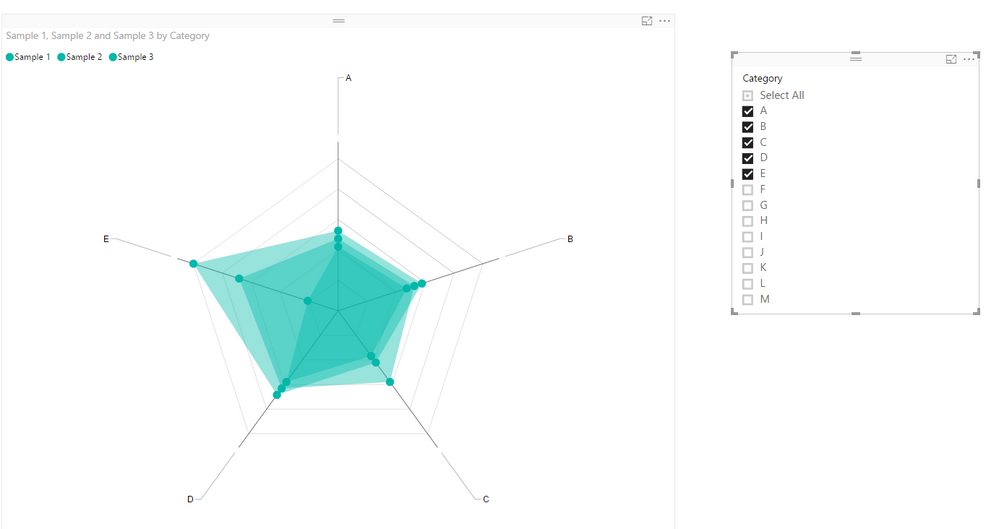
In your scenario, you may need to create different measures to calculate results for each Sample ID separately, then show all the measures as Y Axis on the Radar chart.
measure1 = CALCULATE(SUM(Table1[Results]),FILTER(Table1,Table1[Sample ID]="Sample 1"))
measure2 = CALCULATE(SUM(Table1[Results]),FILTER(Table1,Table1[Sample ID]="Sample 2"))
measure3 = CALCULATE(SUM(Table1[Results]),FILTER(Table1,Table1[Sample ID]="Sample 3"))
Here is the sample pbix file for your reference. ![]()
Regards
Hi @evertfeyaerts,
What column are you using as Slicer on your report?
Could you be more precisely with your issue by post some screenshots?
Regards
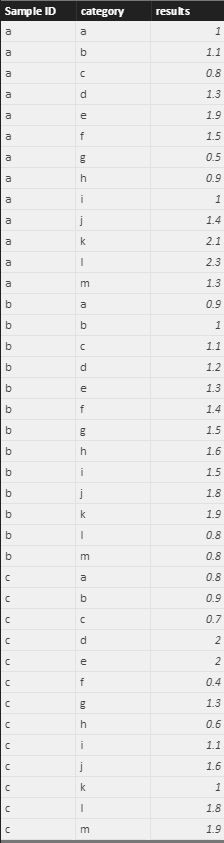
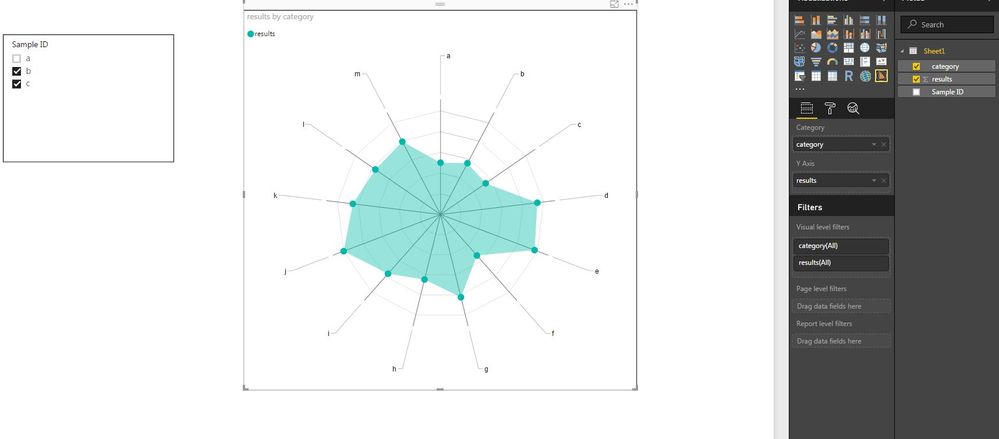
I am sorry, I added the wrong data. see below the correct data with some illustrations. The first picture of de radar chart gives me the data of 1 sample and the 2nd picture shows me a "count" of both data and not illustrated separately.
Thanks
Hi @evertfeyaerts,
In your scenario, you may need to create different measures to calculate results for each Sample ID separately, then show all the measures as Y Axis on the Radar chart.
measure1 = CALCULATE(SUM(Table1[Results]),FILTER(Table1,Table1[Sample ID]="Sample 1"))
measure2 = CALCULATE(SUM(Table1[Results]),FILTER(Table1,Table1[Sample ID]="Sample 2"))
measure3 = CALCULATE(SUM(Table1[Results]),FILTER(Table1,Table1[Sample ID]="Sample 3"))
Here is the sample pbix file for your reference. ![]()
Regards
Hello, I have a related question regarding the radar chart in PowerBI. I have a lot of different cases ( like in this example here sample 1, 2 and 3. I have like 100 different and want to avoid writing a measure for each individual one. Do you know a way to work around writing like a 100 measures and still have all "scenarios" visible on the radar chart? It is meant to be filtered, so there will only a few be visible at the same time.
Thank you in advance!
BR
The Power BI Data Visualization World Championships is back! Get ahead of the game and start preparing now!
Check out the November 2025 Power BI update to learn about new features.
| User | Count |
|---|---|
| 59 | |
| 43 | |
| 42 | |
| 23 | |
| 17 |
| User | Count |
|---|---|
| 190 | |
| 122 | |
| 96 | |
| 66 | |
| 47 |