cancel
Showing results for 
Search instead for 
Did you mean: 

The Power BI Data Visualization World Championships is back! Get ahead of the game and start preparing now! Learn more

Reply
LoonaMoon
Frequent Visitor

Individual student's performance line chart with Y axis as categories

Hello all,

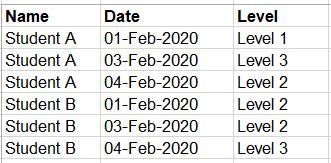
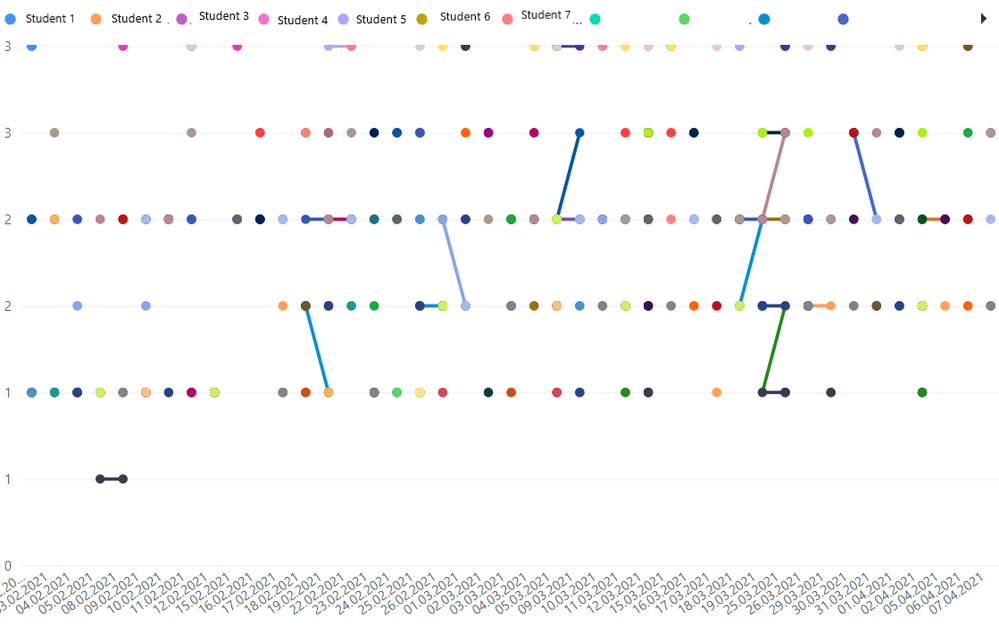
I need to visualize an improvement of a student's skills set by level and date. Here is the data I have:

Capture.PNG


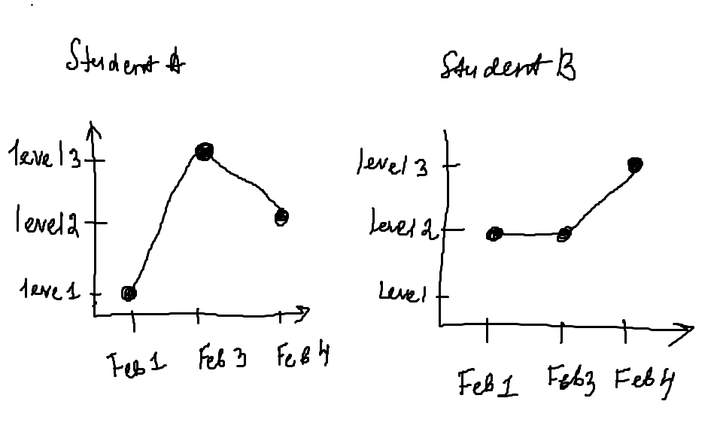
I need to draw a line chart per student with level names instead of Y axis and dates as X axis

I added a slicer to choose student's name, but it didn't work in Power BI

How can I draw a line chart like below?

2.PNG


I would appreciate your help!


1 ACCEPTED SOLUTION
AlexisOlson
Super User
Super User

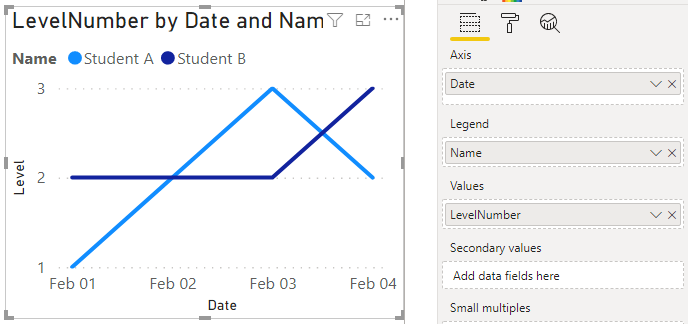
With the built-in line chart, you can get pretty close.


AlexisOlson_0-1617649981412.png

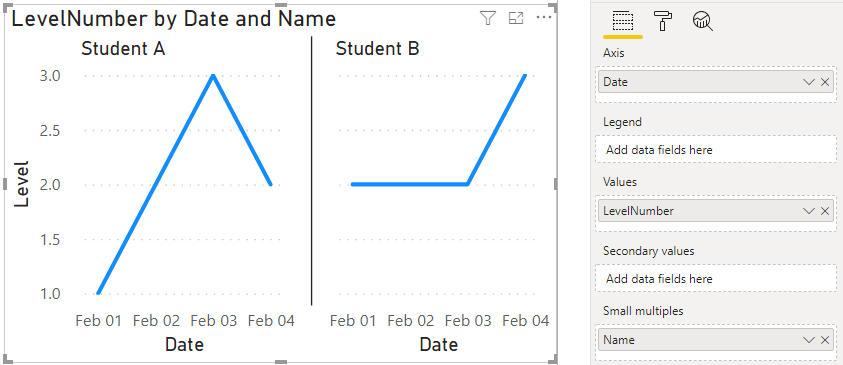
or

AlexisOlson_1-1617650051156.png


These both use a measure for the values.

LevelNumber = VALUE ( RIGHT ( SELECTEDVALUE ( Performance[Level] ) ) )


I think you'd probably need a non-built-in visual to do the categorical Y axis with the lableing you specified.

View solution in original post

3 REPLIES 3
AlexisOlson
Super User
Super User

With the built-in line chart, you can get pretty close.


AlexisOlson_0-1617649981412.png

or

AlexisOlson_1-1617650051156.png


These both use a measure for the values.

LevelNumber = VALUE ( RIGHT ( SELECTEDVALUE ( Performance[Level] ) ) )


I think you'd probably need a non-built-in visual to do the categorical Y axis with the lableing you specified.

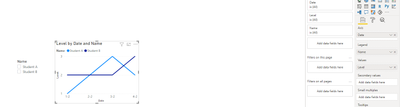
Thank you it worked! now I have another problem with line chart. I have a filter with students' name and whenever I choose any of them I got mess on my line chart. Dots for each student do not connect with each other.  How i can fix it? Appreciate your help!
tempsnip.png

edugoncalves
Resolver I
Resolver I

Hi @LoonaMoon ,

I feel like you won't be able to use a "text" type field on the Y axis.
In return, I propose you to use a measure to extract only the numerical part of the "Level" column.

Measure = VALUE( RIGHT( MAX( 'Table' [Level] ) ) )

With this measure created, just add it on the "Values" section of the desired visual.
(I renamed it as "Level" on the visual to adapt the solution to the presented scenario).

edugoncalves_1-1617649694744.png

Best Regards,
Eduardo

Helpful resources

Announcements
November Power BI Update Carousel

Power BI Monthly Update - November 2025

Check out the November 2025 Power BI update to learn about new features.

Fabric Data Days Carousel

Fabric Data Days

Advance your Data & AI career with 50 days of live learning, contests, hands-on challenges, study groups & certifications and more!

FabCon Atlanta 2026 carousel

FabCon Atlanta 2026

Join us at FabCon Atlanta, March 16-20, for the ultimate Fabric, Power BI, AI and SQL community-led event. Save $200 with code FABCOMM.