
cancel
Showing results for 
Search instead for 
Did you mean: 

We've captured the moments from FabCon & SQLCon that everyone is talking about, and we are bringing them to the community, live and on-demand. Starts on April 14th. Register now

Reply
Anonymous
Not applicable

Individual Number Formatting

Hi all,


 Capture.PNG


I was wondering whether there was a way of changing the format of the data so that only the bottom row's numbers show as a percentage, rather than each whole column.


Apologies if there is a basic solution to this - I've only just started using PBI!


Many thanks

updog

1 ACCEPTED SOLUTION

Hi @Anonymous,


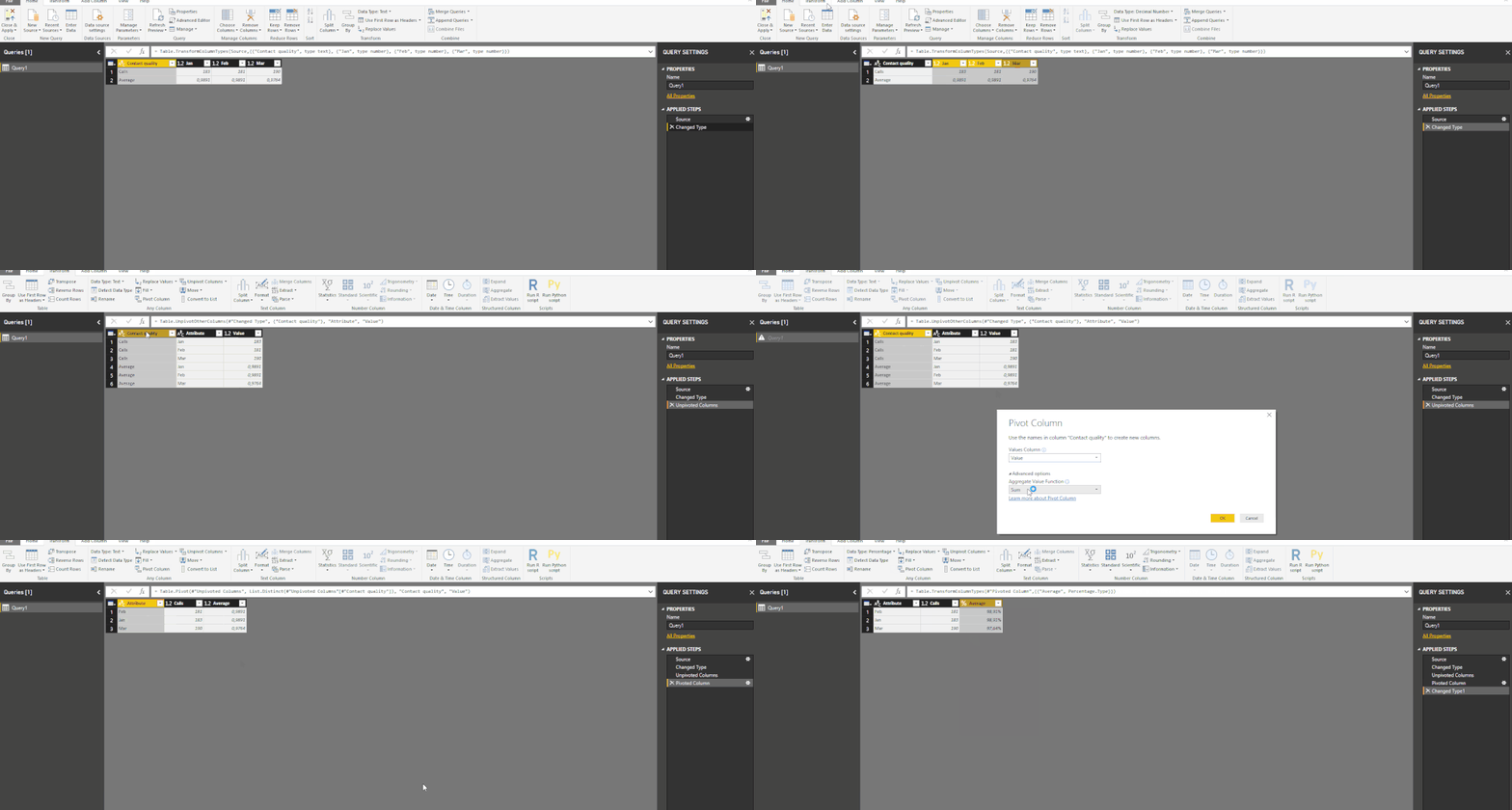
See below an image of how to do the unpivot and pivot on the query editor.


The selection of the columns for the unpivot should compreend all your months.


unpivot.gif


Regards,

MFelix


Regards

Miguel Félix


Did I answer your question? Mark my post as a solution!

Proud to be a Super User!

Check out my blog: Power BI em Português


View solution in original post

4 REPLIES 4
Azhar1
Regular Visitor

Hi, You can do a conditional formatting in DAX expression for any specific number format.

Try formatting 2 numbers seperately by creating 2 measures, then write a DAX expression using IF condition to use those 2 measures as per the row.


Hope this helps.


Kind Regards,

Azhar Sayyad

MFelix
Super User
Super User

Hi @Anonymous,


The best way is to unpivot your columns and then Pivot by the Contact Quality.


Check below the M Code for some sample data:


let
    Source = Table.FromRows(Json.Document(Binary.Decompress(Binary.FromText("i45Wck7MySlW0lEytDAGk4Yg0tJAKVYnWsmxLLUoMT0VKGKgZ2lhaYjGMDczUYqNBQA=", BinaryEncoding.Base64), Compression.Deflate)), let _t = ((type text) meta [Serialized.Text = true]) in type table [#"Contact quality" = _t, Jan = _t, Feb = _t, Mar = _t]),
    #"Changed Type" = Table.TransformColumnTypes(Source,{{"Contact quality", type text}, {"Jan", type number}, {"Feb", type number}, {"Mar", type number}}),
    #"Unpivoted Columns" = Table.UnpivotOtherColumns(#"Changed Type", {"Contact quality"}, "Attribute", "Value"),
    #"Pivoted Column" = Table.Pivot(#"Unpivoted Columns", List.Distinct(#"Unpivoted Columns"[Contact quality]), "Contact quality", "Value"),
    #"Changed Type1" = Table.TransformColumnTypes(#"Pivoted Column",{{"Average", Percentage.Type}})
in
    #"Changed Type1"


Regards,

MFelix


Regards

Miguel Félix


Did I answer your question? Mark my post as a solution!

Proud to be a Super User!

Check out my blog: Power BI em Português


Anonymous
Not applicable

Hello @MFelixand @Azhar1,


Thank you very much for your replies.


While I'm sure your solutions are helpful, I'm a complete beginner so I don't know how to go about doing the stuff you mentioned.


I would be grateful if you could clarify this. Sorry again!


Kind regards

updog 

Hi @Anonymous,


See below an image of how to do the unpivot and pivot on the query editor.


The selection of the columns for the unpivot should compreend all your months.


unpivot.gif


Regards,

MFelix


Regards

Miguel Félix


Did I answer your question? Mark my post as a solution!

Proud to be a Super User!

Check out my blog: Power BI em Português


Helpful resources

Announcements
New to Fabric survey Carousel

New to Fabric Survey

If you have recently started exploring Fabric, we'd love to hear how it's going. Your feedback can help with product improvements.

Power BI DataViz World Championships carousel

Power BI DataViz World Championships - June 2026

A new Power BI DataViz World Championship is coming this June! Don't miss out on submitting your entry.

Join our Fabric User Panel

Join our Fabric User Panel

Share feedback directly with Fabric product managers, participate in targeted research studies and influence the Fabric roadmap.

March Power BI Update Carousel

Power BI Community Update - March 2026

Check out the March 2026 Power BI update to learn about new features.