Learn from the best! Meet the four finalists headed to the FINALS of the Power BI Dataviz World Championships! Register now
Hi All,
How to get the detailed data from the different schema based file , after connecting to the folder in Power BI Desktop.
Thanks,
Pratima
Solved! Go to Solution.
Hi @Pratima,
>>How to get the detailed data from the different schema based file , after connecting to the folder in Power BI Desktop.
You can refer to below steps to deal with specific file types which "get data" from folder:
1. Write a custom function to analysis different file type.
2. Get Data from folder.
3. Add custom function to invoke aboe custom function.
Formula:
let
AnalysisFile = (FilePath as text, Extension as text) =>
let
values = {
{".xlsx", Excel.Workbook(File.Contents(FilePath), true)},
{".csv", Csv.Document(File.Contents(FilePath))},
{".txt", Csv.Document(File.Contents(FilePath))},
{Extension, null}
},
Result = List.First(List.Select(values, each _{0}=Extension)){1}
in
Result
in
AnalysisFile
Full query;
let
Source = Folder.Files("C:\Users\xxxxx\Desktop"),
#"Filtered Rows" = Table.SelectColumns(Table.AddColumn(Source,"AnalysisData", each AnalysisFile([Folder Path]&[Name],[Extension])),{"Folder Path","Name","AnalysisData"})
in
#"Filtered Rows"
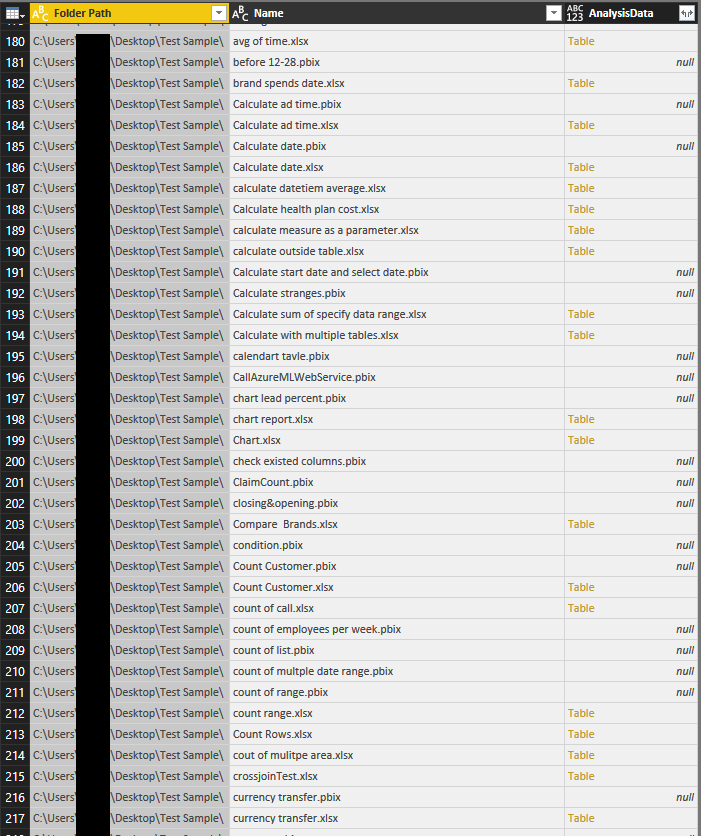
Regards,
Xiaoxin Sheng
Hi @Pratima,
>>How to get the detailed data from the different schema based file , after connecting to the folder in Power BI Desktop.
You can refer to below steps to deal with specific file types which "get data" from folder:
1. Write a custom function to analysis different file type.
2. Get Data from folder.
3. Add custom function to invoke aboe custom function.
Formula:
let
AnalysisFile = (FilePath as text, Extension as text) =>
let
values = {
{".xlsx", Excel.Workbook(File.Contents(FilePath), true)},
{".csv", Csv.Document(File.Contents(FilePath))},
{".txt", Csv.Document(File.Contents(FilePath))},
{Extension, null}
},
Result = List.First(List.Select(values, each _{0}=Extension)){1}
in
Result
in
AnalysisFile
Full query;
let
Source = Folder.Files("C:\Users\xxxxx\Desktop"),
#"Filtered Rows" = Table.SelectColumns(Table.AddColumn(Source,"AnalysisData", each AnalysisFile([Folder Path]&[Name],[Extension])),{"Folder Path","Name","AnalysisData"})
in
#"Filtered Rows"
Regards,
Xiaoxin Sheng
| User | Count |
|---|---|
| 59 | |
| 47 | |
| 31 | |
| 18 | |
| 17 |
| User | Count |
|---|---|
| 77 | |
| 66 | |
| 46 | |
| 22 | |
| 22 |