
Join us at FabCon Atlanta from March 16 - 20, 2026, for the ultimate Fabric, Power BI, AI and SQL community-led event. Save $200 with code FABCOMM.
Register now!The Power BI Data Visualization World Championships is back! Get ahead of the game and start preparing now! Learn more
Hi all,
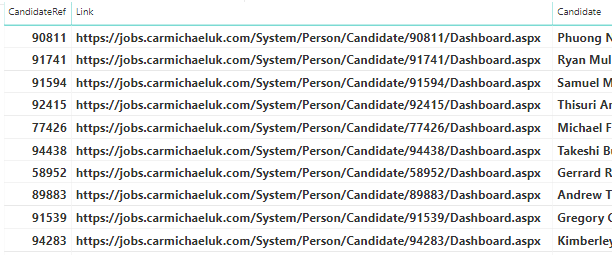
I'm trying to create a hyperlink for a report but when inputting the below DAX I receive an error saying the CandidateREf cannot be determined?
1.
Thanks,
Henry
Solved! Go to Solution.
Hi @HenryJS ,
Please check the following steps as below.
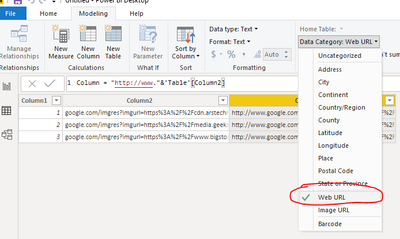
1# Select the calculated column and turn the Data category to Web URL.
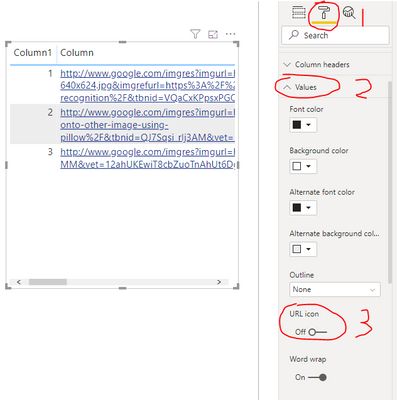
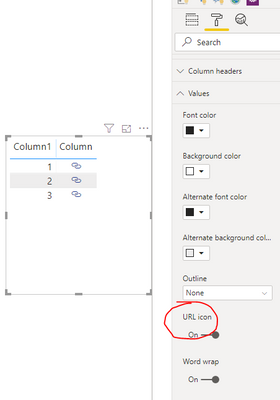
2# Select the visual and select Format -> Values turn the URL icon to On.
For more details please check the document below.
Best Regards,
Jay
Community Support Team _ Jay Wang
If this post helps, then please consider Accept it as the solution to help the other members find it more quickly.
Hi @HenryJS ,
You are creating a Measure instead of a Calculated column, please modify the DAX to
FORMAT(SELECTEDVALUE('table name'[column name]))Or please right-click on the table or any column of the table and select new column to create a Calculated Column.
For more details about Measure and Calculated Column, please refer to the video below.
https://www.youtube.com/watch?v=SVEGfqCTodc.
Best Regards,
Jay
Community Support Team _ Jay Wang
If this post helps, then please consider Accept it as the solution to help the other members find it more quickly.
Hi,
The calculated column now works and creates the desired hyperlink.
How do I create a button and link to the hyperlink as per image 2? At the moment it is just displaying image 1.
1.
2.
Thanks,
Henry
Hi @HenryJS ,
Please check the following steps as below.
1# Select the calculated column and turn the Data category to Web URL.
2# Select the visual and select Format -> Values turn the URL icon to On.
For more details please check the document below.
Best Regards,
Jay
Community Support Team _ Jay Wang
If this post helps, then please consider Accept it as the solution to help the other members find it more quickly.
The Power BI Data Visualization World Championships is back! Get ahead of the game and start preparing now!
| User | Count |
|---|---|
| 40 | |
| 37 | |
| 33 | |
| 29 | |
| 27 |
| User | Count |
|---|---|
| 134 | |
| 104 | |
| 63 | |
| 60 | |
| 55 |