cancel
Showing results for 
Search instead for 
Did you mean: 

Try your skills in the Power BI Dataviz World Championship! Round one ends June 26. Join now

Reply
Anonymous
Not applicable

How to transform integer to specific date format?

Hi Guys,


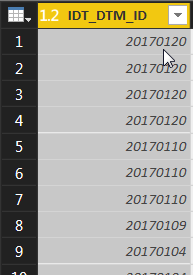
I have a small issue in my current dataset. The value of the column IDT_DTM_ID consist a wrong date value. Check the image here below.


IDT_DTM_ID.png


I would like to transform 20170102 into a date type 02-01-2017.


Can you help me out?


Kind regards,


Rega


1 ACCEPTED SOLUTION
MalS
Resolver III
Resolver III

In the Query Editor, you can click on the Transform tab, then the Data Type dropdown and select Date. 


If that doesn't work then maybe regional date settings are messing it up (Power BI might expect year, day, month instead of year, month, day) . 


If so, you can try extracting data into three new columns, then merging them back together into a date format that Power BI can recognize. For example:


1. Click Add Column tab and select Extract > Range and set Starting Index to 4 and Number of Characters to 2. That will get you the month in its own column

2. Select Extract > Last Characters and set Count to 2. That will get you the day.

3. Select Extract > First Characters and set Count to 4. That will get you the year

4. Click the Transform tab. Select the three new columns and click Merge Columns and set the separator to Custom, use a hyphen as the separator, then enter a column name

5. Finally change the Data Type to Date.


(If this doesn't work, go back to step 2 and swap the order of the day and month columns and try again)

View solution in original post

3 REPLIES 3
davidding
Resolver I
Resolver I

Convert the date int into text and from text into date with the following function combination.

Date.From( Text.From( [Date_Int_Column] ) )

MalS
Resolver III
Resolver III

In the Query Editor, you can click on the Transform tab, then the Data Type dropdown and select Date. 


If that doesn't work then maybe regional date settings are messing it up (Power BI might expect year, day, month instead of year, month, day) . 


If so, you can try extracting data into three new columns, then merging them back together into a date format that Power BI can recognize. For example:


1. Click Add Column tab and select Extract > Range and set Starting Index to 4 and Number of Characters to 2. That will get you the month in its own column

2. Select Extract > Last Characters and set Count to 2. That will get you the day.

3. Select Extract > First Characters and set Count to 4. That will get you the year

4. Click the Transform tab. Select the three new columns and click Merge Columns and set the separator to Custom, use a hyphen as the separator, then enter a column name

5. Finally change the Data Type to Date.


(If this doesn't work, go back to step 2 and swap the order of the day and month columns and try again)
Anonymous
Not applicable

Thanks bro!

Helpful resources

Announcements
Fabric Data Days is here Carousel

Data Days 2026

Don't miss out on Data Days, June 15 through August 7. Learn Fabric, Power BI, SQL, AI and more.

Power BI DataViz World Championships carousel

Power BI DataViz World Championships - June 2026

A new Power BI DataViz World Championship is coming this June! Don't miss out on submitting your entry.