cancel
Showing results for 
Search instead for 
Did you mean: 

The Power BI Data Visualization World Championships is back! Get ahead of the game and start preparing now! Learn more

Reply
Anonymous
Not applicable

How to set date range in one drop down list slicer?

Hi,


I have to fillfull the following two conditions:


First, It must be a date slicer with drop down list Slicer.jpg

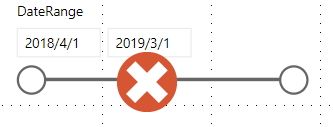
which it must not be a bar slicer as the picture below.


Slicer2.jpg


Second, as the financial year start from April every year, the date shown on the report will be cumulative.

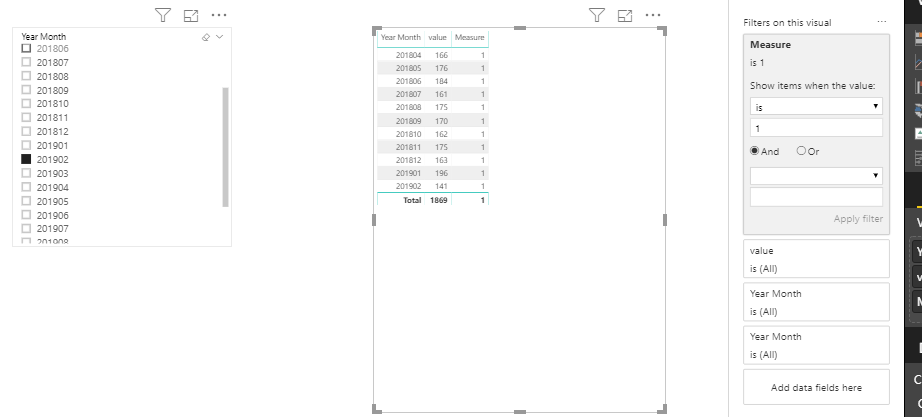
For example, if we select 201805, the report will show the data between 201804 and 201805 and if we select 201902, the report will show the data between 201804 and 201902. 


How can I solve this problem?

1 ACCEPTED SOLUTION
v-frfei-msft
Community Support
Community Support

Hi @Anonymous ,


One sample for your reference, Please check the following steps as below.


1. Create a calculated table.


ym = DISTINCT('Table'[Year Month])

2. New two calculated columns in it and format them as whole number.

Month = RIGHT('ym'[Year Month],2)
Year = LEFT('ym'[Year Month],4)

3. Create a measure as below and make the visual filtered by the measure.

Measure = 
VAR ym1 =
    SELECTEDVALUE ( 'ym'[Year Month] )
VAR mon =
    SELECTEDVALUE ( ym[Month] )
VAR year =
    SELECTEDVALUE ( 'ym'[Year] )
RETURN
    IF (
        mon >= 4
            && MAX ( 'Table'[Year Month] ) <= ym1,
        1,
        IF (
            mon < 4
                && MAX ( 'Table'[Year Month] ) <= ym1
                && MAX ( 'Table'[Year Month] ) >= ( ( year - 1 ) * 100 + 4 ),
            1,
            0
        )
    )

Capture.PNG


Pbix as attached.


Community Support Team _ Frank
If this post helps, then please consider Accept it as the solution to help the others find it more quickly.

View solution in original post

1 REPLY 1
v-frfei-msft
Community Support
Community Support

Hi @Anonymous ,


One sample for your reference, Please check the following steps as below.


1. Create a calculated table.


ym = DISTINCT('Table'[Year Month])

2. New two calculated columns in it and format them as whole number.

Month = RIGHT('ym'[Year Month],2)
Year = LEFT('ym'[Year Month],4)

3. Create a measure as below and make the visual filtered by the measure.

Measure = 
VAR ym1 =
    SELECTEDVALUE ( 'ym'[Year Month] )
VAR mon =
    SELECTEDVALUE ( ym[Month] )
VAR year =
    SELECTEDVALUE ( 'ym'[Year] )
RETURN
    IF (
        mon >= 4
            && MAX ( 'Table'[Year Month] ) <= ym1,
        1,
        IF (
            mon < 4
                && MAX ( 'Table'[Year Month] ) <= ym1
                && MAX ( 'Table'[Year Month] ) >= ( ( year - 1 ) * 100 + 4 ),
            1,
            0
        )
    )

Capture.PNG


Pbix as attached.


Community Support Team _ Frank
If this post helps, then please consider Accept it as the solution to help the others find it more quickly.

Helpful resources

Announcements
November Power BI Update Carousel

Power BI Monthly Update - November 2025

Check out the November 2025 Power BI update to learn about new features.

Fabric Data Days Carousel

Fabric Data Days

Advance your Data & AI career with 50 days of live learning, contests, hands-on challenges, study groups & certifications and more!

FabCon Atlanta 2026 carousel

FabCon Atlanta 2026

Join us at FabCon Atlanta, March 16-20, for the ultimate Fabric, Power BI, AI and SQL community-led event. Save $200 with code FABCOMM.

Top Solution Authors
Top Kudoed Authors