Join us at FabCon Atlanta from March 16 - 20, 2026, for the ultimate Fabric, Power BI, AI and SQL community-led event. Save $200 with code FABCOMM.
Register now!The Power BI Data Visualization World Championships is back! Get ahead of the game and start preparing now! Learn more
Hi all,
I would like a table with two columns (i.e. Grind, Angle) using the Parameters below
StartGrind = 0
EndGrind = 200
GrindIncrement = 1
StartAngle = 0
EndAngle = 360
AngleIncrement = 10
and the table would look like this below...
Grind Angle
0 0
0 10
0 20
...
0 360
1 0
1 10
1 20
...
1 360
2 0
2 10
...
200 360
It would be greatly appreciate if anyone can help!
Thanks
Solved! Go to Solution.
Hi @al3xw3il
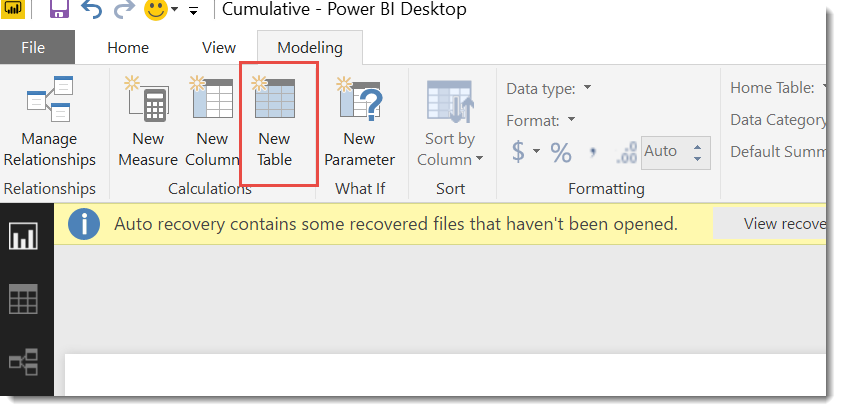
The answer I was suggesting was a DAX based solution, so you would do it in Power BI Desktop (not the query editor),
Just click the highlighted "New Table" button on the modelling tab and paste in that code.
Hi @al3xw3il
Please try the following as a new calculated table :
New Table = CROSSJOIN(
SELECTCOLUMNS(GENERATESERIES(0,200, 1),"Grind",[Value]) ,
SELECTCOLUMNS(GENERATESERIES(0,360,10),"Angle",[Value])
)
Hi Phil,
Thanks for your reply.
But do you mean this? Apologies, I am not very good with Power BI...
let
New Table = CROSSJOIN(
SELECTCOLUMNS(GENERATESERIES(0,200, 1),"Grind",[Value]) ,
SELECTCOLUMNS(GENERATESERIES(0,360,10),"Angle",[Value])
)
in
New Table
Hi @al3xw3il
The answer I was suggesting was a DAX based solution, so you would do it in Power BI Desktop (not the query editor),
Just click the highlighted "New Table" button on the modelling tab and paste in that code.
Thank you very much for your help Phil!
It works wonder!
The Power BI Data Visualization World Championships is back! Get ahead of the game and start preparing now!
| User | Count |
|---|---|
| 39 | |
| 37 | |
| 35 | |
| 34 | |
| 27 |
| User | Count |
|---|---|
| 136 | |
| 99 | |
| 73 | |
| 66 | |
| 65 |