cancel
Showing results for 
Search instead for 
Did you mean: 

Get Fabric Certified for FREE during Fabric Data Days. Don't miss your chance! Request now

Reply
LABORSAL
Advocate II
Advocate II

Histogram from a measure table

Hello,


I'm trying to create a histogram to display how the BIAS of a group is behaving.


I created a table through Power Query which can give me the information I need at the highest possible granularity, however I'd like to be able to group this information by SKU.


What I currently have is:

Information from original table @ higest granularity
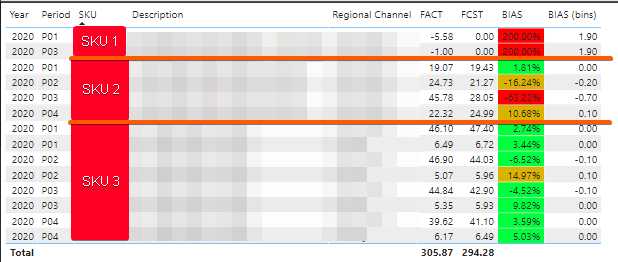
image.png


Which would in turn in the grouped level be:

SKUFACTFCSTBIAS
SKU 1-6.57562999102
SKU 2111.90893.74465197-0.19375
SKU 3200.5332200.5308001-1.2E-05

*Note in case of SKU 1 I use 2 as BIAS for everything with FCST 0*


When I graph this information with bins created with grouping I get this information:
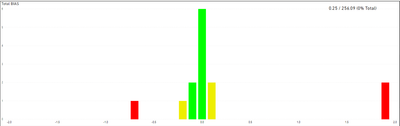
image.png

Which is displaying the 14 rows shown in the highest granularity.


For the purpose of grouping the information I created a measure which returns the amount of grouped SKUs in the category:


CalcBIAS = 
VAR BinRange = GENERATESERIES ( -2, 2 , .1 )
Var TempTable =
ADDCOLUMNS(
    SUMMARIZE( 'BIAS (Baseline + FACT)', 'BIAS (Baseline + FACT)'[SKU] ),
    "BIAS", MIN(
        2,
        MAX(
            -2,
            CALCULATE(
                DIVIDE(
                    SUMX(
                        'BIAS (Baseline + FACT)',
                        'BIAS (Baseline + FACT)'[FCST] - 'BIAS (Baseline + FACT)'[FACT]
                    ),
                    SUMX( 'BIAS (Baseline + FACT)', 'BIAS (Baseline + FACT)'[FCST] ),
                    2
                )
            )
        )
    )
)

Return
COUNTX(TempTable, [BIAS])


The result of the TempTable variable is a table which only has SKU and the grouped BIAS


However, when I try to place it in the same graph the result is this:

image.png


I get a very similar graph because it's "respecting" the grouping from the original table, so I have a single appearance of SKU 1, 4 SKU 2 and 4 SKU 3 (one for each calculated bin group).


My question is:

How can I change the the axis in my chart to be a series between -2 and 2 (in .1 increments) which doesn't save the original table's relation so I can group info?

3 REPLIES 3
amitchandak
Super User
Super User

@LABORSAL , I checked out there is no option for tick interval. You can only change the decimal places.


You can try few other Histogram option in custom charts

Refer if this can help for any other : https://spreadsheeto.com/power-bi-histogram/


Please Watch/Like/Share My webinar on Time Intelligence: https://community.powerbi.com/t5/Webinars-and-Video-Gallery/PowerBI-Time-Intelligence-Calendar-WTD-Y...
My Youtube Tips at: https://www.youtube.com/playlist?list=PLPaNVDMhUXGYrm5rm6ME6rjzKGSvT9Jmy

Appreciate your Kudos.

Share with Power BI Enthusiasts: Full Power BI Video (20 Hours) YouTube
Microsoft Fabric Series 60+ Videos YouTube
Microsoft Fabric Hindi End to End YouTube

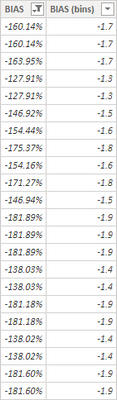
Current solution for that (which is what I believe is causing the split of groups) is to add a column to the main table

image.png


however if I use that column as axis it groups the SKU by bin from main table (which is what I explained in the graphs on original post)


I can recreate this column by adding a calculated column which does the same as the BIAS but rounds down to 1 decimal, however I have no idea how to use this calculated column in the measure for the axis.

Hi @LABORSAL ,


“I can recreate this column by adding a calculated column which does the same as the BIAS but rounds down to 1 decimal...”

Only methods like this are more effective.


"however I have no idea how to use this calculated column in the measure for the axis."

Measure cannot be added to the axis label, you can understand measure as a dynamic value, so you can only rebuild a calculated column.


Best regards,
Lionel Chen

If this post helps, then please consider Accept it as the solution to help the other members find it more quickly.

Helpful resources

Announcements
November Power BI Update Carousel

Power BI Monthly Update - November 2025

Check out the November 2025 Power BI update to learn about new features.

Fabric Data Days Carousel

Fabric Data Days

Advance your Data & AI career with 50 days of live learning, contests, hands-on challenges, study groups & certifications and more!

FabCon Atlanta 2026 carousel

FabCon Atlanta 2026

Join us at FabCon Atlanta, March 16-20, for the ultimate Fabric, Power BI, AI and SQL community-led event. Save $200 with code FABCOMM.

Top Solution Authors
Top Kudoed Authors