cancel
Showing results for 
Search instead for 
Did you mean: 

The Power BI Data Visualization World Championships is back! Get ahead of the game and start preparing now! Learn more

Reply
Pricey79
Helper V
Helper V

Help with multiple conditional formatting please

Hello everyone. I was hoping someone could help please.


I have 4 columns in a table, each column is a separate field from the same query.

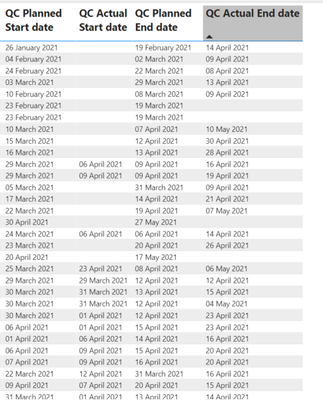
The columns as per the picture below, are QC Planned Start Date, Actual Start Date, Planned End Date and Actual End Date

Pricey79_0-1620913149186.png

How could I get it to show red or green depending on if the actual is before, or on the planned date please?

So for example:

Planned End is the 19th and Actual End is 21st, then red

Planned End is the 10th , Actual end 9th , then green


So two different formats, one for planned start and planned end, and one for actual start and actual end please.

Hope that makes sense.


Thank You in advance.

2 ACCEPTED SOLUTIONS
HashamNiaz
Solution Sage
Solution Sage

Hi !

You can create a column using following DAX to calculate if Planned End Date >= Actual End Date, you can do similar for Start date as well.


Planned End Date High = IF(Table[QC Planned End Date] >= Table[QC Actual End Date], 1, 0)


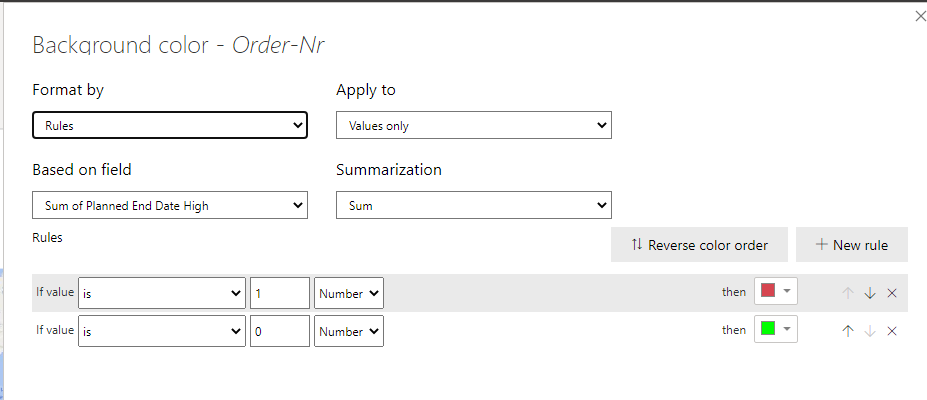
Now you can use this field in conditional formating, go to Format -> Conditional Formatting -> Background color -> On;


Colors4Colors4


You can adjust the Red & Green color based on your requirement.


Regards,

Hasham


View solution in original post

@HashamNiaz 


Works perfectly. Thank you so much

View solution in original post

2 REPLIES 2
HashamNiaz
Solution Sage
Solution Sage

Hi !

You can create a column using following DAX to calculate if Planned End Date >= Actual End Date, you can do similar for Start date as well.


Planned End Date High = IF(Table[QC Planned End Date] >= Table[QC Actual End Date], 1, 0)


Now you can use this field in conditional formating, go to Format -> Conditional Formatting -> Background color -> On;


Colors4Colors4


You can adjust the Red & Green color based on your requirement.


Regards,

Hasham


@HashamNiaz 


Works perfectly. Thank you so much

Helpful resources

Announcements
Power BI DataViz World Championships

Power BI Dataviz World Championships

The Power BI Data Visualization World Championships is back! Get ahead of the game and start preparing now!

December 2025 Power BI Update Carousel

Power BI Monthly Update - December 2025

Check out the December 2025 Power BI Holiday Recap!

FabCon Atlanta 2026 carousel

FabCon Atlanta 2026

Join us at FabCon Atlanta, March 16-20, for the ultimate Fabric, Power BI, AI and SQL community-led event. Save $200 with code FABCOMM.