Don't miss your chance to take the Fabric Data Engineer (DP-600) exam for FREE! Find out how by watching the DP-600 session on-demand now through April 28th.
Learn moreJoin the FabCon + SQLCon recap series. Up next: Power BI, Real-Time Intelligence, IQ and AI, and Data Factory take center stage. All sessions are available on-demand after the live show. Register now
Hello.
I need help on this. I want to create group ranges based on the purchase amount of each market. I have this table:
Market Transaction amount Date
Brazil BRL 100 1/8
Brazil BRL 50 1/8
Brazil BRL 180 2/8
Canada CAD 25 1/8
US USD 10 1/8
I want to create ranges for each market such as
Brazil Ranges Count
1-100 2
100-200 1
Canada Ranges Count
1-50 1
The idea is to that I can have a filter for Market so that if I click on BRAZIL it appears the table for ranges for Brazil.
Can anyone help me on this?
Thank you.
Solved! Go to Solution.
Hi @anacerco,
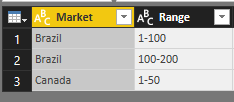
How do you define the group ranges? Are they pre-defined in data source? I mean there existing a table like below:
After loading into desktop, please locate to Query Editor mode first.
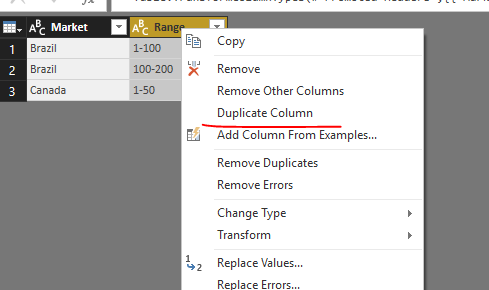
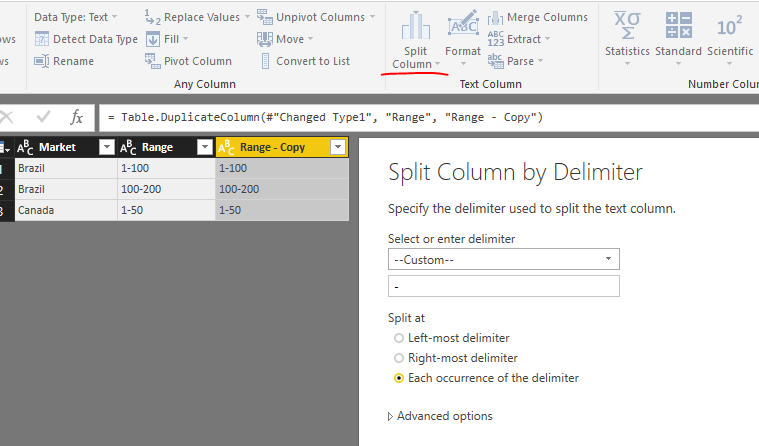
Right click and duplicate the [Range] column and then split the duplicated one.
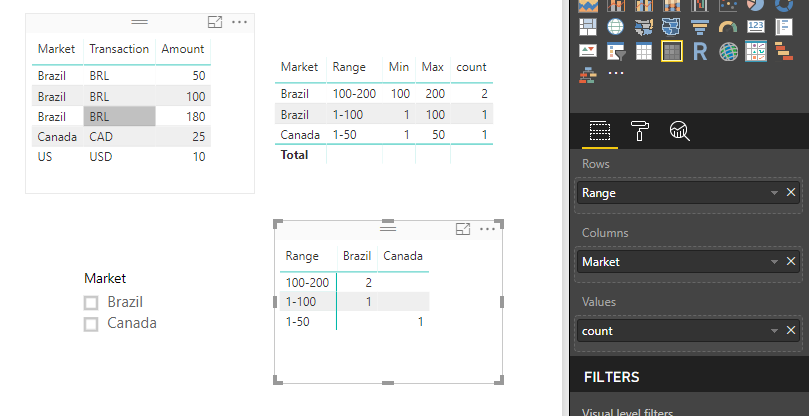
Save above changes. In report view, please new below measure:
count =
CALCULATE (
COUNT ( Dataset1[Transaction] ),
FILTER (
Dataset1,
Dataset1[Market] = SELECTEDVALUE ( Dataset2[Market] )
&& Dataset1[Amount] >= SELECTEDVALUE ( Dataset2[Min] )
&& Dataset1[Amount] < SELECTEDVALUE ( Dataset2[Max] )
)
)
Then, use a Matrix visual to display data.
Best regards,
Yuliana Gu
Hi @anacerco,
How do you define the group ranges? Are they pre-defined in data source? I mean there existing a table like below:
After loading into desktop, please locate to Query Editor mode first.
Right click and duplicate the [Range] column and then split the duplicated one.
Save above changes. In report view, please new below measure:
count =
CALCULATE (
COUNT ( Dataset1[Transaction] ),
FILTER (
Dataset1,
Dataset1[Market] = SELECTEDVALUE ( Dataset2[Market] )
&& Dataset1[Amount] >= SELECTEDVALUE ( Dataset2[Min] )
&& Dataset1[Amount] < SELECTEDVALUE ( Dataset2[Max] )
)
)
Then, use a Matrix visual to display data.
Best regards,
Yuliana Gu
Hello Yuliana,
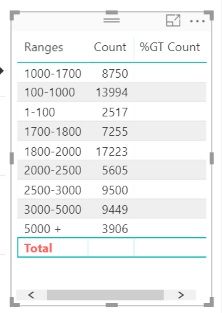
I just found that I am not being able to show the total for this ranges. I would like to have the total for all the ranges and also a column showing the % that each range has on the total, but somehow when I add a new column of count and click on "show as grand total" is not showing anything. Do you know how can I solve this?
thank you!
Hello Yuliana,
Thanks for your help. I managed to follow your steps and worked!
Check out the April 2026 Power BI update to learn about new features.
If you have recently started exploring Fabric, we'd love to hear how it's going. Your feedback can help with product improvements.
A new Power BI DataViz World Championship is coming this June! Don't miss out on submitting your entry.
| User | Count |
|---|---|
| 44 | |
| 38 | |
| 34 | |
| 20 | |
| 16 |
| User | Count |
|---|---|
| 68 | |
| 65 | |
| 30 | |
| 26 | |
| 25 |