FabCon is coming to Atlanta
Join us at FabCon Atlanta from March 16 - 20, 2026, for the ultimate Fabric, Power BI, AI and SQL community-led event. Save $200 with code FABCOMM.
Register now!- Power BI forums
- Get Help with Power BI
- Desktop
- Service
- Report Server
- Power Query
- Mobile Apps
- Developer
- DAX Commands and Tips
- Custom Visuals Development Discussion
- Health and Life Sciences
- Power BI Spanish forums
- Translated Spanish Desktop
- Training and Consulting
- Instructor Led Training
- Dashboard in a Day for Women, by Women
- Galleries
- Data Stories Gallery
- Themes Gallery
- Contests Gallery
- QuickViz Gallery
- Quick Measures Gallery
- Visual Calculations Gallery
- Notebook Gallery
- Translytical Task Flow Gallery
- TMDL Gallery
- R Script Showcase
- Webinars and Video Gallery
- Ideas
- Custom Visuals Ideas (read-only)
- Issues
- Issues
- Events
- Upcoming Events
The Power BI Data Visualization World Championships is back! Get ahead of the game and start preparing now! Learn more
- Power BI forums
- Forums
- Get Help with Power BI
- Desktop
- Re: Font color with switch measure
- Subscribe to RSS Feed
- Mark Topic as New
- Mark Topic as Read
- Float this Topic for Current User
- Bookmark
- Subscribe
- Printer Friendly Page

- Mark as New
- Bookmark
- Subscribe
- Mute
- Subscribe to RSS Feed
- Permalink
- Report Inappropriate Content
Font color with switch measure
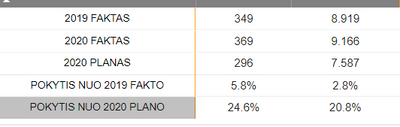
Hey guys, I've got the following table that I got using Switch function. Now basically I want to do condition formatting for the last two rows(percentages) but only for them, that if they are above 0% then green otherwise red. The problem is, that I can only put formatting on two measures, which is the two colums that I got right now. So if I use it, the whole column goes green, but I only need to the last two rows.
this is my switch function :

Solved! Go to Solution.

- Mark as New
- Bookmark
- Subscribe
- Mute
- Subscribe to RSS Feed
- Permalink
- Report Inappropriate Content
@Anonymous
Try the following.
Create a conditional formatting measure along the lines of:
Conditional Format Values =
IF(SELECTEDVALUE('Table'[Type]) IN {“2020 FAKTAS”, “2019 FAKTAS”, “2020 PLANAS”}, "black",
IF(AND(SELECTEDVALUE('Table'[Type]) IN {“POKYTIS NUO 2020 PLANO”}, [Pokytis nuo 2020 plano per mèn] >0), "Green",
IF(AND(SELECTEDVALUE('Table'[Type]) IN {“POKYTIS NUO 2019 FAKTO”}, [Pokytis nuo 2019 fakto per mèn] >0), "Green", "Red")))
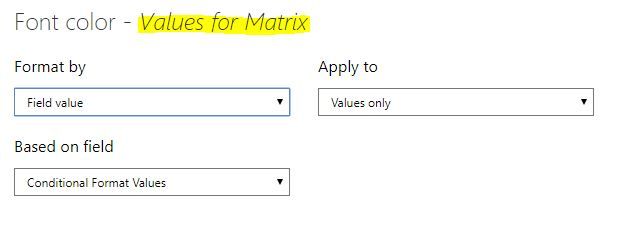
The use this measure in the formatting pane under "Conditional Formatting", select the field and select the font colour option and use the [Conditional Format Values] measure (the yellow highlight should be the measure you are using in the visual):
Did I answer your question? Mark my post as a solution!
In doing so, you are also helping me. Thank you!
Proud to be a Super User!
Paul on Linkedin.
- Mark as New
- Bookmark
- Subscribe
- Mute
- Subscribe to RSS Feed
- Permalink
- Report Inappropriate Content
@Anonymous
Try the following.
Create a conditional formatting measure along the lines of:
Conditional Format Values =
IF(SELECTEDVALUE('Table'[Type]) IN {“2020 FAKTAS”, “2019 FAKTAS”, “2020 PLANAS”}, "black",
IF(AND(SELECTEDVALUE('Table'[Type]) IN {“POKYTIS NUO 2020 PLANO”}, [Pokytis nuo 2020 plano per mèn] >0), "Green",
IF(AND(SELECTEDVALUE('Table'[Type]) IN {“POKYTIS NUO 2019 FAKTO”}, [Pokytis nuo 2019 fakto per mèn] >0), "Green", "Red")))
The use this measure in the formatting pane under "Conditional Formatting", select the field and select the font colour option and use the [Conditional Format Values] measure (the yellow highlight should be the measure you are using in the visual):
Did I answer your question? Mark my post as a solution!
In doing so, you are also helping me. Thank you!
Proud to be a Super User!
Paul on Linkedin.
- Mark as New
- Bookmark
- Subscribe
- Mute
- Subscribe to RSS Feed
- Permalink
- Report Inappropriate Content


- Mark as New
- Bookmark
- Subscribe
- Mute
- Subscribe to RSS Feed
- Permalink
- Report Inappropriate Content
@Anonymous
For conditional formatting you have to use separate switch function
Switch(true(),condition1,"Red",Condition2,"RGB(0,255,0)","Light Blue") and use the Field value option to take that on the field using conditional formatting! Hope this clarifies!
Did I answer your question? Mark my post as a solution! Appreciate your Kudos!!
MY Blog || My YouTube Channel || Connect with me on Linkedin || My Latest Data Story - Ageing Analysis
Proud to be a Super User!
- Mark as New
- Bookmark
- Subscribe
- Mute
- Subscribe to RSS Feed
- Permalink
- Report Inappropriate Content

- Mark as New
- Bookmark
- Subscribe
- Mute
- Subscribe to RSS Feed
- Permalink
- Report Inappropriate Content
@Anonymous Share the formula you have used for conditional formatting
Did I answer your question? Mark my post as a solution! Appreciate your Kudos!!
MY Blog || My YouTube Channel || Connect with me on Linkedin || My Latest Data Story - Ageing Analysis
Proud to be a Super User!
- Mark as New
- Bookmark
- Subscribe
- Mute
- Subscribe to RSS Feed
- Permalink
- Report Inappropriate Content
Helpful resources

Power BI Dataviz World Championships
The Power BI Data Visualization World Championships is back! Get ahead of the game and start preparing now!

Power BI Monthly Update - November 2025
Check out the November 2025 Power BI update to learn about new features.

FabCon Atlanta 2026
Join us at FabCon Atlanta, March 16-20, for the ultimate Fabric, Power BI, AI and SQL community-led event. Save $200 with code FABCOMM.

| User | Count |
|---|---|
| 59 | |
| 45 | |
| 42 | |
| 23 | |
| 17 |


| User | Count |
|---|---|
| 190 | |
| 122 | |
| 96 | |
| 66 | |
| 47 |


