Don't miss your chance to take the Fabric Data Engineer (DP-700) exam on us!
Learn moreWe've captured the moments from FabCon & SQLCon that everyone is talking about, and we are bringing them to the community, live and on-demand. Starts on April 14th. Register now
Hello,
I have a the following use case:
On the one hand I have employees, where the working hours per week changing from a specific starting date.
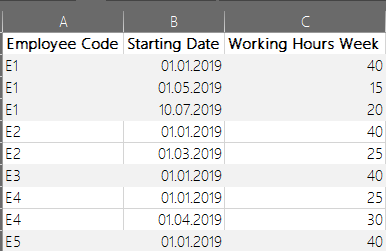
On the other hand I have a table, where all changes are posted for each employee with starting date and working hours week.
In my report, I have two single slicers, one for the year ie. 2019, 2020 etc. and one for the months 1 - 12
My challenge now is calculating the active value for working hours per week depending on the Date Filter of the slicers.
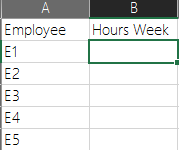
Table Employee
Table Workscheme
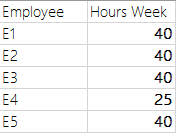
What would I expect?
Example 1:
Date Filter (of slicer): February 2019
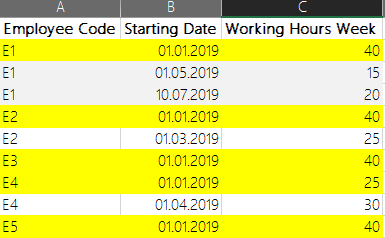
Example 2:
Date Filter (of slicer): May 2019
I tried several approaches with LASTNONBLANK, LASTDATE etc., but none of them worked properly.
Does anybody have an idea how to handle this issue?
Thank you in advance 🙂
Stefan
Solved! Go to Solution.
Hi @SFeldmann ,
Firstly, you need to create a new table to save date.
Date = CALENDAR ( MIN ( 'Table'[Starting Date] ), MAX ( 'Table'[Starting Date] ) )
Then create a column to be compared with Starting date.
YM = VALUE ( 'Date'[Date].[Year] & FORMAT ( 'Date'[Date], "mm" ) )
Now, you can create a new measure “Hours Week”.
Hours Week =
VAR selectDate =
SELECTEDVALUE ( 'Date'[YM], MIN ( 'Date'[YM] ) )
RETURN
CALCULATE (
SELECTEDVALUE ( 'Table'[Working Hours Week] ),
FILTER (
'Table',
VALUE ( FORMAT ( 'Table'[Starting Date], "yyyymm" ) )
= VALUE (
FORMAT (
CALCULATE (
MAX ( 'Table'[Starting Date] ),
ALLEXCEPT ( 'Table', 'Table'[Employee Code] ),
selectDate >= VALUE ( FORMAT ( 'Table'[Starting Date], "yyyymm" ) )
),
"yyyymm"
)
)
)
)
At last, you can use slicer to filter your table.
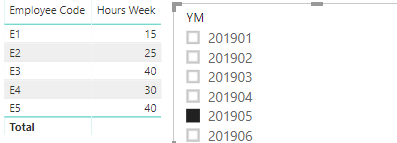
Best Regards,
Eads
If this post helps, then please consider Accept it as the solution to help the other members find it more quickly.
Hi @SFeldmann ,
Firstly, you need to create a new table to save date.
Date = CALENDAR ( MIN ( 'Table'[Starting Date] ), MAX ( 'Table'[Starting Date] ) )
Then create a column to be compared with Starting date.
YM = VALUE ( 'Date'[Date].[Year] & FORMAT ( 'Date'[Date], "mm" ) )
Now, you can create a new measure “Hours Week”.
Hours Week =
VAR selectDate =
SELECTEDVALUE ( 'Date'[YM], MIN ( 'Date'[YM] ) )
RETURN
CALCULATE (
SELECTEDVALUE ( 'Table'[Working Hours Week] ),
FILTER (
'Table',
VALUE ( FORMAT ( 'Table'[Starting Date], "yyyymm" ) )
= VALUE (
FORMAT (
CALCULATE (
MAX ( 'Table'[Starting Date] ),
ALLEXCEPT ( 'Table', 'Table'[Employee Code] ),
selectDate >= VALUE ( FORMAT ( 'Table'[Starting Date], "yyyymm" ) )
),
"yyyymm"
)
)
)
)
At last, you can use slicer to filter your table.
Best Regards,
Eads
If this post helps, then please consider Accept it as the solution to help the other members find it more quickly.
Hi @v-eachen-msft,
Thank you for your solution, that works totally fine.
One final comment that has to be considered to this solution: They must be no relationship between the Date[Date] and the Workscheme[Starting Date].
Best Regards,
Stefan
If you have recently started exploring Fabric, we'd love to hear how it's going. Your feedback can help with product improvements.
A new Power BI DataViz World Championship is coming this June! Don't miss out on submitting your entry.
Share feedback directly with Fabric product managers, participate in targeted research studies and influence the Fabric roadmap.
| User | Count |
|---|---|
| 55 | |
| 40 | |
| 35 | |
| 19 | |
| 18 |
| User | Count |
|---|---|
| 71 | |
| 70 | |
| 38 | |
| 35 | |
| 23 |