Join us in Barcelona for FabCon and SQLCon, September 28 - October 1, 2026.
This is best Fabric, Power BI, SQL and AI community event. How do we know? The last event sold out! Save €200 with code FABCMTY200.
Register now- Power BI forums
- Get Help with Power BI
- Desktop
- Service
- Report Server
- Power Query
- Mobile Apps
- Developer
- DAX Commands and Tips
- Custom Visuals Development Discussion
- Health and Life Sciences
- Power BI Spanish forums
- Translated Spanish Desktop
- Training and Consulting
- Instructor Led Training
- Dashboard in a Day for Women, by Women
- Galleries
- Data Stories Gallery
- Themes Gallery
- Contests Gallery
- QuickViz Gallery
- Quick Measures Gallery
- Visual Calculations Gallery
- Fabric Apps Gallery
- Notebook Gallery
- Translytical Task Flow Gallery
- TMDL Gallery
- R Script Showcase
- Webinars and Video Gallery
- Ideas
- Custom Visuals Ideas (read-only)
- Issues
- Issues
- Events
- Upcoming Events
The Fabric community is now in read-only for platform upgrade. Learn more
- Power BI forums
- Forums
- Get Help with Power BI
- Desktop
- Re: Expand Multiple Values as One Row
- Subscribe to RSS Feed
- Mark Topic as New
- Mark Topic as Read
- Float this Topic for Current User
- Bookmark
- Subscribe
- Printer Friendly Page

- Mark as New
- Bookmark
- Subscribe
- Mute
- Subscribe to RSS Feed
- Permalink
Expand Multiple Values as One Row
I have a set of data that has multiple values in one field (see below). When I expand that data it creates multiple rows and duplicates the rest of the data. However, this is causing me issues for both displaying the data and creating relationships. How can I show these in one row?
*Because project number is my unique identifier, I only want this project number listed once so I do not end up creating many to many relationships.
Current State:
| Project Number | Project Title | Sponsor | Location |
| 1 | Project 1 | Executive A | Indiana |
| 2 | Project 2 | Executive B | New York |
| 3 | Project 3 | Executive A | Virginia |
| 3 | Project 3 | Executive A | Indiana |
| 4 | Project 4 | Executive B | New York |
Desired Output:
| Project Number | Project Title | Sponsor | Location |
| 1 | Project 1 | Executive A | Indiana |
| 2 | Project 2 | Executive B | New York |
| 3 | Project 3 | Executive A | Virginia, Indiana |
| 4 | Project 4 | Executive B | New York |
Solved! Go to Solution.


- Mark as New
- Bookmark
- Subscribe
- Mute
- Subscribe to RSS Feed
- Permalink
Yes you can extract a column from the table here is the syntax:
#"Extract_List" = Table.TransformColumns(#"Removed Columns, {"ProjectLead", each Text.Combine(List.Transform(Table.TransformRows(_,each [Name]), Text.From), ","), type text})
Did I answer your question? Mark my post as a solution! Appreciate your Kudos!!


- Mark as New
- Bookmark
- Subscribe
- Mute
- Subscribe to RSS Feed
- Permalink
Hi,
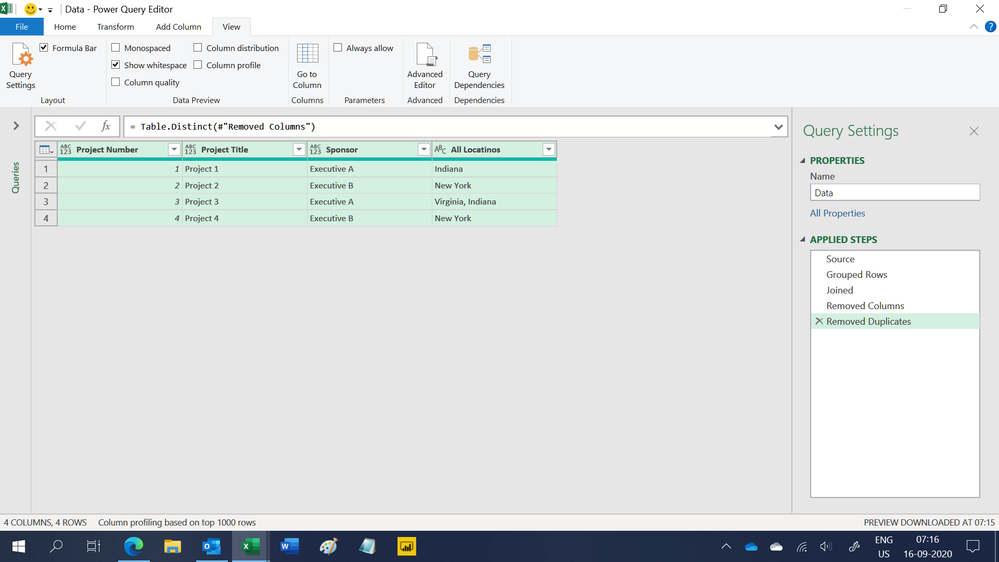
This M code works
let
    Source = Excel.CurrentWorkbook(){[Name="Data"]}[Content],
    #"Grouped Rows" = Table.Group(Source, {"Project Number"}, {{"All Locatinos", each Text.Combine(List.Distinct([Location]), ", "), type text}}),
    Joined = Table.Join(Source, "Project Number", #"Grouped Rows", "Project Number"),
    #"Removed Columns" = Table.RemoveColumns(Joined,{"Location"}),
    #"Removed Duplicates" = Table.Distinct(#"Removed Columns")
in
    #"Removed Duplicates"
Hope this helps.
Regards,
Ashish Mathur
http://www.ashishmathur.com
https://www.linkedin.com/in/excelenthusiasts/
- Mark as New
- Bookmark
- Subscribe
- Mute
- Subscribe to RSS Feed
- Permalink
Instead of "Expand to New Rows" you can Extract Values in comma-delimited format.
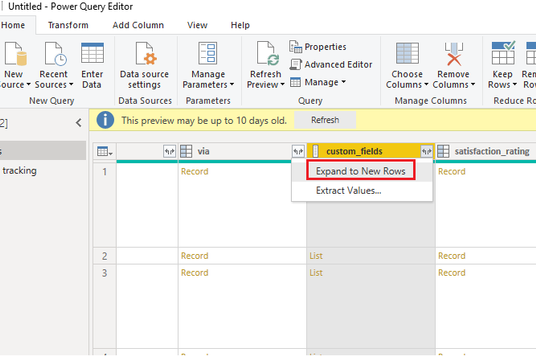
Alternatively, you can write m query to extract list as comma-delimited value in new column:
Extract_List = Table.TransformColumns(PrevStep, {"Listxyz", each Text.Combine(List.Transform(_, Text.From), ","), type text}),


- Mark as New
- Bookmark
- Subscribe
- Mute
- Subscribe to RSS Feed
- Permalink
Hi, I have got a similar situation. My share point is giving person field with multiple people. In powerbi, it is coming as a table. Once I extract values from the table, I have multiple rows
ID 1 Name 1 Red Sunday
ID 1 Name 2 Red Sunday.
I want in my matrix to come as only 1 row
TIA
- Mark as New
- Bookmark
- Subscribe
- Mute
- Subscribe to RSS Feed
- Permalink
Does the m query work if it is a "table" I am expanding rather than a list?
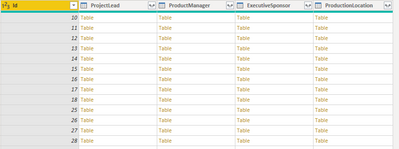
I am getting an error with this:
#"Extract_List" = Table.TransformColumns(#"Removed Columns", {"ProjectLead", each Text.Combine(List.Transform(_, Text.From), ","), type text}),
- Mark as New
- Bookmark
- Subscribe
- Mute
- Subscribe to RSS Feed
- Permalink
I should clarify - it's the "Name" field, I'm trying to get out of this:

- Mark as New
- Bookmark
- Subscribe
- Mute
- Subscribe to RSS Feed
- Permalink
Yes you can extract a column from the table here is the syntax:
#"Extract_List" = Table.TransformColumns(#"Removed Columns, {"ProjectLead", each Text.Combine(List.Transform(Table.TransformRows(_,each [Name]), Text.From), ","), type text})
Did I answer your question? Mark my post as a solution! Appreciate your Kudos!!
- Mark as New
- Bookmark
- Subscribe
- Mute
- Subscribe to RSS Feed
- Permalink
Hi, I have got a similar situation. My share point is giving person field with multiple people. In powerbi, it is coming as a table. Once I extract values from the table, I have multiple rows
ID 1 Name 1 Red Sunday
ID 1 Name 2 Red Sunday.
I want in my matrix to come as only 1 row
TIA
Helpful resources

FabCon & SQLCon – Barcelona 2026
Join us in Barcelona for FabCon and SQLCon, the Fabric, Power BI, SQL, and AI community event. Save €200 with code FABCMTY200.

Power BI DataViz World Championships - June 2026
A new Power BI DataViz World Championship is coming this June! Don't miss out on submitting your entry.

| User | Count |
|---|---|
| 23 | |
| 22 | |
| 14 | |
| 14 | |
| 13 |


| User | Count |
|---|---|
| 47 | |
| 39 | |
| 24 | |
| 20 | |
| 20 |


