Get Fabric or SQL Certified for Free.
Get certified for free when you join Fabric Data Days 2026 and dive into Fabric, Power BI, SQL, AI, and other essential data skills.
Join now- Power BI forums
- Get Help with Power BI
- Desktop
- Service
- Report Server
- Power Query
- Mobile Apps
- Developer
- DAX Commands and Tips
- Custom Visuals Development Discussion
- Health and Life Sciences
- Power BI Spanish forums
- Translated Spanish Desktop
- Training and Consulting
- Instructor Led Training
- Dashboard in a Day for Women, by Women
- Galleries
- Data Stories Gallery
- Themes Gallery
- Contests Gallery
- QuickViz Gallery
- Quick Measures Gallery
- Visual Calculations Gallery
- Fabric Apps Gallery
- Notebook Gallery
- Translytical Task Flow Gallery
- TMDL Gallery
- R Script Showcase
- Webinars and Video Gallery
- Ideas
- Custom Visuals Ideas (read-only)
- Issues
- Issues
- Events
- Upcoming Events
July 7 - July 17 | Round 2 of the Power BI Dataviz World Championships. Don't miss your chance! Learn more
- Power BI forums
- Forums
- Get Help with Power BI
- Desktop
- Expand Multiple Values as One Row
- Subscribe to RSS Feed
- Mark Topic as New
- Mark Topic as Read
- Float this Topic for Current User
- Bookmark
- Subscribe
- Printer Friendly Page

- Mark as New
- Bookmark
- Subscribe
- Mute
- Subscribe to RSS Feed
- Permalink
- Report Inappropriate Content
Expand Multiple Values as One Row
I have a set of data that has multiple values in one field (see below). When I expand that data it creates multiple rows and duplicates the rest of the data. However, this is causing me issues for both displaying the data and creating relationships. How can I show these in one row?
*Because project number is my unique identifier, I only want this project number listed once so I do not end up creating many to many relationships.
Current State:
| Project Number | Project Title | Sponsor | Location |
| 1 | Project 1 | Executive A | Indiana |
| 2 | Project 2 | Executive B | New York |
| 3 | Project 3 | Executive A | Virginia |
| 3 | Project 3 | Executive A | Indiana |
| 4 | Project 4 | Executive B | New York |
Desired Output:
| Project Number | Project Title | Sponsor | Location |
| 1 | Project 1 | Executive A | Indiana |
| 2 | Project 2 | Executive B | New York |
| 3 | Project 3 | Executive A | Virginia, Indiana |
| 4 | Project 4 | Executive B | New York |
Solved! Go to Solution.


- Mark as New
- Bookmark
- Subscribe
- Mute
- Subscribe to RSS Feed
- Permalink
- Report Inappropriate Content
Yes you can extract a column from the table here is the syntax:
#"Extract_List" = Table.TransformColumns(#"Removed Columns, {"ProjectLead", each Text.Combine(List.Transform(Table.TransformRows(_,each [Name]), Text.From), ","), type text})
Did I answer your question? Mark my post as a solution! Appreciate your Kudos!!


- Mark as New
- Bookmark
- Subscribe
- Mute
- Subscribe to RSS Feed
- Permalink
- Report Inappropriate Content
Hi,
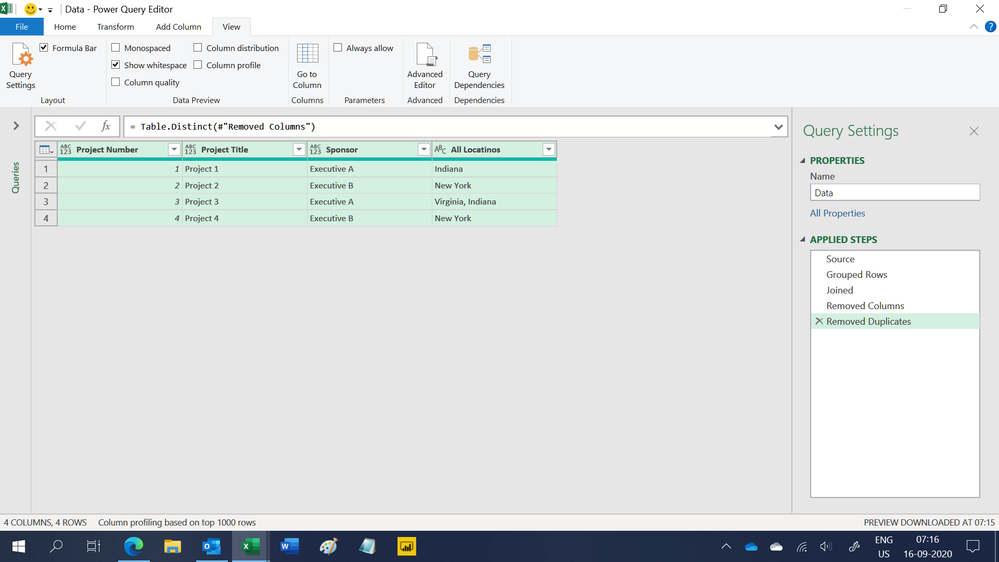
This M code works
let
    Source = Excel.CurrentWorkbook(){[Name="Data"]}[Content],
    #"Grouped Rows" = Table.Group(Source, {"Project Number"}, {{"All Locatinos", each Text.Combine(List.Distinct([Location]), ", "), type text}}),
    Joined = Table.Join(Source, "Project Number", #"Grouped Rows", "Project Number"),
    #"Removed Columns" = Table.RemoveColumns(Joined,{"Location"}),
    #"Removed Duplicates" = Table.Distinct(#"Removed Columns")
in
    #"Removed Duplicates"
Hope this helps.
Regards,
Ashish Mathur
http://www.ashishmathur.com
https://www.linkedin.com/in/excelenthusiasts/
- Mark as New
- Bookmark
- Subscribe
- Mute
- Subscribe to RSS Feed
- Permalink
- Report Inappropriate Content
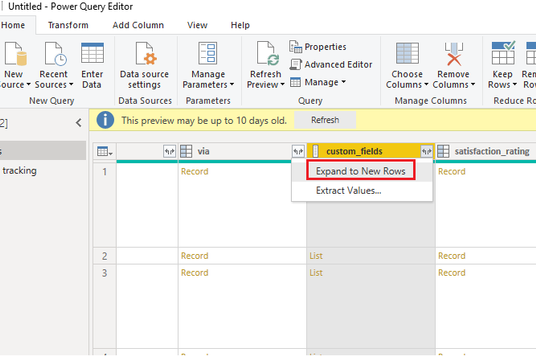
Instead of "Expand to New Rows" you can Extract Values in comma-delimited format.
Alternatively, you can write m query to extract list as comma-delimited value in new column:
Extract_List = Table.TransformColumns(PrevStep, {"Listxyz", each Text.Combine(List.Transform(_, Text.From), ","), type text}),


- Mark as New
- Bookmark
- Subscribe
- Mute
- Subscribe to RSS Feed
- Permalink
- Report Inappropriate Content
Hi, I have got a similar situation. My share point is giving person field with multiple people. In powerbi, it is coming as a table. Once I extract values from the table, I have multiple rows
ID 1 Name 1 Red Sunday
ID 1 Name 2 Red Sunday.
I want in my matrix to come as only 1 row
TIA
- Mark as New
- Bookmark
- Subscribe
- Mute
- Subscribe to RSS Feed
- Permalink
- Report Inappropriate Content
Does the m query work if it is a "table" I am expanding rather than a list?
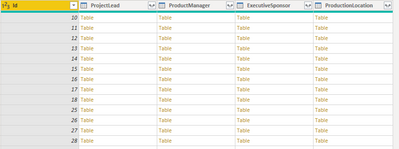
I am getting an error with this:
#"Extract_List" = Table.TransformColumns(#"Removed Columns", {"ProjectLead", each Text.Combine(List.Transform(_, Text.From), ","), type text}),
- Mark as New
- Bookmark
- Subscribe
- Mute
- Subscribe to RSS Feed
- Permalink
- Report Inappropriate Content
I should clarify - it's the "Name" field, I'm trying to get out of this:

- Mark as New
- Bookmark
- Subscribe
- Mute
- Subscribe to RSS Feed
- Permalink
- Report Inappropriate Content
Yes you can extract a column from the table here is the syntax:
#"Extract_List" = Table.TransformColumns(#"Removed Columns, {"ProjectLead", each Text.Combine(List.Transform(Table.TransformRows(_,each [Name]), Text.From), ","), type text})
Did I answer your question? Mark my post as a solution! Appreciate your Kudos!!
- Mark as New
- Bookmark
- Subscribe
- Mute
- Subscribe to RSS Feed
- Permalink
- Report Inappropriate Content
Hi, I have got a similar situation. My share point is giving person field with multiple people. In powerbi, it is coming as a table. Once I extract values from the table, I have multiple rows
ID 1 Name 1 Red Sunday
ID 1 Name 2 Red Sunday.
I want in my matrix to come as only 1 row
TIA
Helpful resources

FabCon & SQLCon – Barcelona 2026
Join us in Barcelona for FabCon and SQLCon, the Fabric, Power BI, SQL, and AI community event. Save €200 with code FABCMTY200.

Power BI Monthly Update - July 2026
Check out the July 2026 Power BI update to learn about new features.

Data Days 2026
Join Data Days 2026: 60 days of free live/on-demand sessions, challenges, study groups, and certification opportunities.

Power BI DataViz World Championships - June 2026
A new Power BI DataViz World Championship is coming this June! Don't miss out on submitting your entry.

| User | Count |
|---|---|
| 30 | |
| 25 | |
| 24 | |
| 23 | |
| 14 |


| User | Count |
|---|---|
| 50 | |
| 33 | |
| 21 | |
| 20 | |
| 19 |


