cancel
Showing results for 
Search instead for 
Did you mean: 

July 7 - July 17 | Round 2 of the Power BI Dataviz World Championships. Don't miss your chance! Learn more

Reply
pdesmarais
Frequent Visitor

Expand Column Array List

Based on a SQL result from a GraphAPI, the result of a Column is the following:


@{city=Stratford; state=ON; country=Canada}
@{city=Boucherville; state=QC; country=Canada}
@{city=Elora; state=ON; country=Canada}


How would you split the following into different columns, explose the results in different columns or any other methods.


If there is no magic trick directly from PowerBI i will do it at the SQL Level but id like to avoid that

1 ACCEPTED SOLUTION
MarcelBeug
Community Champion
Community Champion

As a rule of thumb, any transformations should be done as early in the process as possible, so if it can be done in SQL you may still consider that as the first alternative.


It can be done in the Query Editor by adding columns using text between delimiter functionality, if the structure is the same for each field.


let
    Source = #table(type table[Column = text],
        {{"@{city=Stratford; state=ON; country=Canada}"},
         {"@{city=Boucherville; state=QC; country=Canada}"},
         {"@{city=Elora; state=ON; country=Canada}"}}),
    #"Inserted city" = Table.AddColumn(Source, "city", each Text.BetweenDelimiters([Column], "=", ";", 0, 0), type text),
    #"Inserted state" = Table.AddColumn(#"Inserted city", "state", each Text.BetweenDelimiters([Column], "=", ";", 1, 0), type text),
    #"Inserted country" = Table.AddColumn(#"Inserted state", "country", each Text.BetweenDelimiters([Column], "=", "}", 2, 0), type text),
    #"Removed Columns" = Table.RemoveColumns(#"Inserted country",{"Column"})
in
    #"Removed Columns"

This is how the insertion of column "country" looks like in the Query Editor (I forgot to highlight "Extract" in the middle of the ribbon: that's where you can find "Betweeen Delimiters"):
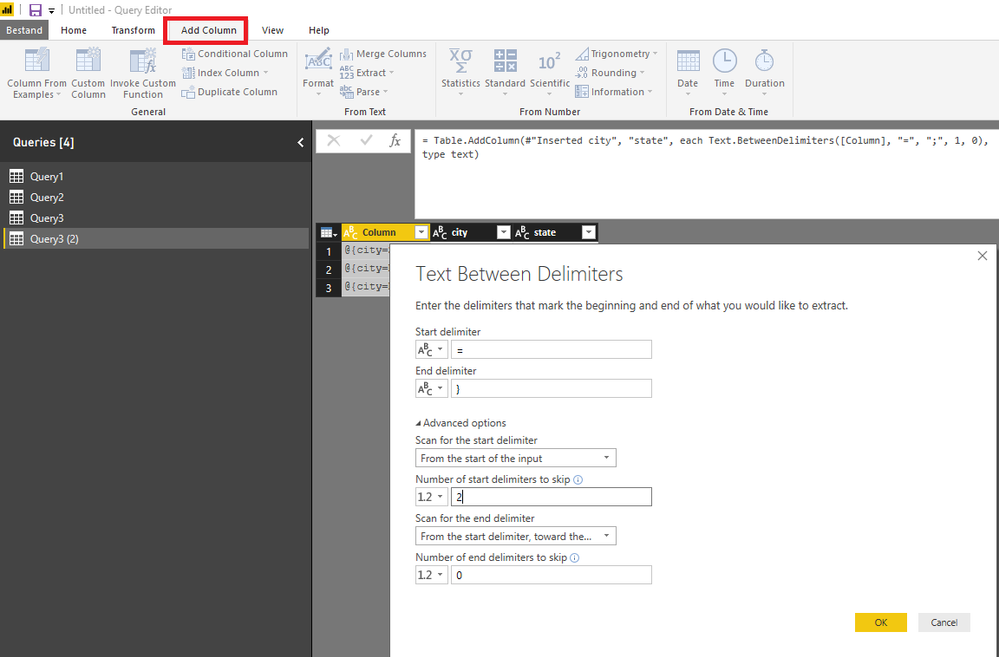
 

Text between delimiters.png


I adjusted the column name and the step name after each column insertion.


Dynamic alternative:


Much more fun (and much more dynamic) is to transform the texts to record format, transform these into actual records, transform each record in a table (each with 1 row) and then combine all tables to 1 table.


Otherwise it requires some query editing in the advanced editor.

Just to illustrate the dynamics, I added a field helper to 1 of the rows,


let
    ReplacementList = {
        {"@{","["},
        {"=","="""},
        {";",""","},
        {"}","""]"}},

    Source = #table(type table[Column = text],
        {{"@{city=Stratford; state=ON; country=Canada; helper=MarcelBeug}"},
         {"@{city=Boucherville; state=QC; country=Canada}"},
         {"@{city=Elora; state=ON; country=Canada}"}}),

    ReplacedValues = List.Accumulate(ReplacementList,Source,(t,r) => Table.ReplaceValue(t,r{0},r{1},Replacer.ReplaceText,{"Column"})),
    TextToRecords = Table.TransformColumns(ReplacedValues,{{"Column", Expression.Evaluate, type record}}),
    RecordsToTables = Table.TransformColumns(TextToRecords,{{"Column", each Table.FromRecords({_}), type table}}),
    TablesToTable = Table.Combine(RecordsToTables[Column])
in
    TablesToTable


Specializing in Power Query Formula Language (M)

View solution in original post

2 REPLIES 2
MarcelBeug
Community Champion
Community Champion

As a rule of thumb, any transformations should be done as early in the process as possible, so if it can be done in SQL you may still consider that as the first alternative.


It can be done in the Query Editor by adding columns using text between delimiter functionality, if the structure is the same for each field.


let
    Source = #table(type table[Column = text],
        {{"@{city=Stratford; state=ON; country=Canada}"},
         {"@{city=Boucherville; state=QC; country=Canada}"},
         {"@{city=Elora; state=ON; country=Canada}"}}),
    #"Inserted city" = Table.AddColumn(Source, "city", each Text.BetweenDelimiters([Column], "=", ";", 0, 0), type text),
    #"Inserted state" = Table.AddColumn(#"Inserted city", "state", each Text.BetweenDelimiters([Column], "=", ";", 1, 0), type text),
    #"Inserted country" = Table.AddColumn(#"Inserted state", "country", each Text.BetweenDelimiters([Column], "=", "}", 2, 0), type text),
    #"Removed Columns" = Table.RemoveColumns(#"Inserted country",{"Column"})
in
    #"Removed Columns"

This is how the insertion of column "country" looks like in the Query Editor (I forgot to highlight "Extract" in the middle of the ribbon: that's where you can find "Betweeen Delimiters"):


Text between delimiters.png


I adjusted the column name and the step name after each column insertion.


Dynamic alternative:


Much more fun (and much more dynamic) is to transform the texts to record format, transform these into actual records, transform each record in a table (each with 1 row) and then combine all tables to 1 table.


Otherwise it requires some query editing in the advanced editor.

Just to illustrate the dynamics, I added a field helper to 1 of the rows,


let
    ReplacementList = {
        {"@{","["},
        {"=","="""},
        {";",""","},
        {"}","""]"}},

    Source = #table(type table[Column = text],
        {{"@{city=Stratford; state=ON; country=Canada; helper=MarcelBeug}"},
         {"@{city=Boucherville; state=QC; country=Canada}"},
         {"@{city=Elora; state=ON; country=Canada}"}}),

    ReplacedValues = List.Accumulate(ReplacementList,Source,(t,r) => Table.ReplaceValue(t,r{0},r{1},Replacer.ReplaceText,{"Column"})),
    TextToRecords = Table.TransformColumns(ReplacedValues,{{"Column", Expression.Evaluate, type record}}),
    RecordsToTables = Table.TransformColumns(TextToRecords,{{"Column", each Table.FromRecords({_}), type table}}),
    TablesToTable = Table.Combine(RecordsToTables[Column])
in
    TablesToTable


Specializing in Power Query Formula Language (M)
pdesmarais
Frequent Visitor

Based on a SQL result from a GraphAPI, the result of a Column is the following:


@{city=Stratford; state=ON; country=Canada}
@{city=Boucherville; state=QC; country=Canada}
@{city=Elora; state=ON; country=Canada}


How would you split the following into different columns, explose the results in different columns or any other methods.


If there is no magic trick directly from PowerBI i will do it at the SQL Level but id like to avoid that

Helpful resources

Announcements
FabCon and SQLCon Barcelona 2026

FabCon & SQLCon – Barcelona 2026

Join us in Barcelona for FabCon and SQLCon, the Fabric, Power BI, SQL, and AI community event. Save €200 with code FABCMTY200.

60 days of Data Days Carousel

Data Days 2026

Join Fabric Data Days 2026: 60 days of free live/on-demand sessions, challenges, study groups, and certification opportunities.

Power BI DataViz World Championships carousel

Power BI DataViz World Championships - June 2026

A new Power BI DataViz World Championship is coming this June! Don't miss out on submitting your entry.