This time we’re going bigger than ever. Fabric, Power BI, SQL, AI and more. We're covering it all. You won't want to miss it.
Learn moreDid you hear? There's a new SQL AI Developer certification (DP-800). Start preparing now and be one of the first to get certified. Register now
Based on a SQL result from a GraphAPI, the result of a Column is the following:
| @{city=Stratford; state=ON; country=Canada} |
| @{city=Boucherville; state=QC; country=Canada} |
| @{city=Elora; state=ON; country=Canada} |
How would you split the following into different columns, explose the results in different columns or any other methods.
If there is no magic trick directly from PowerBI i will do it at the SQL Level but id like to avoid that
Solved! Go to Solution.
As a rule of thumb, any transformations should be done as early in the process as possible, so if it can be done in SQL you may still consider that as the first alternative.
It can be done in the Query Editor by adding columns using text between delimiter functionality, if the structure is the same for each field.
let
Source = #table(type table[Column = text],
{{"@{city=Stratford; state=ON; country=Canada}"},
{"@{city=Boucherville; state=QC; country=Canada}"},
{"@{city=Elora; state=ON; country=Canada}"}}),
#"Inserted city" = Table.AddColumn(Source, "city", each Text.BetweenDelimiters([Column], "=", ";", 0, 0), type text),
#"Inserted state" = Table.AddColumn(#"Inserted city", "state", each Text.BetweenDelimiters([Column], "=", ";", 1, 0), type text),
#"Inserted country" = Table.AddColumn(#"Inserted state", "country", each Text.BetweenDelimiters([Column], "=", "}", 2, 0), type text),
#"Removed Columns" = Table.RemoveColumns(#"Inserted country",{"Column"})
in
#"Removed Columns"This is how the insertion of column "country" looks like in the Query Editor (I forgot to highlight "Extract" in the middle of the ribbon: that's where you can find "Betweeen Delimiters"):
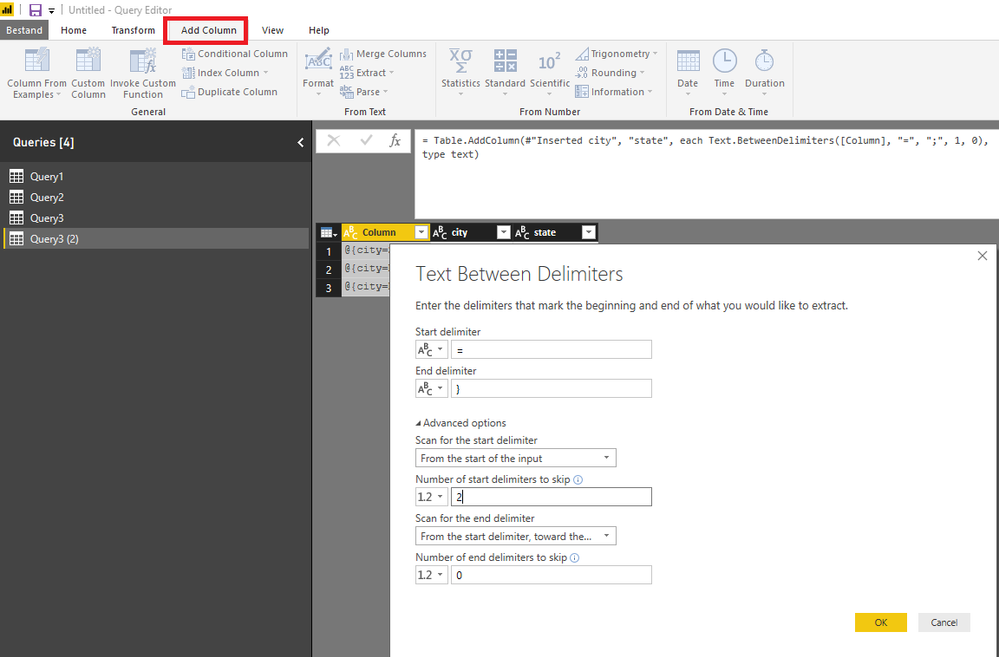
I adjusted the column name and the step name after each column insertion.
Dynamic alternative:
Much more fun (and much more dynamic) is to transform the texts to record format, transform these into actual records, transform each record in a table (each with 1 row) and then combine all tables to 1 table.
Otherwise it requires some query editing in the advanced editor.
Just to illustrate the dynamics, I added a field helper to 1 of the rows,
let
ReplacementList = {
{"@{","["},
{"=","="""},
{";",""","},
{"}","""]"}},
Source = #table(type table[Column = text],
{{"@{city=Stratford; state=ON; country=Canada; helper=MarcelBeug}"},
{"@{city=Boucherville; state=QC; country=Canada}"},
{"@{city=Elora; state=ON; country=Canada}"}}),
ReplacedValues = List.Accumulate(ReplacementList,Source,(t,r) => Table.ReplaceValue(t,r{0},r{1},Replacer.ReplaceText,{"Column"})),
TextToRecords = Table.TransformColumns(ReplacedValues,{{"Column", Expression.Evaluate, type record}}),
RecordsToTables = Table.TransformColumns(TextToRecords,{{"Column", each Table.FromRecords({_}), type table}}),
TablesToTable = Table.Combine(RecordsToTables[Column])
in
TablesToTable
As a rule of thumb, any transformations should be done as early in the process as possible, so if it can be done in SQL you may still consider that as the first alternative.
It can be done in the Query Editor by adding columns using text between delimiter functionality, if the structure is the same for each field.
let
Source = #table(type table[Column = text],
{{"@{city=Stratford; state=ON; country=Canada}"},
{"@{city=Boucherville; state=QC; country=Canada}"},
{"@{city=Elora; state=ON; country=Canada}"}}),
#"Inserted city" = Table.AddColumn(Source, "city", each Text.BetweenDelimiters([Column], "=", ";", 0, 0), type text),
#"Inserted state" = Table.AddColumn(#"Inserted city", "state", each Text.BetweenDelimiters([Column], "=", ";", 1, 0), type text),
#"Inserted country" = Table.AddColumn(#"Inserted state", "country", each Text.BetweenDelimiters([Column], "=", "}", 2, 0), type text),
#"Removed Columns" = Table.RemoveColumns(#"Inserted country",{"Column"})
in
#"Removed Columns"This is how the insertion of column "country" looks like in the Query Editor (I forgot to highlight "Extract" in the middle of the ribbon: that's where you can find "Betweeen Delimiters"):
I adjusted the column name and the step name after each column insertion.
Dynamic alternative:
Much more fun (and much more dynamic) is to transform the texts to record format, transform these into actual records, transform each record in a table (each with 1 row) and then combine all tables to 1 table.
Otherwise it requires some query editing in the advanced editor.
Just to illustrate the dynamics, I added a field helper to 1 of the rows,
let
ReplacementList = {
{"@{","["},
{"=","="""},
{";",""","},
{"}","""]"}},
Source = #table(type table[Column = text],
{{"@{city=Stratford; state=ON; country=Canada; helper=MarcelBeug}"},
{"@{city=Boucherville; state=QC; country=Canada}"},
{"@{city=Elora; state=ON; country=Canada}"}}),
ReplacedValues = List.Accumulate(ReplacementList,Source,(t,r) => Table.ReplaceValue(t,r{0},r{1},Replacer.ReplaceText,{"Column"})),
TextToRecords = Table.TransformColumns(ReplacedValues,{{"Column", Expression.Evaluate, type record}}),
RecordsToTables = Table.TransformColumns(TextToRecords,{{"Column", each Table.FromRecords({_}), type table}}),
TablesToTable = Table.Combine(RecordsToTables[Column])
in
TablesToTable
Based on a SQL result from a GraphAPI, the result of a Column is the following:
| @{city=Stratford; state=ON; country=Canada} |
| @{city=Boucherville; state=QC; country=Canada} |
| @{city=Elora; state=ON; country=Canada} |
How would you split the following into different columns, explose the results in different columns or any other methods.
If there is no magic trick directly from PowerBI i will do it at the SQL Level but id like to avoid that
Check out the April 2026 Power BI update to learn about new features.
Sign up to receive a private message when registration opens and key events begin.
If you have recently started exploring Fabric, we'd love to hear how it's going. Your feedback can help with product improvements.
| User | Count |
|---|---|
| 34 | |
| 32 | |
| 25 | |
| 21 | |
| 16 |
| User | Count |
|---|---|
| 65 | |
| 50 | |
| 30 | |
| 23 | |
| 23 |