Join us at FabCon Atlanta from March 16 - 20, 2026, for the ultimate Fabric, Power BI, AI and SQL community-led event. Save $200 with code FABCOMM.
Register now!Get Fabric Certified for FREE during Fabric Data Days. Don't miss your chance! Request now
Hi guys!
I've been struggling around the generation of different groups according to the parameter that I select on a slicer with unique selection. For example, If I have this table down below:
| Category | Vendor | Units |
| Shirts | A | 20 |
| Trousers | A | 30 |
| Shirts | B | 10 |
| Trousers | B | 10 |
| Shirts | C | 15 |
| Trousers | C | 20 |
| Shirts | D | 5 |
If I put on the slicer the variable "Vendor", and I select the parameter "A", I would like to have a table like this:
| Category | Vendor | Units |
| Shirts | A | 20 |
| Trousers | A | 30 |
| Shirts | Other | 10 |
| Trousers | Other | 10 |
| Shirts | Other | 15 |
| Trousers | Other | 20 |
| Shirts | Other | 5 |
So I can have this representation:
And obviously whenever I change the parameter in the slicer, it dynamically update the grouping, so I can always compare the percentage of one vendor against the rest of them.
I'd really appreciate any help/guidance with this.
Thanks in advance!
Solved! Go to Solution.
Hi @AHONORESR ,
Is this you want?
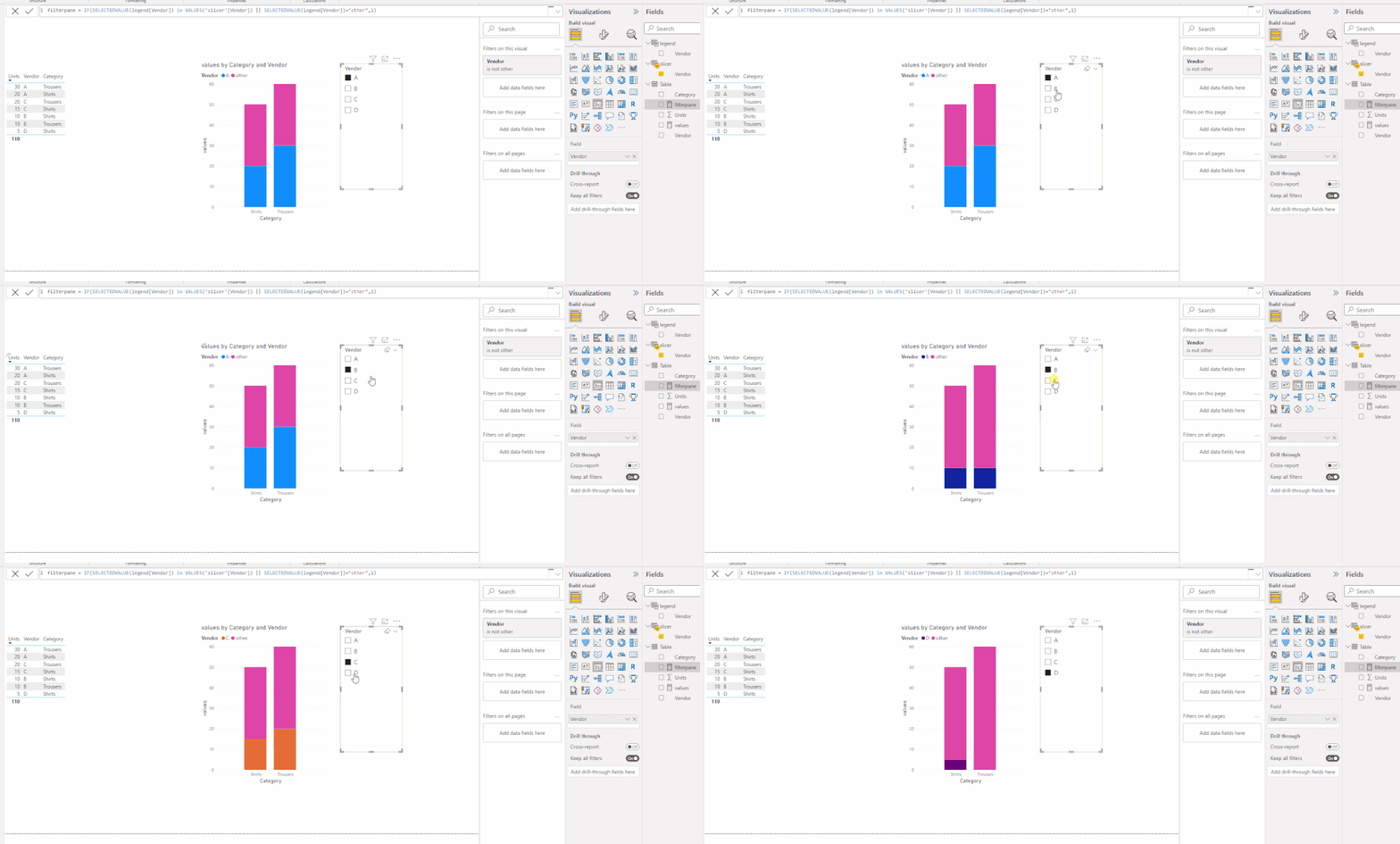
If yes, you need create two table via UNION(VALUES('Table'[Vendor]),{"other"}), one for lengend and anoter for slicer.
1 values of bar chart:
values =
VAR _v =
VALUES ( 'slicer'[Vendor] )
VAR _s =
CALCULATE (
SUM ( 'Table'[Units] ),
FILTER (
'Table',
[Vendor]
IN _v
&& [Vendor] = SELECTEDVALUE ( 'legend'[Vendor] )
)
)
VAR _o =
CALCULATE ( SUM ( 'Table'[Units] ), FILTER ( 'Table', NOT ( [Vendor] IN _v ) ) )
RETURN
IF ( SELECTEDVALUE ( 'legend'[Vendor] ) = "other", _o, _s )
2 filterpane:
filterpane =
IF (
SELECTEDVALUE ( legend[Vendor] )
IN VALUES ( 'slicer'[Vendor] )
|| SELECTEDVALUE ( legend[Vendor] ) = "other",
1
)
put this measure in filter pane of this column chart and set it is 1
Pbix in the end you can refer.
Best Regards
Community Support Team _ chenwu zhu
If this post helps, then please consider Accept it as the solution to help the other members find it more quickly.
Hi @AHONORESR ,
Is this you want?
If yes, you need create two table via UNION(VALUES('Table'[Vendor]),{"other"}), one for lengend and anoter for slicer.
1 values of bar chart:
values =
VAR _v =
VALUES ( 'slicer'[Vendor] )
VAR _s =
CALCULATE (
SUM ( 'Table'[Units] ),
FILTER (
'Table',
[Vendor]
IN _v
&& [Vendor] = SELECTEDVALUE ( 'legend'[Vendor] )
)
)
VAR _o =
CALCULATE ( SUM ( 'Table'[Units] ), FILTER ( 'Table', NOT ( [Vendor] IN _v ) ) )
RETURN
IF ( SELECTEDVALUE ( 'legend'[Vendor] ) = "other", _o, _s )
2 filterpane:
filterpane =
IF (
SELECTEDVALUE ( legend[Vendor] )
IN VALUES ( 'slicer'[Vendor] )
|| SELECTEDVALUE ( legend[Vendor] ) = "other",
1
)
put this measure in filter pane of this column chart and set it is 1
Pbix in the end you can refer.
Best Regards
Community Support Team _ chenwu zhu
If this post helps, then please consider Accept it as the solution to help the other members find it more quickly.
This is exactly what I needed... thanks a lot!
check this video on my YT channel and tweak it as you see fit Compare selected customer sales with other customers - various methods (Part 1) - YouTube
I would ❤ Kudos if my solution helped. 👉 If you can spend time posting the question, you can also make effort to give Kudos to whoever helped to solve your problem. It is a token of appreciation!
⚡ Visit us at https://perytus.com, your one-stop shop for Power BI-related projects/training/consultancy.
Subscribe to the @PowerBIHowTo YT channel for an upcoming video on List and Record functions in Power Query!!
Learn Power BI and Fabric - subscribe to our YT channel - Click here: @PowerBIHowTo
If my solution proved useful, I'd be delighted to receive Kudos. When you put effort into asking a question, it's equally thoughtful to acknowledge and give Kudos to the individual who helped you solve the problem. It's a small gesture that shows appreciation and encouragement! ❤
Did I answer your question? Mark my post as a solution. Proud to be a Super User! Appreciate your Kudos 🙂
Feel free to email me with any of your BI needs.
Check out the November 2025 Power BI update to learn about new features.
Advance your Data & AI career with 50 days of live learning, contests, hands-on challenges, study groups & certifications and more!