Join us in Barcelona for FabCon and SQLCon, September 28 - October 1, 2026.
This is best Fabric, Power BI, SQL and AI community event. How do we know? The last event sold out! Save €200 with code FABCMTY200.
Register now- Power BI forums
- Get Help with Power BI
- Desktop
- Service
- Report Server
- Power Query
- Mobile Apps
- Developer
- DAX Commands and Tips
- Custom Visuals Development Discussion
- Health and Life Sciences
- Power BI Spanish forums
- Translated Spanish Desktop
- Training and Consulting
- Instructor Led Training
- Dashboard in a Day for Women, by Women
- Galleries
- Data Stories Gallery
- Themes Gallery
- Contests Gallery
- QuickViz Gallery
- Quick Measures Gallery
- Visual Calculations Gallery
- Fabric Apps Gallery
- Notebook Gallery
- Translytical Task Flow Gallery
- TMDL Gallery
- R Script Showcase
- Webinars and Video Gallery
- Ideas
- Custom Visuals Ideas (read-only)
- Issues
- Issues
- Events
- Upcoming Events
July 28 - August 9 | Final Round of the Power BI Dataviz World Championships. This is your chance. Learn more
- Power BI forums
- Forums
- Get Help with Power BI
- Desktop
- Distinct count row elements and make row elements ...
- Subscribe to RSS Feed
- Mark Topic as New
- Mark Topic as Read
- Float this Topic for Current User
- Bookmark
- Subscribe
- Printer Friendly Page


- Mark as New
- Bookmark
- Subscribe
- Mute
- Subscribe to RSS Feed
- Permalink
- Report Inappropriate Content
Distinct count row elements and make row elements as header
Hi everyone, I'm new to Power BI, tried with different discussion forums but not working for me. Kindly help me out with this.
INPUT Table
| Number | Column2 |
| 1 | a |
| 2 | a |
| 1 | b |
| 4 | a |
| 2 | b |
| 4 | b |
| 4 | a |
| 1 | b |
Desired OUTPUT Table
| Number | a | b |
| 1 | 1 | 2 |
| 2 | 1 | 1 |
| 4 | 2 | 1 |
Thanks in advance
Solved! Go to Solution.


- Mark as New
- Bookmark
- Subscribe
- Mute
- Subscribe to RSS Feed
- Permalink
- Report Inappropriate Content
@viveksasi94 Do you want to display the data in the visual like that or want to store/transform the data. If it is just for displaying then use "Matrix" visual.
If you want to transform that data, then you can achieve that in "Power Query Editor" as below. It will dynamically if there is any new additions in Column2 as well.
let
    Source = Table.FromRows(Json.Document(Binary.Decompress(Binary.FromText("i45WMlTSUUpUitWJVjKCs0BiSWCWCYosQgxdFlVHMlwMyIoFAA==", BinaryEncoding.Base64), Compression.Deflate)), let _t = ((type text) meta [Serialized.Text = true]) in type table [Number = _t, ID = _t]),
    #"Changed Type" = Table.TransformColumnTypes(Source,{{"Number", Int64.Type}, {"ID", type text}}),
    #"Unpivoted Only Selected Columns" = Table.Unpivot(#"Changed Type", {"ID"}, "Attribute", "Value"),
    #"Pivoted Column" = Table.Pivot(#"Unpivoted Only Selected Columns", List.Distinct(#"Unpivoted Only Selected Columns"[Value]), "Value", "Attribute", List.Count)
in
    #"Pivoted Column"
Did I answer your question? Mark my post as a solution!
Proud to be a PBI Community Champion


- Mark as New
- Bookmark
- Subscribe
- Mute
- Subscribe to RSS Feed
- Permalink
- Report Inappropriate Content
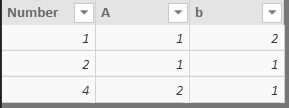
From the Modeling Tab, click on the New Table option and try this formula
Output Table = ADDCOLUMNS(SUMMARIZE(Table1,Table1[Number]),"A",CALCULATE(COUNTA(Table1[Column2]),Table1[Column2]="a"),"b",CALCULATE(COUNTA(Table1[Column2]),Table1[Column2]="b"))
Snapshot of the output
- Mark as New
- Bookmark
- Subscribe
- Mute
- Subscribe to RSS Feed
- Permalink
- Report Inappropriate Content
@viveksasi94 Do you want to display the data in the visual like that or want to store/transform the data. If it is just for displaying then use "Matrix" visual.
If you want to transform that data, then you can achieve that in "Power Query Editor" as below. It will dynamically if there is any new additions in Column2 as well.
let
    Source = Table.FromRows(Json.Document(Binary.Decompress(Binary.FromText("i45WMlTSUUpUitWJVjKCs0BiSWCWCYosQgxdFlVHMlwMyIoFAA==", BinaryEncoding.Base64), Compression.Deflate)), let _t = ((type text) meta [Serialized.Text = true]) in type table [Number = _t, ID = _t]),
    #"Changed Type" = Table.TransformColumnTypes(Source,{{"Number", Int64.Type}, {"ID", type text}}),
    #"Unpivoted Only Selected Columns" = Table.Unpivot(#"Changed Type", {"ID"}, "Attribute", "Value"),
    #"Pivoted Column" = Table.Pivot(#"Unpivoted Only Selected Columns", List.Distinct(#"Unpivoted Only Selected Columns"[Value]), "Value", "Attribute", List.Count)
in
    #"Pivoted Column"
Did I answer your question? Mark my post as a solution!
Proud to be a PBI Community Champion
- Mark as New
- Bookmark
- Subscribe
- Mute
- Subscribe to RSS Feed
- Permalink
- Report Inappropriate Content


- Mark as New
- Bookmark
- Subscribe
- Mute
- Subscribe to RSS Feed
- Permalink
- Report Inappropriate Content
Not pretty, but it works:
let
    Source = Table.FromRows(Json.Document(Binary.Decompress(Binary.FromText("i45WMlTSUUpUitWJVjKCs0BiSWCWCYosQgxdFqojFgA=", BinaryEncoding.Base64), Compression.Deflate)), let _t = ((type text) meta [Serialized.Text = true]) in type table [Number = _t, Column2 = _t]),
    #"Changed Type" = Table.TransformColumnTypes(Source,{{"Number", Int64.Type}, {"Column2", type text}}),
    #"Added Conditional Column" = Table.AddColumn(#"Changed Type", "a", each if [Column2] = "a" then 1 else 0),
    #"Added Conditional Column1" = Table.AddColumn(#"Added Conditional Column", "b", each if [Column2] = "b" then 1 else 0),
    #"Grouped Rows" = Table.Group(#"Added Conditional Column1", {"Number"}, {{"a", each List.Sum([a]), type number}, {"b", each List.Sum([b]), type number}})
in
    #"Grouped Rows"
Now let someone far more clever than me show you how to do this with a nice bit of DAX...
- Mark as New
- Bookmark
- Subscribe
- Mute
- Subscribe to RSS Feed
- Permalink
- Report Inappropriate Content
Thank you @Gazzer for your time and effort, but the dataset that I gave is only to illustrate my problem. I need a dynamic DAX command so that I don't need to mention the row values manually.
- Mark as New
- Bookmark
- Subscribe
- Mute
- Subscribe to RSS Feed
- Permalink
- Report Inappropriate Content
Something more like this:
let
 Source = Table.FromRows(Json.Document(Binary.Decompress(Binary.FromText("i45WMlTSUUpUitWJVjKCs0BiSWCWCYosQgxdFqEDxEqG64CwTCHqYgE=", BinaryEncoding.Base64), Compression.Deflate)), let _t = ((type text) meta [Serialized.Text = true]) in type table [Number = _t, Column2 = _t]),
 #"Changed Type" = Table.TransformColumnTypes(Source,{{"Number", Int64.Type}, {"Column2", type text}}),
 #"Duplicated Column" = Table.DuplicateColumn(#"Changed Type", "Column2", "Column2 - Copy"),
 #"Pivoted Column" = Table.Pivot(#"Duplicated Column", List.Distinct(#"Duplicated Column"[#"Column2 - Copy"]), "Column2 - Copy", "Column2", List.Count)
in
 #"Pivoted Column"


Helpful resources

FabCon & SQLCon – Barcelona 2026
Join us in Barcelona for FabCon and SQLCon, the Fabric, Power BI, SQL, and AI community event. Save €200 with code FABCMTY200.

Power BI Monthly Update - July 2026
Check out the July 2026 Power BI update to learn about new features.

Power BI DataViz World Championships - June 2026
A new Power BI DataViz World Championship is coming this June! Don't miss out on submitting your entry.

| User | Count |
|---|---|
| 25 | |
| 23 | |
| 20 | |
| 18 | |
| 14 |


| User | Count |
|---|---|
| 22 | |
| 20 | |
| 20 | |
| 20 | |
| 20 |


