cancel
Showing results for 
Search instead for 
Did you mean: 

The Power BI Data Visualization World Championships is back! Get ahead of the game and start preparing now! Learn more

Reply
Anonymous
Not applicable

Distinct Count based on 2 columns in same table

I've seen many variations of this question and every answer I've seen doesn't work for me.  It's driving me crazy.  I hate DAX because this should be so simple! (like it is in SQL and Excel)


Ultimately I need to know the count of each Customer & Address combination.


My raw data table:

Customer   Source    Address

A            1      12345 Oak St

A            2      12345 Oak St

A            3      1234567 Oak St

MM           1      555 Elm St

MM           2      666 Elm St

MM           3      777 Elm St

ZZZ          1      89 Maple St

ZZZ          3      89 Maple St


My desired Power BI visual (table):

Customer     Address        CustCount   Cust-AddrCount

A            12345 Oak St       3             2

A            1234567 Oak St     3             1

MM           555 Elm St         3             1

MM           666 Elm St         3             1

MM           777 Elm St         3             1

ZZZ          89 Maple St        2             2


What 2 DAX Measures do I need for:

  • CustCount (Count of Customer in data)
  • Cust-AddrCount (Count of Customer-Address pair in data)

Your help is much appreciated!

1 ACCEPTED SOLUTION

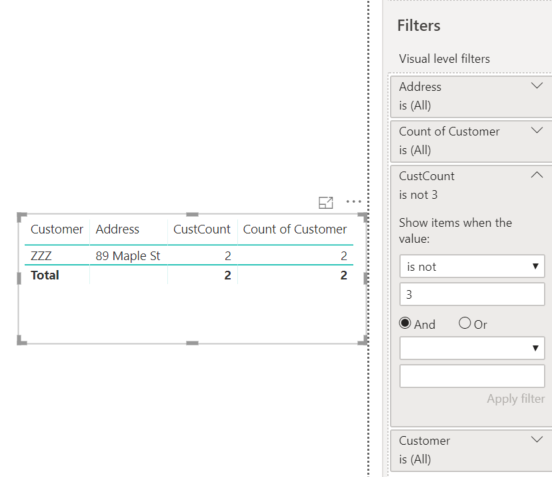
I'm not sure I understand the block here.  What's keeping you from filtering on CustCount?  It was very easy to add this filter:

snipa.PNG


If you're trying to use this value in a slicer, just add calculated columns to your data and use those instead:

CustCountColumn = CALCULATE( COUNTROWS(RawData), FILTER(RawData, RawData[Address]=EARLIER(RawData[Address]) && RawData[Customer] = EARLIER(RawData[Customer])))
CustCountCol = CALCULATE( COUNTROWS(RawData), FILTER(RawData, RawData[Customer] = EARLIER(RawData[Customer])))

View solution in original post

4 REPLIES 4
Cmcmahan
Resident Rockstar
Resident Rockstar

This is very easy to do in PowerBI once you understand the power of context.


First, I added the sample data you provided, then I created a basic table visual.  I added Customer and Address to the table.  Then I added customer to the table again, but clicked the dropdown and chose to summarize it as a Count this time.  That gave me the Cust-AddrCount you wanted.


The harder one was the CustCount.  Since the data is already grouped by Customer-Address in this visual, you have to manually remove the filters via DAX.  I created a measure called CustCount and added it to the table:

CustCount = CALCULATE(COUNT(RawData[Customer]), ALLEXCEPT(RawData,RawData[Customer]))

That gave me the exact results you were looking for. Here's my .pbix file so you can play around with it. https://drive.google.com/open?id=1JHQDsZVqCrbHuGBew4sVwwTkd4A0Zd4e


If you have further questions about context or the ALLEXCEPT function, feel free to ask.

Anonymous
Not applicable

Thanks @Cmcmahan !


I apologize for failing to mention this requirement - but the adding of the customer name to the table and choosing Count doesn't work for me becuase I want to be able to filter that value.  For example, I'd like to filter out all Cust-Addr pairs which have a count of 3.


Should I consider simply adding a calculated column on the PowerQuery side of things?  If so, would you have any insight into that?

I'm not sure I understand the block here.  What's keeping you from filtering on CustCount?  It was very easy to add this filter:

snipa.PNG


If you're trying to use this value in a slicer, just add calculated columns to your data and use those instead:

CustCountColumn = CALCULATE( COUNTROWS(RawData), FILTER(RawData, RawData[Address]=EARLIER(RawData[Address]) && RawData[Customer] = EARLIER(RawData[Customer])))
CustCountCol = CALCULATE( COUNTROWS(RawData), FILTER(RawData, RawData[Customer] = EARLIER(RawData[Customer])))
Anonymous
Not applicable

Those two formulae are exactly what I was looking for, @Cmcmahan , thanks!  I was able to use those two and divide them, then filter out the columns that are 100% matches.

Helpful resources

Announcements
Power BI DataViz World Championships

Power BI Dataviz World Championships

The Power BI Data Visualization World Championships is back! Get ahead of the game and start preparing now!

December 2025 Power BI Update Carousel

Power BI Monthly Update - December 2025

Check out the December 2025 Power BI Holiday Recap!

FabCon Atlanta 2026 carousel

FabCon Atlanta 2026

Join us at FabCon Atlanta, March 16-20, for the ultimate Fabric, Power BI, AI and SQL community-led event. Save $200 with code FABCOMM.