cancel
Showing results for 
Search instead for 
Did you mean: 

Learn from the best! Meet the four finalists headed to the FINALS of the Power BI Dataviz World Championships! Register now

Reply
weijunawj
Frequent Visitor

Display message when data points exceed reference line

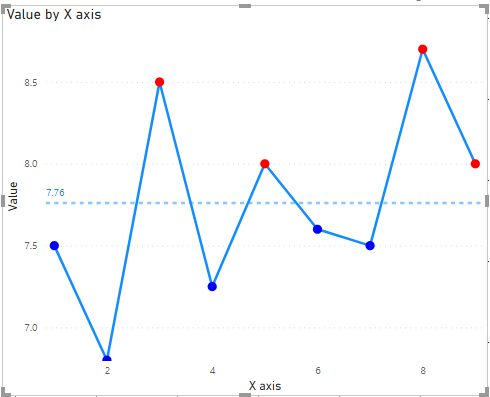
Hi, i have a line chart with a reference line below. How can i display a message whenever my data point exceeds the reference line?

weijunawj_1-1622087284246.png


1 ACCEPTED SOLUTION
Anonymous
Not applicable

Hi @weijunawj 

In addition to 's reply, I will show the way in details.

Firstly, I need to know how did you get the reference line. Is it an average line in visual analysis?
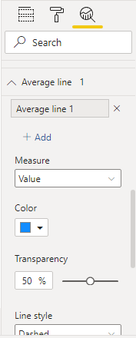
1.png

If you want to show different colors to distinguish whether the value exceeds the average, build a measure as below.

Color = 
VAR _AVERAGE = CALCULATE(AVERAGE('Table'[Value]),ALL('Table'))
RETURN
IF(SUM('Table'[Value])>_AVERAGE,"RED","BLUE")

Build a bar chart and use FX in Data color in Format.
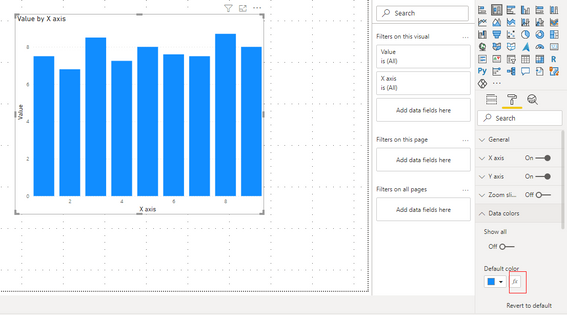
2.png

Select Field value in Format by and based on color measure. Then select ok and transform the bar chart to line chart.
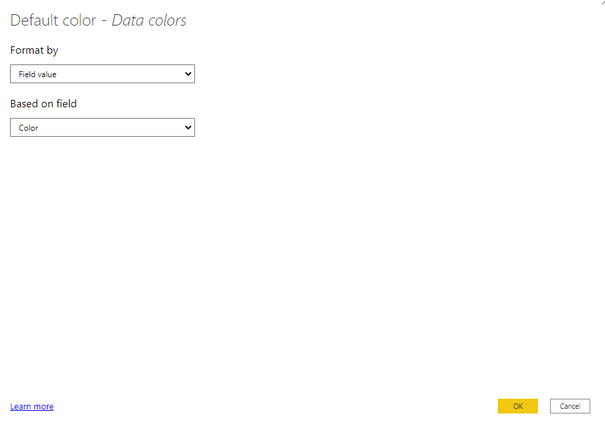
3.png

Result is as below.

4.png

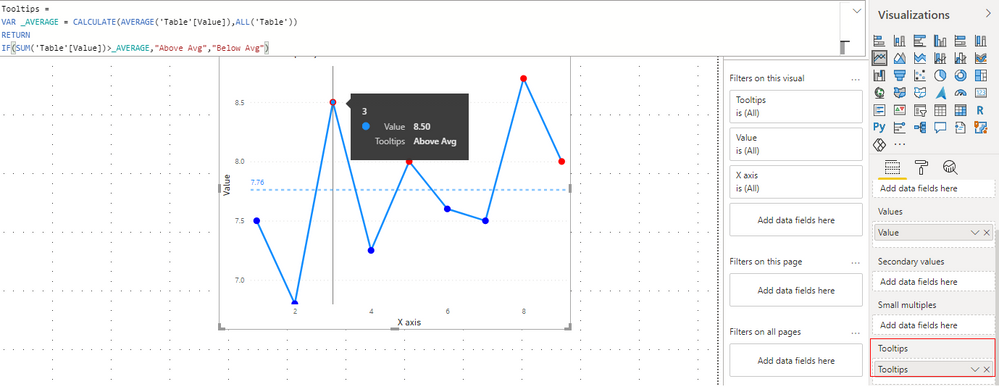
If you need to a tooltip to show whether the value exceeds the average, you can change the result in color measure and add this measure into tooltips in this visual.

Tooltips = 
VAR _AVERAGE = CALCULATE(AVERAGE('Table'[Value]),ALL('Table'))
RETURN
IF(SUM('Table'[Value])>_AVERAGE,"Above Avg","Below Avg")

To see the  tooltip, you need to hang your mouse on the point in line chart. Or the tooltips will be hidden.
5.png

You can build a tooltip based on report page as well. 

For reference: Create tooltips based on report pages in Power BI Desktop


Best Regards,

Rico Zhou


If this post helps, then please consider Accept it as the solution to help the other members find it more quickly. 

View solution in original post

4 REPLIES 4
Anonymous
Not applicable

Hi @weijunawj 

In addition to 's reply, I will show the way in details.

Firstly, I need to know how did you get the reference line. Is it an average line in visual analysis?

1.png

If you want to show different colors to distinguish whether the value exceeds the average, build a measure as below.

Color = 
VAR _AVERAGE = CALCULATE(AVERAGE('Table'[Value]),ALL('Table'))
RETURN
IF(SUM('Table'[Value])>_AVERAGE,"RED","BLUE")

Build a bar chart and use FX in Data color in Format.

2.png

Select Field value in Format by and based on color measure. Then select ok and transform the bar chart to line chart.

3.png

Result is as below.

4.png

If you need to a tooltip to show whether the value exceeds the average, you can change the result in color measure and add this measure into tooltips in this visual.

Tooltips = 
VAR _AVERAGE = CALCULATE(AVERAGE('Table'[Value]),ALL('Table'))
RETURN
IF(SUM('Table'[Value])>_AVERAGE,"Above Avg","Below Avg")

To see the  tooltip, you need to hang your mouse on the point in line chart. Or the tooltips will be hidden.

5.png

You can build a tooltip based on report page as well. 

For reference: Create tooltips based on report pages in Power BI Desktop


Best Regards,

Rico Zhou


If this post helps, then please consider Accept it as the solution to help the other members find it more quickly. 

amitchandak
Super User
Super User

@weijunawj , One way is to create conditional formatting on bar visual and convert back to the line.  But if the other line is not avg line and is measure it might not work


Color  =

if( [Value] > [Avg Value], "Green",

"Blue"

)


Use in conditional formatting with a field value option 


or create a measure and use on tool tip


Color  =

if( [Value] > [Avg Value], "Above Avg",

"Below Avg"

)


Share with Power BI Enthusiasts: Full Power BI Video (20 Hours) YouTube
Microsoft Fabric Series 60+ Videos YouTube
Microsoft Fabric Hindi End to End YouTube

Hi sir, sorry i'm new to power bi. How can i create a measure and use on tool tip as mentioned in your reply? and where do i enter the condition "

Color =

if( [Value] > [Avg Value], "Above Avg",

"Below Avg"

)" ?

Thank you

@weijunawj , Assume you have a measure value, then you can create a new meausre


Color =
var = calculate([Value], allselected(Table))
return
if( [Value] > [Avg Value], "Above Avg", "Below Avg" )


Then add that to tooltip (Visual Pane)

Share with Power BI Enthusiasts: Full Power BI Video (20 Hours) YouTube
Microsoft Fabric Series 60+ Videos YouTube
Microsoft Fabric Hindi End to End YouTube

Helpful resources

Announcements
Join our Fabric User Panel

Join our Fabric User Panel

Share feedback directly with Fabric product managers, participate in targeted research studies and influence the Fabric roadmap.

February Power BI Update Carousel

Power BI Monthly Update - February 2026

Check out the February 2026 Power BI update to learn about new features.

FabCon Atlanta 2026 carousel

FabCon Atlanta 2026

Join us at FabCon Atlanta, March 16-20, for the ultimate Fabric, Power BI, AI and SQL community-led event. Save $200 with code FABCOMM.