cancel
Showing results for 
Search instead for 
Did you mean: 

Learn from the best! Meet the four finalists headed to the FINALS of the Power BI Dataviz World Championships! Register now

Reply
JpSantos_
Regular Visitor

DAX Query

Hello , I´m a bit new to Power Query and would love some help with achieving the requirements for a certain dashboard.

I have a Requests Table where I have the attributes:
RequestId | Continent | Country | City 
1                 Europe       Spain      Madrid
2                 Europe       Spain      Madrid
3                 Europe       France    Paris

4                 Europe       France    Paris
5                 Europe       Spain      Valencia

6                 America      USA       Madrid

I would like to have a ring chart with only the top 2 'places' that have made requests, where 'places' are the concatenantion of Continent | Country | City. For this small example the ring chart would have 2 (count of) requests for Europe | Spain | Madrid, and 2 (count of) requests for Europe | France | Paris. The data import mode is made by DirectQuery.

Thank you.

3 REPLIES 3
PhilipTreacy
Super User
Super User

Hi @JpSantos_ 


I presume you want this in DAX as that is the topic name?  You mention Power Query, which is different to DAX.


Download this PBIX file with solution.


To do what you want, create a column in your data table that concatenates the continent, country and city

Place = [Continent] & " | " & [Country] & " | " & [City]


Then create a new table with TOPN that lists just the top 2 

Top2 = 

TOPN(
    2,
    SUMMARIZE(
        'TableRaw',
        'TableRaw'[Place], 
        "Requests",
        COUNT('TableRaw'[Request ID])
    ), 
    [Requests]
)


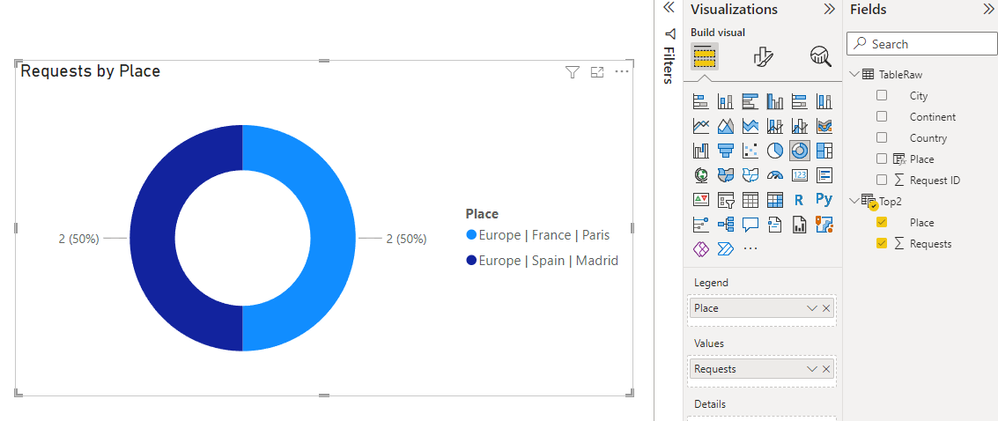
Then create your visual from the new table

ring.png


Regards


Phil


Did I answer your question? Then please mark my post as the solution.
If I helped you, click on the Thumbs Up to give Kudos.


Blog :: YouTube Channel :: Connect on Linkedin


Proud to be a Super User!


Hi @PhilipTreacy 

Thanks for the repply!
Yes I would want the solution in DAX. The problem is that the import mode is in DirectQuery ( in fact it is an Hybrid Table) and it doesn´t let me create calculated columns that way. So I'm not sure how I can achieve concatenating the "Place" without calculated columns. Any ideias?

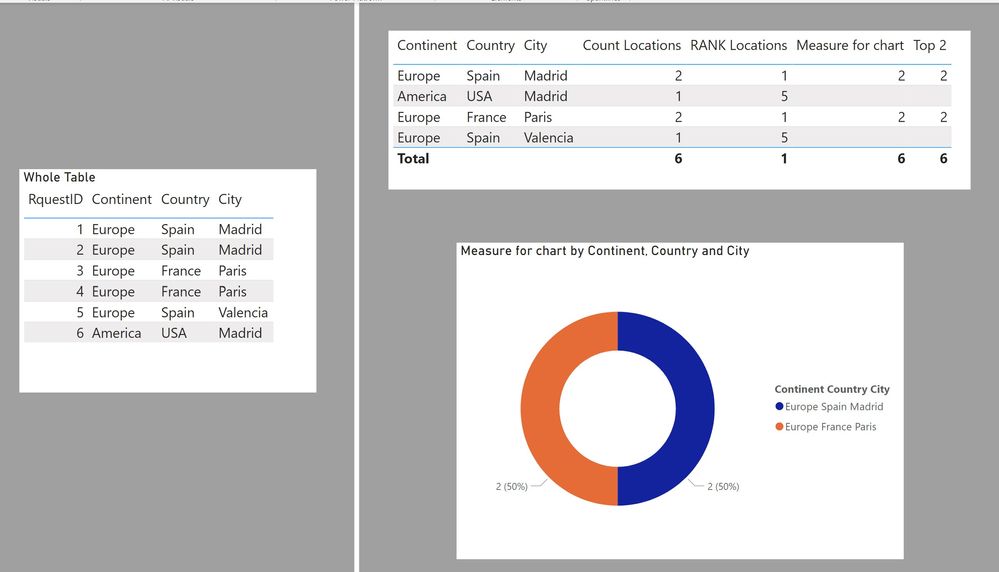
Here is a way:
(My table is named 'Locations')
Using these measures:


Count Locations =
CALCULATE (
    COUNTROWS ( Locations ),
    ALLEXCEPT (
        Locations,
        Locations[Continent],
        Locations[Country],
        Locations[City]
    )
)
RANK Locations =
RANKX ( ALL ( Locations ), [Count Locations],, DESC, SKIP )
Measure for chart = 
IF([RANK Locations] <=2, [Count Locations])


Top2Loc.jpg


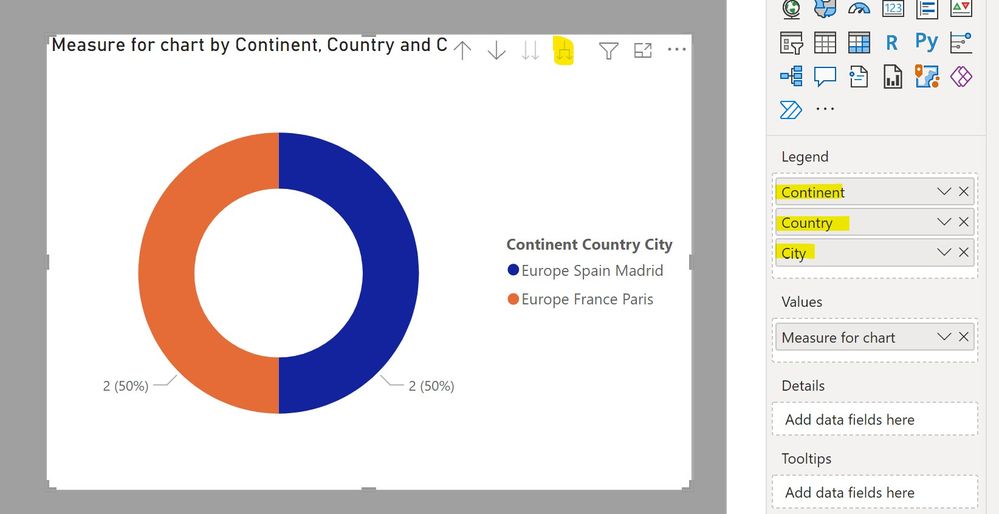
visual.jpg


or if you'd rather only have it in one measure:


Top 2 =
IF (
    RANKX (
        ALL ( Locations ),
        CALCULATE (
            COUNTROWS ( Locations ),
            ALLEXCEPT (
                Locations,
                Locations[Continent],
                Locations[Country],
                Locations[City]
            )
        ),
        ,
        DESC,
        SKIP
    ) <= 2,
    CALCULATE (
        COUNTROWS ( Locations ),
        ALLEXCEPT (
            Locations,
            Locations[Continent],
            Locations[Country],
            Locations[City]
        )
    )
)


Did I answer your question? Mark my post as a solution!
In doing so, you are also helping me. Thank you!

Proud to be a Super User!
Paul on Linkedin.


Helpful resources

Announcements
Power BI DataViz World Championships carousel

Power BI DataViz World Championships - June 2026

A new Power BI DataViz World Championship is coming this June! Don't miss out on submitting your entry.

Join our Fabric User Panel

Join our Fabric User Panel

Share feedback directly with Fabric product managers, participate in targeted research studies and influence the Fabric roadmap.

March Power BI Update Carousel

Power BI Community Update - March 2026

Check out the March 2026 Power BI update to learn about new features.