cancel
Showing results for 
Search instead for 
Did you mean: 

The Power BI Data Visualization World Championships is back! Get ahead of the game and start preparing now! Learn more

Reply
Anonymous
Not applicable

Creating Circle Indicators with UNICHAR

Hi, 


I need to publish a report with circles indicator with the following conditions: 

-> If Coverage% is 90%-100% then it should return blue light on Coverage Indicator

->  If Coverage% is 60%-89% then it should return black light on Coverage Indicator 

-> if Coverage% is less than 59% then it should return Red Light on Coverage Indicator 


What, I have done is, I created 3 different measures for each light as follows: 

1. Black Light = UNICHAR ( 9899 )

2. blue light = UNICHAR ( 128309 )

3. RedLight = UNICHAR ( 128308 )


When, I pull each of the above measures to the dashboard and visualize them as cards, all three measures are showing the right colors circles. 


And then I created the Coverage Indicator measure using the above three measures. 


Coverage Indicator = var Coverage = [Coverage %] return switch (true(),isblank([Coverage %]) , blank(), [coverage %] < 59.00,  [RedLight],  [Coverage %]  < 89.00 , [Black Light], [Coverage %]  < 100.00,  [blue light])

However, the result only shows one red circle for all numbers of Coverage% 


Coverage%.JPG

I am not sure, how to fix this issues. I am certain than the coverage indicator measure must have some errors somewhere. Could anyone please help me with this. I am fairly new to Power BI and my knoweldge of DAX language is very limited. 


Thank you in advance. 


1 ACCEPTED SOLUTION
v-yuta-msft
Community Support
Community Support

@Anonymous ,


As mentioned above, please modify your measure using dax below:

Coverage Indicator =
SWITCH (
    TRUE (),
    ISBLANK ( [Coverage %] ), BLANK (),
    [coverage %] < 0.59, [RedLight],
    [Coverage %] < 0.89, [Black Light],
    [Coverage %] < 1, [blue light]
)

Community Support Team _ Jimmy Tao

If this post helps, then please consider Accept it as the solution to help the other members find it more quickly.

View solution in original post

3 REPLIES 3
v-yuta-msft
Community Support
Community Support

@Anonymous ,


As mentioned above, please modify your measure using dax below:

Coverage Indicator =
SWITCH (
    TRUE (),
    ISBLANK ( [Coverage %] ), BLANK (),
    [coverage %] < 0.59, [RedLight],
    [Coverage %] < 0.89, [Black Light],
    [Coverage %] < 1, [blue light]
)

Community Support Team _ Jimmy Tao

If this post helps, then please consider Accept it as the solution to help the other members find it more quickly.

vik0810
Resolver V
Resolver V

You are using 59.00 for 59% in your measure and so on. But 59% is 0.59 and not 59.00

MCornish
Responsive Resident
Responsive Resident

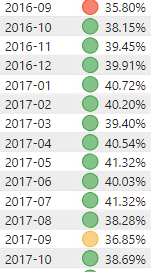
Have you tried using the conditional formatting icons?


Capture.PNG

Helpful resources

Announcements
Power BI DataViz World Championships

Power BI Dataviz World Championships

The Power BI Data Visualization World Championships is back! Get ahead of the game and start preparing now!

December 2025 Power BI Update Carousel

Power BI Monthly Update - December 2025

Check out the December 2025 Power BI Holiday Recap!

FabCon Atlanta 2026 carousel

FabCon Atlanta 2026

Join us at FabCon Atlanta, March 16-20, for the ultimate Fabric, Power BI, AI and SQL community-led event. Save $200 with code FABCOMM.