Get Fabric or SQL Certified for Free.
Get certified for free when you join Fabric Data Days 2026 and dive into Fabric, Power BI, SQL, AI, and other essential data skills.
Join now- Power BI forums
- Get Help with Power BI
- Desktop
- Service
- Report Server
- Power Query
- Mobile Apps
- Developer
- DAX Commands and Tips
- Custom Visuals Development Discussion
- Health and Life Sciences
- Power BI Spanish forums
- Translated Spanish Desktop
- Training and Consulting
- Instructor Led Training
- Dashboard in a Day for Women, by Women
- Galleries
- Data Stories Gallery
- Themes Gallery
- Contests Gallery
- QuickViz Gallery
- Quick Measures Gallery
- Visual Calculations Gallery
- Notebook Gallery
- Translytical Task Flow Gallery
- TMDL Gallery
- R Script Showcase
- Webinars and Video Gallery
- Ideas
- Custom Visuals Ideas (read-only)
- Issues
- Issues
- Events
- Upcoming Events
Try your skills in the Power BI Dataviz World Championship! Round one ends June 26. Join now
- Power BI forums
- Forums
- Get Help with Power BI
- Desktop
- Re: Create a table from the source data
- Subscribe to RSS Feed
- Mark Topic as New
- Mark Topic as Read
- Float this Topic for Current User
- Bookmark
- Subscribe
- Printer Friendly Page

- Mark as New
- Bookmark
- Subscribe
- Mute
- Subscribe to RSS Feed
- Permalink
- Report Inappropriate Content
Create a table from the source data
Hi
Need help in creating a dynamic table out of the employee source data based on a particular column which has names of team leads (includes duplicates). This new table should count the ranks (text) our each employee of a team lead.
Data Source - This gets updated everyday.
| Employee | Region | Country | Team Lead | Rank |
| Adriana | Europe | UK | Elizabeth | EE+ |
| Albert | Europe | UK | Elizabeth | ME+ |
| Anna | Asia | Philippines | Elizabeth | EE |
| Blaise | Americas | USA | Geraldin | EE |
| Caroline | Americas | Canada | Geraldin | EE |
| Cecilia | Middle East | UAE | Geraldin | NI |
| Chien | Asia | Greater China | Ingrid | ME |
| Dorothy | Europe | Ireland | Ingrid | ME+ |
| Edmond | Middle East | UAE | Ingrid | EE |
| Edwin | Europe | Scotland | Jane | EE+ |
Team Lead Table
| Team Lead | EE Count | EE+ Count |
| Elizabeth | 1 | 1 |
| Geraldin | 2 | 0 |
| Ingrid | 1 | 0 |
| Jane | 0 | 1 |
Solved! Go to Solution.


- Mark as New
- Bookmark
- Subscribe
- Mute
- Subscribe to RSS Feed
- Permalink
- Report Inappropriate Content
@Anonymous
Okay, this is what you are looking for I think:
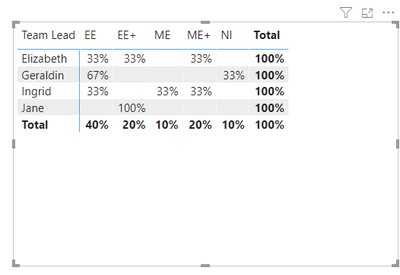
Employee Rank % =
DIVIDE(
    COUNT(Employee[Employee]),
    CALCULATE(
        COUNT(Employee[Employee]),
        ALLSELECTED(Employee[Rank])
    )
)
If you are satisfied with my answer, please mark it as a solution so others can easily find it.
APPRECIATE KUDOS!
⭕ Subscribe and learn Power BI from these videos
⚪ Website ⚪ LinkedIn ⚪ PBI User Group


- Mark as New
- Bookmark
- Subscribe
- Mute
- Subscribe to RSS Feed
- Permalink
- Report Inappropriate Content
Hi @Anonymous ,
Select the column/measure you want to modify, then you will find "%" in menu bar.

Best Regards,
Icey
If this post helps, then please consider Accept it as the solution to help the other members find it more quickly.
- Mark as New
- Bookmark
- Subscribe
- Mute
- Subscribe to RSS Feed
- Permalink
- Report Inappropriate Content
@Anonymous
Do you need to have a table created in the format you need or are you trying to show in it in a visual in the same layout?
⭕ Subscribe and learn Power BI from these videos
⚪ Website ⚪ LinkedIn ⚪ PBI User Group
- Mark as New
- Bookmark
- Subscribe
- Mute
- Subscribe to RSS Feed
- Permalink
- Report Inappropriate Content
No, thats how my output visual should be, however i need to further calculate the % of the ranks of each TLs based on the employee strength
- Mark as New
- Bookmark
- Subscribe
- Mute
- Subscribe to RSS Feed
- Permalink
- Report Inappropriate Content
@Anonymous
Then you simply use a MATRIX visual and plot your fields as I did below.

If you are satisfied with my answer, please mark it as a solution so others can easily find it.
APPRECIATE KUDOS!
⭕ Subscribe and learn Power BI from these videos
⚪ Website ⚪ LinkedIn ⚪ PBI User Group
- Mark as New
- Bookmark
- Subscribe
- Mute
- Subscribe to RSS Feed
- Permalink
- Report Inappropriate Content
Hi
Its not quite what i want, although it sort of in the same directio. i want the unique Team Leads in column 1 instead of the employees and rest of the columns to give the % of count of a particular rank divided by the total number of employees of that particular team lead
- Mark as New
- Bookmark
- Subscribe
- Mute
- Subscribe to RSS Feed
- Permalink
- Report Inappropriate Content
@Anonymous
Okay, this is what you are looking for I think:
Employee Rank % =
DIVIDE(
    COUNT(Employee[Employee]),
    CALCULATE(
        COUNT(Employee[Employee]),
        ALLSELECTED(Employee[Rank])
    )
)
If you are satisfied with my answer, please mark it as a solution so others can easily find it.
APPRECIATE KUDOS!
⭕ Subscribe and learn Power BI from these videos
⚪ Website ⚪ LinkedIn ⚪ PBI User Group
- Mark as New
- Bookmark
- Subscribe
- Mute
- Subscribe to RSS Feed
- Permalink
- Report Inappropriate Content
this is perfect! how do i convert the values to %?
- Mark as New
- Bookmark
- Subscribe
- Mute
- Subscribe to RSS Feed
- Permalink
- Report Inappropriate Content
Hi @Anonymous ,
Select the column/measure you want to modify, then you will find "%" in menu bar.
Best Regards,
Icey
If this post helps, then please consider Accept it as the solution to help the other members find it more quickly.
- Mark as New
- Bookmark
- Subscribe
- Mute
- Subscribe to RSS Feed
- Permalink
- Report Inappropriate Content
Great! Thanks.
Helpful resources

Fabric Data Days 2026
Don't miss out on Data Days, June 15 through August 7. Learn Fabric, Power BI, SQL, AI and more.

Power BI DataViz World Championships - June 2026
A new Power BI DataViz World Championship is coming this June! Don't miss out on submitting your entry.

| User | Count |
|---|---|
| 22 | |
| 21 | |
| 21 | |
| 18 | |
| 11 |


| User | Count |
|---|---|
| 58 | |
| 55 | |
| 43 | |
| 36 | |
| 35 |


