cancel
Showing results for 
Search instead for 
Did you mean: 

The Power BI Data Visualization World Championships is back! It's time to submit your entry. Live now!

Reply
Anonymous
Not applicable

Create Report Table With Multiple Slicers

Hi,


I am new to PowerBI and am trying to build a report table with columns that are different based on selections with different slicers. In otherwords, the selections from slicer A populate data in column A and selections from slicer B populate data in column B. I have one large table of data that I am working with. I have attempted using calculated tables (that just duplicate the main table), but this would only work if I could create relationships with 2 primary keys in each table, but that does not seem to be an option. Here is some sample data to clarify what I am trying to do:


Main Data File

Revision ID    |   Property ID   |   Item Name    | Item Premium

451-554-112      01223               Coverage A       200000

451-554-112     01223               Coverage B        20000

451-554-112      01223               Coverage C       10000


Slicer A

Coverage A

Coverage B

Coverage C


Slicer B

Coverage A

Coverage B

Coverage C


Slicer C

Coverage A

Coverage B

Coverage C


Final Report Table Needed

Property ID    |  Coverage A Premium | Coverage B Premium | Coverage C Premium

01223                   200000                        20000                         10000


*Note: Each slicer would have at least 50 options that could be selected. If I create calculated tables that duplicate the main data they MUST join on revision ID and property ID because multiple properties can fall under the same revision. 


1 ACCEPTED SOLUTION
v-juanli-msft
Community Support
Community Support

Hi @Anonymous 

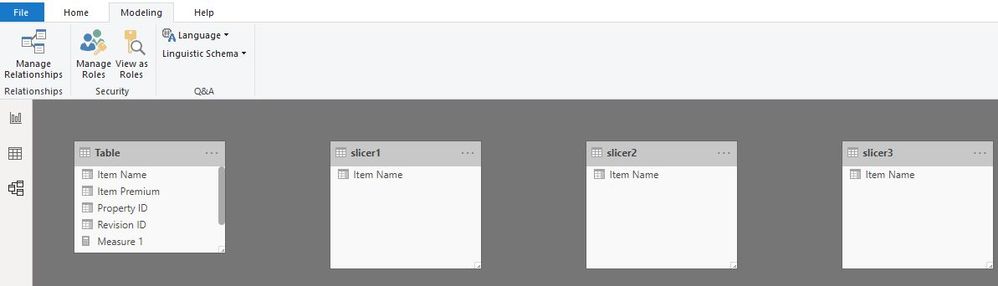
Create three tables

slicer1 = VALUES('Table'[Item Name])

slicer2 = VALUES('Table'[Item Name])

slicer3 = VALUES('Table'[Item Name])

Capture16.JPG

Create three measures

Measure 1 =
CALCULATE (
    SUM ( 'Table'[Item Premium] ),
    FILTER (
        ALLEXCEPT ( 'Table', 'Table'[Revision ID], 'Table'[Property ID] ),
        'Table'[Item Name] = SELECTEDVALUE ( slicer1[Item Name] )
    )
)

Measure 2 =
CALCULATE (
    SUM ( 'Table'[Item Premium] ),
    FILTER (
        ALLEXCEPT ( 'Table', 'Table'[Revision ID], 'Table'[Property ID] ),
        'Table'[Item Name] = SELECTEDVALUE ( slicer2[Item Name] )
    )
)

Measure 3 =
CALCULATE (
    SUM ( 'Table'[Item Premium] ),
    FILTER (
        ALLEXCEPT ( 'Table', 'Table'[Revision ID], 'Table'[Property ID] ),
        'Table'[Item Name] = SELECTEDVALUE ( slicer3[Item Name] )
    )
)

Capture15.JPG

Best Regards
Maggie
Community Support Team _ Maggie Li
If this post helps, then please consider Accept it as the solution to help the other members find it more quickly.

View solution in original post

2 REPLIES 2
v-juanli-msft
Community Support
Community Support

Hi @Anonymous 

Create three tables

slicer1 = VALUES('Table'[Item Name])

slicer2 = VALUES('Table'[Item Name])

slicer3 = VALUES('Table'[Item Name])

Capture16.JPG

Create three measures

Measure 1 =
CALCULATE (
    SUM ( 'Table'[Item Premium] ),
    FILTER (
        ALLEXCEPT ( 'Table', 'Table'[Revision ID], 'Table'[Property ID] ),
        'Table'[Item Name] = SELECTEDVALUE ( slicer1[Item Name] )
    )
)

Measure 2 =
CALCULATE (
    SUM ( 'Table'[Item Premium] ),
    FILTER (
        ALLEXCEPT ( 'Table', 'Table'[Revision ID], 'Table'[Property ID] ),
        'Table'[Item Name] = SELECTEDVALUE ( slicer2[Item Name] )
    )
)

Measure 3 =
CALCULATE (
    SUM ( 'Table'[Item Premium] ),
    FILTER (
        ALLEXCEPT ( 'Table', 'Table'[Revision ID], 'Table'[Property ID] ),
        'Table'[Item Name] = SELECTEDVALUE ( slicer3[Item Name] )
    )
)

Capture15.JPG

Best Regards
Maggie
Community Support Team _ Maggie Li
If this post helps, then please consider Accept it as the solution to help the other members find it more quickly.
Anonymous
Not applicable

@v-juanli-msft 


Thank you so much!! I was able to use your code to complete this report. There were two things I did not mention in my original post. First, I needed to list the premiums by "Policy Number" and "Property Name" (two other columns). Secondly, users needed to be able to select multiple options in the slicers such as "Coverage A - Dwelling" and "Coverage A - Residence". To accomplish this I modified your code accordingly:

premiumCovA = 
CALCULATE (
    SUM ( working_file[itemInforceLimit] ),
    FILTER (
        ALLEXCEPT ( 'working_file', 'working_file'[revisionId], working_file[propertyId],working_file[propertyName],working_file[policyNumber] ),
        working_file[itemName] IN VALUES (limitCovA[lineItemName])
    )
)

Thank you again!

Helpful resources

Announcements
Power BI DataViz World Championships

Power BI Dataviz World Championships

The Power BI Data Visualization World Championships is back! It's time to submit your entry.

January Power BI Update Carousel

Power BI Monthly Update - January 2026

Check out the January 2026 Power BI update to learn about new features.

FabCon Atlanta 2026 carousel

FabCon Atlanta 2026

Join us at FabCon Atlanta, March 16-20, for the ultimate Fabric, Power BI, AI and SQL community-led event. Save $200 with code FABCOMM.