cancel
Showing results for 
Search instead for 
Did you mean: 

The Power BI Data Visualization World Championships is back! Get ahead of the game and start preparing now! Learn more

Reply
marial16
Helper II
Helper II

Create Line chart

Hallo,


i want to create a line chart based on Sharepoint List.

In the Χ Axis i want to use Value1 Value2 Value3

On the Y Axis I only want to use LWIF data

my List is as follows

TitleValue1Value2Value3Year
Hours1571713282019
LWIF0.8980,6960,7932019
LW5,52,58,12019

Can i Filter this column?

I tried to create a quick measure but i get an error.

I have also tried pivot - unpivot and still getting many errors.

How can i create this chart?

1 ACCEPTED SOLUTION
v-yanjiang-msft
Community Support
Community Support

Hi @marial16 ,

According to your description, here's my solution.

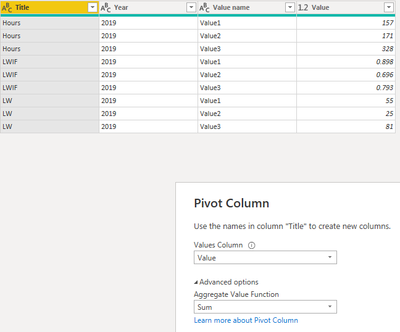
1.In PowerQuery, select Value1 Value2 Value3 columns at the same time, then unpivot columns.

vkalyjmsft_0-1639728357009.png

vkalyjmsft_2-1639728371284.png

2.Select the Title column then pivot like this.

vkalyjmsft_3-1639728399313.png

Get five columns.

vkalyjmsft_4-1639728410572.png

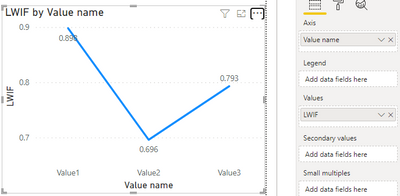
3.In the line chart, put value name in the Axis and LWIF in the Values.

vkalyjmsft_5-1639728638673.png

I attach my sample below for reference.


Best Regards,
Community Support Team _ kalyj


If this post helps, then please consider Accept it as the solution to help the other members find it more quickly.


View solution in original post

4 REPLIES 4
v-yanjiang-msft
Community Support
Community Support

Hi @marial16 ,

According to your description, here's my solution.

1.In PowerQuery, select Value1 Value2 Value3 columns at the same time, then unpivot columns.

vkalyjmsft_0-1639728357009.png

vkalyjmsft_2-1639728371284.png

2.Select the Title column then pivot like this.

vkalyjmsft_3-1639728399313.png

Get five columns.

vkalyjmsft_4-1639728410572.png

3.In the line chart, put value name in the Axis and LWIF in the Values.

vkalyjmsft_5-1639728638673.png

I attach my sample below for reference.


Best Regards,
Community Support Team _ kalyj


If this post helps, then please consider Accept it as the solution to help the other members find it more quickly.


amitchandak
Super User
Super User

@marial16 ,  Check the steps in this code


let
    Source = Table.FromRows(Json.Document(Binary.Decompress(Binary.FromText("i45W8sgvLSpW0lEyNDUHkeaGQNLYyAJIGhkYWirF6kQr+YR7ugH5BnoWliBxAx0zSzMwbW5pjKoOyDPVMQWJgUkLHUO4fCwA", BinaryEncoding.Base64), Compression.Deflate)), let _t = ((type nullable text) meta [Serialized.Text = true]) in type table [Title = _t, Value1 = _t, Value2 = _t, Value3 = _t, Year = _t]),
    #"Changed Type" = Table.TransformColumnTypes(Source,{{"Title", type text}, {"Value1", type number}, {"Value2", Int64.Type}, {"Value3", Int64.Type}, {"Year", Int64.Type}}),
    #"Unpivoted Columns" = Table.UnpivotOtherColumns(#"Changed Type", {"Title", "Year"}, "Attribute", "Value"),
    #"Pivoted Column" = Table.Pivot(#"Unpivoted Columns", List.Distinct(#"Unpivoted Columns"[Title]), "Title", "Value", List.Sum)
in
    #"Pivoted Column"
Share with Power BI Enthusiasts: Full Power BI Video (20 Hours) YouTube
Microsoft Fabric Series 60+ Videos YouTube
Microsoft Fabric Hindi End to End YouTube

Since i had no luck with that, i created the list in a different way.

Rows as Columns .

marial16_0-1639496523445.png

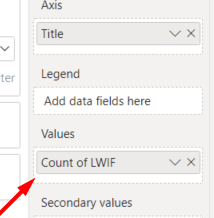
X axis is correct but why am i getting the count of LWIF;


I just want the values


is there an alternative?

Helpful resources

Announcements
Power BI DataViz World Championships

Power BI Dataviz World Championships

The Power BI Data Visualization World Championships is back! Get ahead of the game and start preparing now!

December 2025 Power BI Update Carousel

Power BI Monthly Update - December 2025

Check out the December 2025 Power BI Holiday Recap!

FabCon Atlanta 2026 carousel

FabCon Atlanta 2026

Join us at FabCon Atlanta, March 16-20, for the ultimate Fabric, Power BI, AI and SQL community-led event. Save $200 with code FABCOMM.