Join us at FabCon Atlanta from March 16 - 20, 2026, for the ultimate Fabric, Power BI, AI and SQL community-led event. Save $200 with code FABCOMM.
Register now!The Power BI Data Visualization World Championships is back! Get ahead of the game and start preparing now! Learn more
Hello,
I have a list with outstanding custumors invoices. With the formula "Datediff" i have calculated the days between invoice date and date of today.
Now i want to create columns which shows the invoices with outstanding days:
0-30;31-60;61-90;>90
How can i achieve that?
Solved! Go to Solution.
Hi @marsclone,
Based on my test, you can refer to below steps:
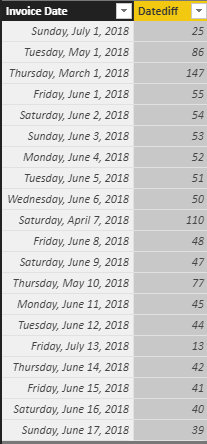
1. I have entered some sample data like the picture below and I have calculated the [Datediff] column with this formula: Datediff = DATEDIFF('Sheet2'[Invoice Date],TODAY(),DAY)
2.Create four columns and you can see the correct result.
0~30 = IF('Sheet2'[Datediff]<=30,[Invoice Date])
31~60 = IF('Sheet2'[Datediff]<=30,BLANK(),IF('Sheet2'[Datediff]<=60,[Invoice Date]))
61~90 = IF('Sheet2'[Datediff]<=30,BLANK(),IF('Sheet2'[Datediff]<=60,BLANK(),IF('Sheet2'[Datediff]<=90,[Invoice Date])))
>90 = IF([Datediff]>90,'Sheet2'[Invoice Date])
You can also download the PBIX file to have a view.
https://www.dropbox.com/s/qel02b27s4jp5bb/Create%20Day%20Interval%20Columns.pbix?dl=0
Regards,
Daniel He
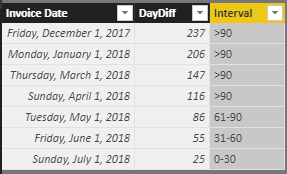
Do you want to get the following tag results? If it is, you can use the DAX below:
Interval =
IF (
Invoice[DayDiff] <= 30,
"0-30",
IF (
Invoice[DayDiff] >= 31
&& Invoice[DayDiff] <= 60,
"31-60",
IF ( Invoice[DayDiff] >= 61 && Invoice[DayDiff] <= 90, "61-90", ">90" )
)
)
Hi @marsclone,
could you please tell me if your problem has been solved? If it is, could you please mark the helpful replies as Answered?
Regards,
Daniel He
Do you want to get the following tag results? If it is, you can use the DAX below:
Interval =
IF (
Invoice[DayDiff] <= 30,
"0-30",
IF (
Invoice[DayDiff] >= 31
&& Invoice[DayDiff] <= 60,
"31-60",
IF ( Invoice[DayDiff] >= 61 && Invoice[DayDiff] <= 90, "61-90", ">90" )
)
)
Hi @marsclone,
Based on my test, you can refer to below steps:
1. I have entered some sample data like the picture below and I have calculated the [Datediff] column with this formula: Datediff = DATEDIFF('Sheet2'[Invoice Date],TODAY(),DAY)
2.Create four columns and you can see the correct result.
0~30 = IF('Sheet2'[Datediff]<=30,[Invoice Date])
31~60 = IF('Sheet2'[Datediff]<=30,BLANK(),IF('Sheet2'[Datediff]<=60,[Invoice Date]))
61~90 = IF('Sheet2'[Datediff]<=30,BLANK(),IF('Sheet2'[Datediff]<=60,BLANK(),IF('Sheet2'[Datediff]<=90,[Invoice Date])))
>90 = IF([Datediff]>90,'Sheet2'[Invoice Date])
You can also download the PBIX file to have a view.
https://www.dropbox.com/s/qel02b27s4jp5bb/Create%20Day%20Interval%20Columns.pbix?dl=0
Regards,
Daniel He
The Power BI Data Visualization World Championships is back! Get ahead of the game and start preparing now!
| User | Count |
|---|---|
| 39 | |
| 37 | |
| 33 | |
| 32 | |
| 29 |
| User | Count |
|---|---|
| 133 | |
| 88 | |
| 85 | |
| 68 | |
| 64 |