cancel
Showing results for 
Search instead for 
Did you mean: 

The Power BI Data Visualization World Championships is back! Get ahead of the game and start preparing now! Learn more

Reply
Anonymous
Not applicable

Count Rows by Group

I need to get the count of accounts by group within a table.


This is the data I have:

Table 1: Accounts

OwnerAccount Name
AllisonAccount A
AllisonAccount B
AllisonAccount C
JimAccount D


I want to COUNT the number of rows per OWNER, to get the following:

OwnerCount of Accounts
Allison3
Jim1


How do I achieve this?


2 ACCEPTED SOLUTIONS

@Anonymous 


Hmmmm, fo this request, first make a relationship between those two tables

VahidDM_0-1628987869177.png

then use the below measure:

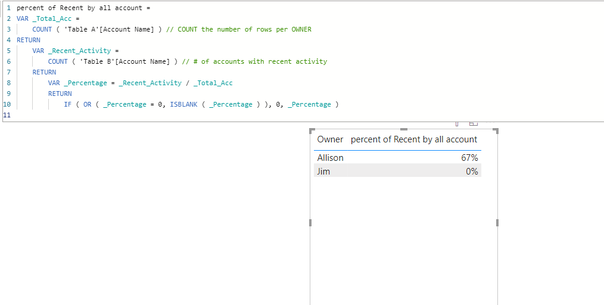
percent of Recent by all account =
VAR _Total_Acc =
    COUNT ( 'Table A'[Account Name] ) // COUNT the number of rows per OWNER
RETURN
    VAR _Recent_Activity =
        COUNT ( 'Table B'[Account Name] ) // # of accounts with recent activity 
    RETURN
        VAR _Percentage = _Recent_Activity / _Total_Acc
        RETURN
            IF ( OR ( _Percentage = 0, ISBLANK ( _Percentage ) ), 0, _Percentage )


The output will be as bellow:


VahidDM_1-1628988400724.png


If you want to find that value for a specific owner, use calculate measure and add that owner name in the filter.

IF this is not the output you are looking for, please share more details about using the percentage measure in your report.


Did I answer your question? Mark my post as a solution!

Appreciate your Kudos VahidDM_2-1628988473664.png !!


View solution in original post

@Anonymous 

you can create a dim owner table and create a measure

Measure = (DISTINCTCOUNT('Table B'[Account Name])+0)/DISTINCTCOUNT('Table A'[Account Name])

plse see the attachment below.


Did I answer your question? Mark my post as a solution!

Proud to be a Super User!


View solution in original post

4 REPLIES 4
VahidDM
Super User
Super User

Hi @Anonymous 


To achive that output, follow the below items:

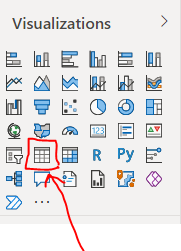
1- Add table to your report

VahidDM_0-1628985478582.png

2- Add Owner and Account Name to the table values:

VahidDM_1-1628985566962.png

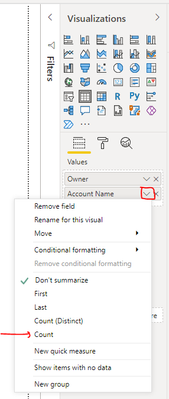
3- Select the Count in the aggregate type of Account Name:

VahidDM_2-1628985937786.png


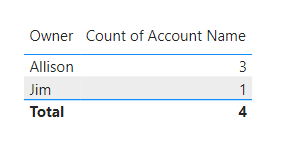
The output will be like the below image:

VahidDM_3-1628985990583.png

For more information about the work with aggregates click here.
If you want to use DAX, use below code:

No. Account = 
Count('Table'[Account Name])


Did I answer your question? Mark my post as a solution!

Appreciate your Kudos VahidDM_4-1628986219356.png !!

Anonymous
Not applicable

Ah! I was unclear (I'm not very familiar with terminology yet). I do not need the visual. I want this to be a data value, so that I can use it in a measure.


Ultimately, I have two tables:


Table A is the accounts by owner:

OwnerAccount Name
AllisonAccount A
AllisonAccount B
AllisonAccount C
JimAccount D


I want to COUNT the number of rows per OWNER, to get the following:

OwnerCount of Accounts
Allison3
Jim1


Table B is the # of accounts with recent activity by person

OwnerAccount Name
AllisonAccount A
AllisonAccount C


I want to COUNT the number of rows per OWNER to get the follwing:

OwnerCount of Accounts
Allison2
Jim0


So that I can ultimately create a measure to get the percent of (# of accounts with recent activity by owner) divided by (# of accounts owned by owner). In other words, I want to see Allison is at (2/3) and Jim is at (0/1)

@Anonymous 

you can create a dim owner table and create a measure

Measure = (DISTINCTCOUNT('Table B'[Account Name])+0)/DISTINCTCOUNT('Table A'[Account Name])

plse see the attachment below.


Did I answer your question? Mark my post as a solution!

Proud to be a Super User!


@Anonymous 


Hmmmm, fo this request, first make a relationship between those two tables

VahidDM_0-1628987869177.png

then use the below measure:

percent of Recent by all account =
VAR _Total_Acc =
    COUNT ( 'Table A'[Account Name] ) // COUNT the number of rows per OWNER
RETURN
    VAR _Recent_Activity =
        COUNT ( 'Table B'[Account Name] ) // # of accounts with recent activity 
    RETURN
        VAR _Percentage = _Recent_Activity / _Total_Acc
        RETURN
            IF ( OR ( _Percentage = 0, ISBLANK ( _Percentage ) ), 0, _Percentage )


The output will be as bellow:


VahidDM_1-1628988400724.png


If you want to find that value for a specific owner, use calculate measure and add that owner name in the filter.

IF this is not the output you are looking for, please share more details about using the percentage measure in your report.


Did I answer your question? Mark my post as a solution!

Appreciate your Kudos VahidDM_2-1628988473664.png !!


Helpful resources

Announcements
Power BI DataViz World Championships

Power BI Dataviz World Championships

The Power BI Data Visualization World Championships is back! Get ahead of the game and start preparing now!

November Power BI Update Carousel

Power BI Monthly Update - November 2025

Check out the November 2025 Power BI update to learn about new features.

FabCon Atlanta 2026 carousel

FabCon Atlanta 2026

Join us at FabCon Atlanta, March 16-20, for the ultimate Fabric, Power BI, AI and SQL community-led event. Save $200 with code FABCOMM.