Get certified for free when you join Fabric Data Days 2026 and dive into Fabric, Power BI, SQL, AI, and other essential data skills.
Join nowData Days is here! Join us now for 60+ days of learning, challenges, and connection. Learn more
Hi,
Wondering if someone can help.
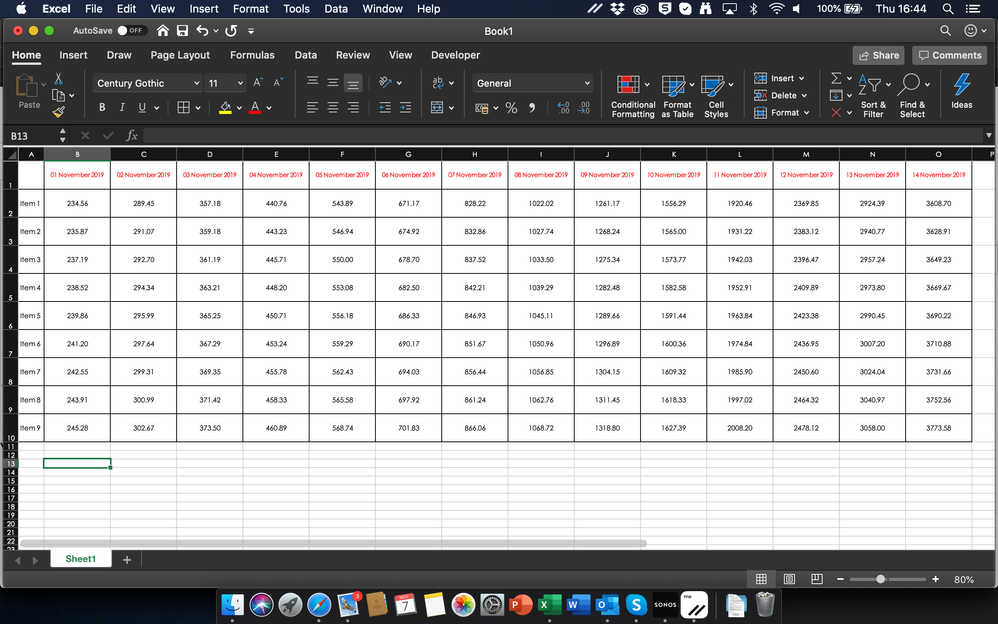
I have a Matrix as below (example using Excel for simpli:
My question:
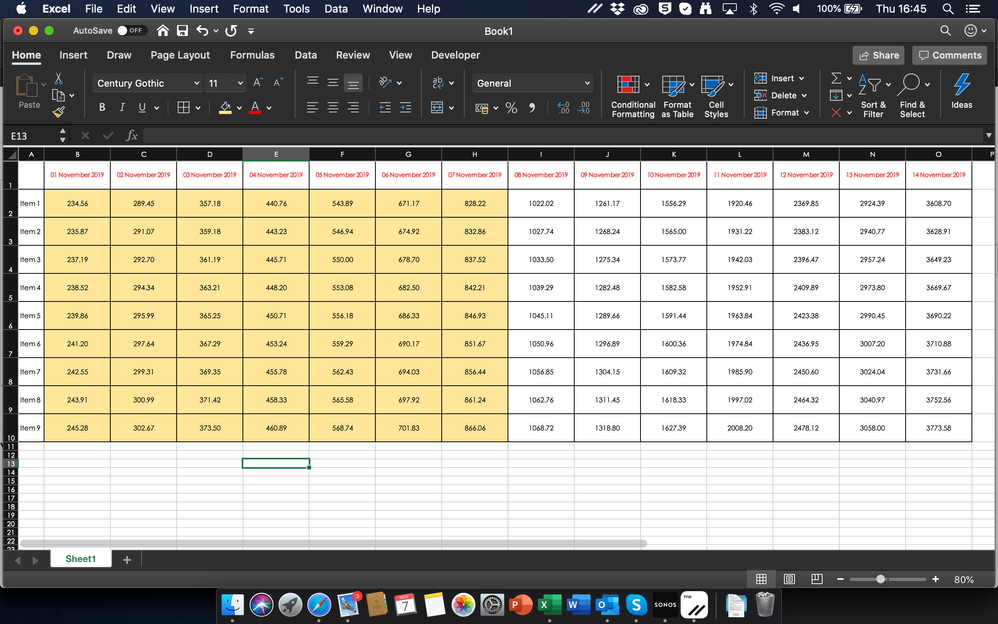
Is it possible to conditionally format the columns, to show the columns that relate to dates before todays date? So with the table above, it would look like this for today 7th November:
Thanks for your help
Solved! Go to Solution.
Hey @timknox ,
this is not that simple as you changed the interaction of the Matrix visual to none, to show all the AP's as column headers.
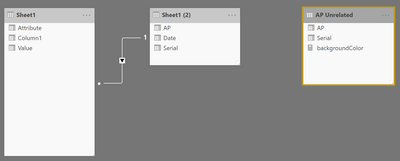
For this I created an unrelated table that contains the AP and the Serial columns from the Sheet2 table using this DAX:
AP Unrelated = SELECTCOLUMNS('Sheet1 (2)' , "AP" , 'Sheet1 (2)'[AP] , "Serial" , 'Sheet1 (2)'[Serial])
The data model will look like this:
I created a slicer in the report that shows the APs from the new table.
I also created a measure that adjusts the background color, this measure looks like this:
backgroundColor =
var selectedAPSerial = IF(HASONEVALUE('AP Unrelated'[AP]) , MAX('AP Unrelated'[Serial]) , BLANK())
var allAPs = SELECTCOLUMNS(FILTER(ALL('AP Unrelated'), 'AP Unrelated'[Serial] <= selectedAPSerial) , "AP" , [AP])
return
//CONCATENATEX(allAPs , [AP] , " | ")
IF(FIRSTNONBLANK('Sheet1 (2)'[AP] , 0) in allAPs , "orange" , BLANK())
I assigned the measure above to the conditional formatting option of the Matrix visual background color
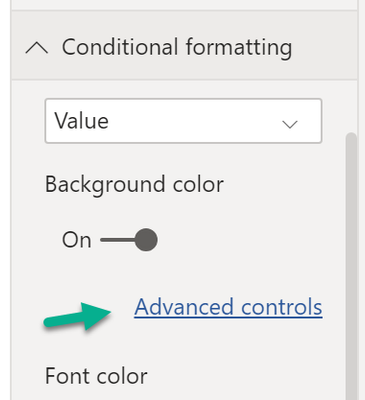
And configured the dialog like so:
This then makes my report look like this:
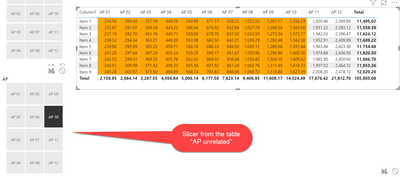
Hopefully this is what you are looking for.
Regards,
Tom
Hey,
yes that's possible, please create a pbix that contains sample data and reflects your Power BI data model, upload the pbix file to onedrive or dropbox and share the link.
Regards,
Tom
hi Tom,
Here is a sample file i have put together......
https://www.dropbox.com/s/mimwl05yfoncoqv/sample.pbix?dl=0
So basically, when you select a specific AP in the slicer (for example AP 06) the column AP 06 and the one to the left should be coloured.....
Does that make sense?
Kind regards
Tim
Hey @timknox ,
this is not that simple as you changed the interaction of the Matrix visual to none, to show all the AP's as column headers.
For this I created an unrelated table that contains the AP and the Serial columns from the Sheet2 table using this DAX:
AP Unrelated = SELECTCOLUMNS('Sheet1 (2)' , "AP" , 'Sheet1 (2)'[AP] , "Serial" , 'Sheet1 (2)'[Serial])
The data model will look like this:
I created a slicer in the report that shows the APs from the new table.
I also created a measure that adjusts the background color, this measure looks like this:
backgroundColor =
var selectedAPSerial = IF(HASONEVALUE('AP Unrelated'[AP]) , MAX('AP Unrelated'[Serial]) , BLANK())
var allAPs = SELECTCOLUMNS(FILTER(ALL('AP Unrelated'), 'AP Unrelated'[Serial] <= selectedAPSerial) , "AP" , [AP])
return
//CONCATENATEX(allAPs , [AP] , " | ")
IF(FIRSTNONBLANK('Sheet1 (2)'[AP] , 0) in allAPs , "orange" , BLANK())
I assigned the measure above to the conditional formatting option of the Matrix visual background color
And configured the dialog like so:
This then makes my report look like this:
Hopefully this is what you are looking for.
Regards,
Tom
Don't miss out on Data Days, June 15 through August 7. Learn Fabric, Power BI, SQL, AI and more.
Check out the May 2026 Power BI update to learn about new features.
| User | Count |
|---|---|
| 23 | |
| 21 | |
| 20 | |
| 18 | |
| 13 |
| User | Count |
|---|---|
| 58 | |
| 51 | |
| 38 | |
| 31 | |
| 26 |