Get certified for free when you join Fabric Data Days 2026 and dive into Fabric, Power BI, SQL, AI, and other essential data skills.
Join nowData Days is here! Join us now for 60+ days of learning, challenges, and connection. Learn more
Hello,
I'm trying to set up some conditional formatting for my measure. I'm not having luck with the normal rules option for formatting, so I'm wondering if there is a work around.
My situation is that I have %'s that range from -900% to 900%. I want to color anything that is -20% or below red and anything that is 20% or higher red.
Any help on this would be great!
@Anonymous ,
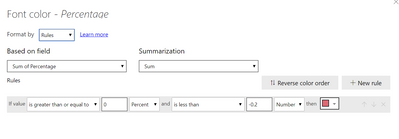
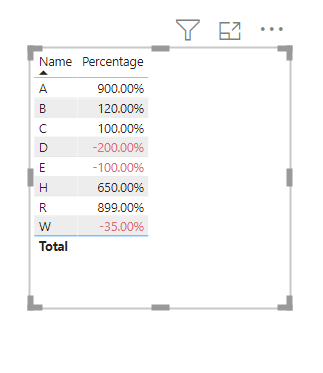
Please follow the below screen shots:
@Anonymous ,
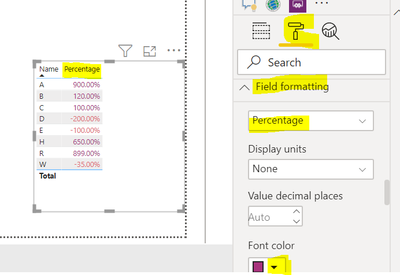
Follow my above post and also for rest of the values other than -200% please follow the below screen shot:
@Anonymous , you can create a color measure . Use that in conditional formatting after selecting "field"
example
Color sales = if(AVERAGE(Sales[Sales Amount])<170,"green","red")
Color Year = if(FIRSTNONBLANK(Table[Year],2014) <=2016,"lightgreen",if(FIRSTNONBLANK(Table[Year],2014)>2018,"red","yellow"))
Refer for steps
https://radacad.com/dax-and-conditional-formatting-better-together-find-the-biggest-and-smallest-num...
https://docs.microsoft.com/en-us/power-bi/desktop-conditional-table-formatting#color-by-color-values
https://exceleratorbi.com.au/conditional-formatting-using-icons-in-power-bi/
https://community.powerbi.com/t5/Desktop/FORMAT-icon-set-for-use-in-a-data-card/td-p/811692
Hey @amitchandak
I was able to put together this formula and it's working for anything that's a positive number, is there a way I can get it to read for negatives too? I tried to make it read as an absolute value, but that didn't help.
@Anonymous , it should be like this
IF(ABS([Actual Quantites vs Prior Year %])>.20,"Red","Green")
But might advice would be to create a separate condition for +ive and -ive number
like
switch(true(),
[Actual Quantites vs Prior Year %])>.20 ,"Red",
[Actual Quantites vs Prior Year %])<-.20 ,"Red",
"Green")
Correct logic as per need
Don't miss out on Data Days, June 15 through August 7. Learn Fabric, Power BI, SQL, AI and more.
Check out the May 2026 Power BI update to learn about new features.
| User | Count |
|---|---|
| 23 | |
| 23 | |
| 20 | |
| 18 | |
| 14 |
| User | Count |
|---|---|
| 58 | |
| 51 | |
| 41 | |
| 30 | |
| 24 |