cancel
Showing results for 
Search instead for 
Did you mean: 

We've captured the moments from FabCon & SQLCon that everyone is talking about, and we are bringing them to the community, live and on-demand. Starts on April 14th. Register now

Reply
Anonymous
Not applicable

Conditional Formatting one column based on another

I have two CSV files that look like this:


Data


Unit,CategoryA,CategoryB,CategoryC
U1,99,90,82
U2,92,100,56
U3,96,50,66
U4,85,33,99
U5,21,94,100


Cutoffs


Unit,Cutoff
U1,95
U2,90
U3,55
U4,85
U5,90


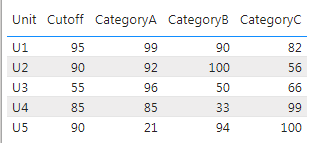
I load them to a table and combine and display them like this, using the Unit column to combine the two:

Capture.PNG


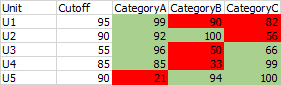
Now I would like to conditionally format columns Category A through C, based on the Cutoff column. For example, for Unit1, if any category value >= 95, set that cell background to green, and if category value < 95, set it to red. So, my formatted data should look like this:


formatted.png

The available Conditional Formatting options don't seem to help me do this. Is that the case, or is there a work around that will alow me do this?


1 ACCEPTED SOLUTION

Hi @Anonymous

If you cannot do this, you need to use visual Table and then write 3 measures (separate for each category) that will return the color code.

CC Category A = 
IF(SELECTEDVALUE('Table (3)'[Category A]) >= SELECTEDVALUE('Table (3)'[CutOff]), "#0f0","#f00")

CC Category B = 
IF(SELECTEDVALUE('Table (3)'[Category B]) >= SELECTEDVALUE('Table (3)'[CutOff]), "#0f0","#f00")

CC Category C = 
IF(SELECTEDVALUE('Table (3)'[Category C]) >= SELECTEDVALUE('Table (3)'[CutOff]), "#0f0","#f00")


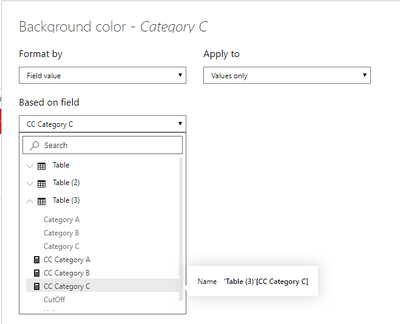
Then for each column separately (Cat A, B, C) set the background color from conditional formatting section. Select the Field Value from the list, and then select the appropriate measure.

lkalawski_0-1598909295522.png


_______________
If I helped, please accept the solution and give kudos! 😀


View solution in original post

4 REPLIES 4
lkalawski
Resident Rockstar
Resident Rockstar

Hi @Anonymous

You should follow these steps.
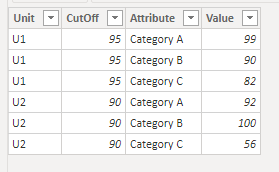
1. Unpivot Category - put categories in one column and values in the other.

lkalawski_0-1598905626461.png

2. Create a measure that checks whether a given category value is greater than or less than CutOff. This measure will return a color code (red or green).


ConditionalColoring = 
IF(SELECTEDVALUE('Table'[Value]) >= SELECTEDVALUE('Table'[CutOff]), "#0f0","#f00")


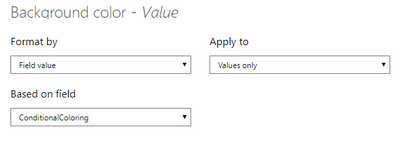
3. In the conditional formatting settings, select Field Value and then select the measure you created.

lkalawski_1-1598905745231.png

4. The Result:

lkalawski_2-1598905771102.png

I prepared the file with the solution. Please use this link to find it: https://gofile.io/d/Z3szIL


_______________
If I helped, please accept the solution and give kudos! 😀 

Anonymous
Not applicable

@lkalawski thanks for the quick reply.

While this does seem to get the end result I want, it changes my data structure, which is something I don't want to do. I prefer to not unpivot category as I use it for other things. So I'm guessing there's no way to do this without changing how my data is organized?

Hi @Anonymous

If you cannot do this, you need to use visual Table and then write 3 measures (separate for each category) that will return the color code.

CC Category A = 
IF(SELECTEDVALUE('Table (3)'[Category A]) >= SELECTEDVALUE('Table (3)'[CutOff]), "#0f0","#f00")

CC Category B = 
IF(SELECTEDVALUE('Table (3)'[Category B]) >= SELECTEDVALUE('Table (3)'[CutOff]), "#0f0","#f00")

CC Category C = 
IF(SELECTEDVALUE('Table (3)'[Category C]) >= SELECTEDVALUE('Table (3)'[CutOff]), "#0f0","#f00")


Then for each column separately (Cat A, B, C) set the background color from conditional formatting section. Select the Field Value from the list, and then select the appropriate measure.

lkalawski_0-1598909295522.png


_______________
If I helped, please accept the solution and give kudos! 😀


Anonymous
Not applicable

@lkalawski OK, that worked, thanks!

Although that's a ridiculous amount of work for something supposedly simple. Microsoft really need to add simple features like this.

Helpful resources

Announcements
New to Fabric survey Carousel

New to Fabric Survey

If you have recently started exploring Fabric, we'd love to hear how it's going. Your feedback can help with product improvements.

Power BI DataViz World Championships carousel

Power BI DataViz World Championships - June 2026

A new Power BI DataViz World Championship is coming this June! Don't miss out on submitting your entry.

Join our Fabric User Panel

Join our Fabric User Panel

Share feedback directly with Fabric product managers, participate in targeted research studies and influence the Fabric roadmap.

March Power BI Update Carousel

Power BI Community Update - March 2026

Check out the March 2026 Power BI update to learn about new features.