cancel
Showing results for 
Search instead for 
Did you mean: 

The Power BI Data Visualization World Championships is back! Get ahead of the game and start preparing now! Learn more

Reply
GuillemXII
Helper I
Helper I

Conditional Formatting a Text Measure in a Matrix

Hi everyone, 


I've been trying to apply a conditional format to a calculated measure with text values but without success:

Matrix BI.jpg


I would like that in the last column ("Nivel Entrevista") depending on the text, the background color changed as following: 


"Nivel 1": Green 
"Nivel 2": Yellow (it says "Yellow", and no, is not just you who doesn't manage to read it Smiley LOL)
"Nivel 3": Orange
"Nivel 4": Red

BLANK: regular format

Any help will be much appreciated!


Thank you all!


1 ACCEPTED SOLUTION
v-juanli-msft
Community Support
Community Support

Hi @GuillemXII 

Don't use "EVALUATE" or "DEFINE" in the formula.

You may click "new table" by mistake.

Please use the formula as Gordonlilj provided in the "New column".

If you need a measure,

Create a measure

(assume 'Table'[Nivel] is a measure too, if not, replace with  Max('Table'[Nivel])

Calc measure= 
Switch(TRUE(),
        'Table'[Nivel] ="Nivel 4",4,
        'Table'[Nivel] ="Nivel 3",3,
        'Table'[Nivel] ="Nivel 2",2,
        'Table'[Nivel] ="Nivel 1",1
)

Then use the measure to configure color conditionally.

https://docs.microsoft.com/en-us/power-bi/desktop-conditional-table-formatting


Best Regards
Maggie


Community Support Team _ Maggie Li
If this post helps, then please consider Accept it as the solution to help the other members find it more quickly.

View solution in original post

5 REPLIES 5
v-juanli-msft
Community Support
Community Support

Hi @GuillemXII 

Is this problem sloved? 

If it is sloved, could you kindly accept it as a solution to close this case?

If not, please let me know.


Best Regards

Maggie

Sorry @v-juanli-msft for not answering earlier. 


Yes, it's been solved now!


Thank you both!

v-juanli-msft
Community Support
Community Support

Hi @GuillemXII 

Don't use "EVALUATE" or "DEFINE" in the formula.

You may click "new table" by mistake.

Please use the formula as Gordonlilj provided in the "New column".

If you need a measure,

Create a measure

(assume 'Table'[Nivel] is a measure too, if not, replace with  Max('Table'[Nivel])

Calc measure= 
Switch(TRUE(),
        'Table'[Nivel] ="Nivel 4",4,
        'Table'[Nivel] ="Nivel 3",3,
        'Table'[Nivel] ="Nivel 2",2,
        'Table'[Nivel] ="Nivel 1",1
)

Then use the measure to configure color conditionally.

https://docs.microsoft.com/en-us/power-bi/desktop-conditional-table-formatting


Best Regards
Maggie


Community Support Team _ Maggie Li
If this post helps, then please consider Accept it as the solution to help the other members find it more quickly.

Gordonlilj
Solution Sage
Solution Sage

Hi,


One thing you could try is first creating a calculated column using something like this


CalcColumn= 
Switch(TRUE(),
        'Table'[Nivel] ="Nivel 4",4,
        'Table'[Nivel] ="Nivel 3",3,
        'Table'[Nivel] ="Nivel 2",2,
        'Table'[Nivel] ="Nivel 1",1
)


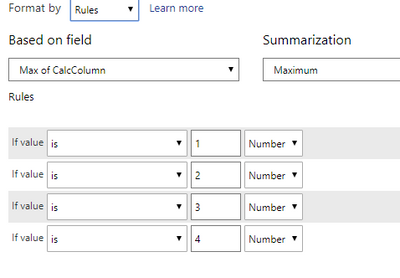
Then you could set up conditional formatting like this and it should work


Capture.PNG


Hi @Gordonlilj , 


I've tried to apply your method but it's telling me that "the expression specified in the query is not a valid table expression"...


Any other idea?


Thank you anyway!

Helpful resources

Announcements
Power BI DataViz World Championships

Power BI Dataviz World Championships

The Power BI Data Visualization World Championships is back! Get ahead of the game and start preparing now!

November Power BI Update Carousel

Power BI Monthly Update - November 2025

Check out the November 2025 Power BI update to learn about new features.

FabCon Atlanta 2026 carousel

FabCon Atlanta 2026

Join us at FabCon Atlanta, March 16-20, for the ultimate Fabric, Power BI, AI and SQL community-led event. Save $200 with code FABCOMM.