cancel
Showing results for 
Search instead for 
Did you mean: 

We've captured the moments from FabCon & SQLCon that everyone is talking about, and we are bringing them to the community, live and on-demand. Starts on April 14th. Register now

Reply
Anonymous
Not applicable

Combining multiple fields from same table into one visualisation

Hello,


We are using a small data warehouse that contains data from an online survey, which asks people questions about their employment status. This question allows for multiple answers to be selected. 


Here are an example of the anwsers that can be selected:


  • Client retired
  • Unable to work due to sickness or disability
  • Looking for work
  • Self employed
  • Employ - on paternity leave
  • Looking after a child under 5


So 'Self employed' and 'Looking after a child under 5' can be selected together.  Within our fact table these answer are represented as individual fields.


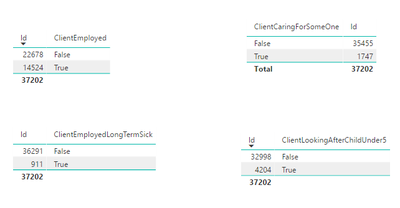
The issue that I'm having is trying to combine these fields into one visualisation and to be able to calculate totals. Here is a picture from power bi desktop of some separate fields for this question:


employment status.PNG 


We may want a pie chart to display how many people are 'Employed' and are 'Looking after a child under 5'. This is not possible at the moment. 


Does anyone have any suggestions about how to approach this?


Thanks

1 ACCEPTED SOLUTION
Anonymous
Not applicable

@Anonymous,

Do you want to count the population that are 'Employed' and also 'Looking after a child under 5'? If so, create a measure using the DAX below, then create a pie chart using the measure.

Measure = CALCULATE(COUNT(Table[id]),FILTER('Table',Table[ClientEmployed]="True" &&Table[ClientLookingAfterChildUnder5]="True"))

However, if you want to calculate the population that are 'Employed'  and calculate the population that are ‘Looking after a child under 5’, then create the following measures and create pie chart using the two measures.

Measure 1 = CALCULATE(COUNT(Table[id]),FILTER('Table',Table[ClientEmployed]="True" ))
Measure 2 = CALCULATE(COUNT(Table[id]),FILTER('Table',Table[ClientLookingAfterChildUnder5]="True"))

If the above formulas don't help, please share sample data of all fields in your table and post expected result here.

Regards,
Lydia

View solution in original post

2 REPLIES 2
Anonymous
Not applicable

@Anonymous,

Do you want to count the population that are 'Employed' and also 'Looking after a child under 5'? If so, create a measure using the DAX below, then create a pie chart using the measure.

Measure = CALCULATE(COUNT(Table[id]),FILTER('Table',Table[ClientEmployed]="True" &&Table[ClientLookingAfterChildUnder5]="True"))

However, if you want to calculate the population that are 'Employed'  and calculate the population that are ‘Looking after a child under 5’, then create the following measures and create pie chart using the two measures.

Measure 1 = CALCULATE(COUNT(Table[id]),FILTER('Table',Table[ClientEmployed]="True" ))
Measure 2 = CALCULATE(COUNT(Table[id]),FILTER('Table',Table[ClientLookingAfterChildUnder5]="True"))

If the above formulas don't help, please share sample data of all fields in your table and post expected result here.

Regards,
Lydia
Anonymous
Not applicable

Hi Lydia,


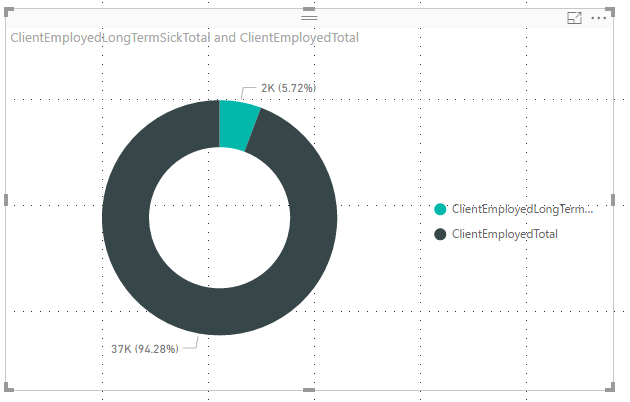
Creating the separate measures worked. I just had to use you example without the double quotes for the True value.


combined_employment_status.PNG


Thanks for your help.

Helpful resources

Announcements
New to Fabric survey Carousel

New to Fabric Survey

If you have recently started exploring Fabric, we'd love to hear how it's going. Your feedback can help with product improvements.

Power BI DataViz World Championships carousel

Power BI DataViz World Championships - June 2026

A new Power BI DataViz World Championship is coming this June! Don't miss out on submitting your entry.

Join our Fabric User Panel

Join our Fabric User Panel

Share feedback directly with Fabric product managers, participate in targeted research studies and influence the Fabric roadmap.

March Power BI Update Carousel

Power BI Community Update - March 2026

Check out the March 2026 Power BI update to learn about new features.